Typing and editing¶
This chapter covers putting text into a document and changing it: typing, selecting, copying and pasting, finding and replacing, and the small things you insert while you type, such as the date, ₹ and other symbols, and links. Most of these commands are in Home ▸ Clipboard, Home ▸ Editing and the Insert tab.
Typing¶
Click in the text to put the caret there, and type. Shabd moves text onto the next line and the next page as you type.
| To | Press |
|---|---|
| Start a new paragraph | Enter |
| Start a new line in the same paragraph | Shift+Enter |
| Start a new page | Ctrl+Enter, or Insert ▸ Pages ▸ Page Break |
| Start a new column (in a page with columns) | Ctrl+Shift+Enter |
| Put in a tab | Tab |
| Delete the letter before or after the caret | Backspace / Delete |
Insert ▸ Pages ▸ Blank Page puts in a whole empty page at the caret. For section breaks and columns, see Page layout, headers and footers.
In a list, Tab at the start of an item moves it one level in, and Shift+Tab one level out. In a table, Tab goes to the next cell, and Tab in the last cell adds a row. See Formatting text and paragraphs and Tables.
To type Hindi or Marathi with English letters, turn on phonetic typing with Alt+Shift+H. See Hindi, Marathi and amounts in words.
Seeing the formatting marks¶
Home ▸ Paragraph ▸ Show/Hide ¶ (Ctrl+Shift+8) shows the marks that don't print: ¶ at the end of each paragraph, "Page Break" and "Section Break" lines, [ ] round bookmarks, and index entries. Click it again to hide them. View ▸ Show ▸ Formatting Marks does the same.
Selecting text¶
| To select | Do this |
|---|---|
| Any text | Drag across it, or click at the start and Shift+click at the end |
| A word | Double-click it |
| A paragraph | Triple-click it |
| A letter or line at a time | Hold Shift and press the arrow keys |
| The whole document | Ctrl+A, or Home ▸ Editing ▸ Select All |
Typing while text is selected replaces it.
Cut, copy and paste¶
The buttons are in Home ▸ Clipboard:
| Button | Shortcut | What it does |
|---|---|---|
| Cut | Ctrl+X | Takes the selected text out and keeps it on the clipboard |
| Copy | Ctrl+C | Copies the selected text to the clipboard |
| Paste | Ctrl+V | Puts in what is on the clipboard, at the caret |
What you get when you paste:
- Text from a web page, an email or another document keeps its formatting: fonts, bold, colours, headings and tables. Bulleted and numbered items become Shabd lists.
- Plain text, such as from a text file, takes the formatting of the text at the caret. Each line becomes a paragraph.
- A picture goes in as a picture.
The Paste button asks the browser for what is on the clipboard. The first time, the browser may ask whether to allow it. If it isn't allowed, the status bar says "Press Ctrl+V to paste": use Ctrl+V instead.
Note
Shabd has no Paste Special or paste options. To paste text without its formatting, paste it, select it and press Ctrl+Space to clear the character formatting. Ctrl+Shift+V in Shabd pastes formatting (see below), not plain text.
Copying formatting with the Format Painter¶
The Format Painter copies the look of some text (its font, size, colour, bold and so on) onto other text.
- Click in the text whose formatting you want.
- Click Home ▸ Clipboard ▸ Format Painter. The pointer changes.
- Drag across the text to change. It takes the formatting as soon as you let go.
If you select a whole paragraph, it takes the paragraph's formatting too: its style, alignment, indents and spacing. Press Esc to stop without painting.
With the keyboard: put the caret in the text whose formatting you want and press Ctrl+Shift+C. Then select the text to change and press Ctrl+Shift+V.
Finding text¶
The Navigation pane¶
Press Ctrl+F, or tick View ▸ Show ▸ Navigation Pane. The pane opens at the left of the page.
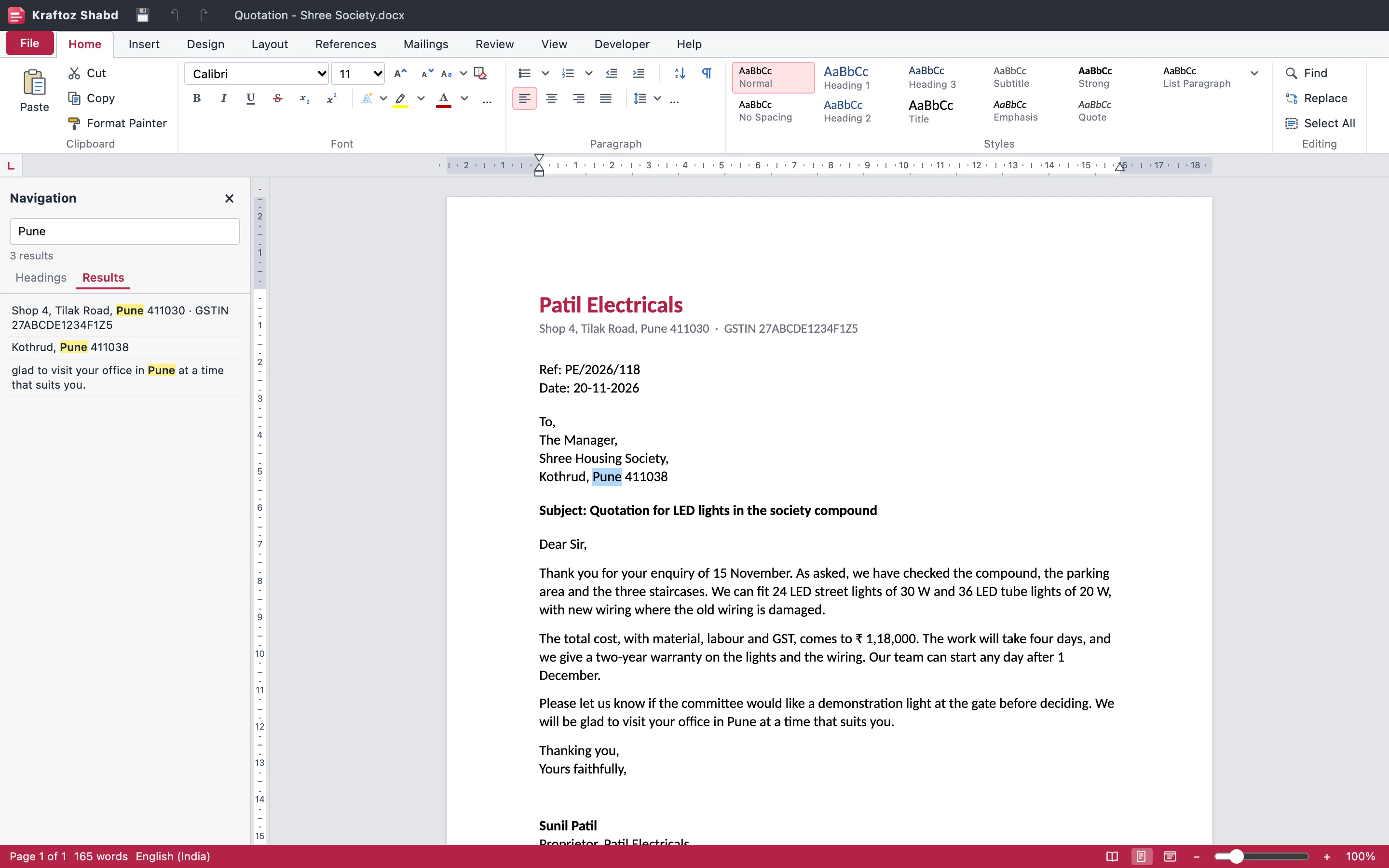
- Type what you are looking for in Search document. If text was selected when you pressed Ctrl+F, it is already there.
- The Results tab lists each place it appears, with the words around it, and the count, such as "3 results".
- Click a result to select that text in the document. Enter goes to the first result.
The search doesn't care about capital and small letters. Press Esc in the search box to clear it.
The Headings tab lists the document's headings: paragraphs in the Heading styles. Click one to go to it. This is the quick way to move around a long report. Click × to close the pane.
The Find dialog¶
Home ▸ Editing ▸ Find opens the Find dialog. It stays open at the top right while you work.
- Type in Find what.
- Tick Match case to find only the same capital and small letters, and Find whole words only so that "rate" doesn't find "separate".
- Click Find Next. Shabd selects the next place it appears after the caret, going round to the start of the document at the end.
If there is none, the dialog says "We couldn't find what you were looking for."
Replacing text¶
Home ▸ Editing ▸ Replace (Ctrl+H) opens Find and Replace.
- Type the old text in Find what and the new text in Replace with.
- Tick Match case or Find whole words only if you need them.
- Click Find Next to go to the first place. Then:
- Replace changes this one and goes to the next.
- Find Next skips this one.
- Replace All changes every one at once, and says how many: "All done. We made 4 replacements."
For example, to change the date of a society meeting everywhere in a notice, find 14 December and replace it with 21 December.
Ctrl+Z undoes a Replace All in one step.
Note
Find and Replace look for plain text only: there are no wildcards and no search for formatting. A match can't run from one paragraph into the next. Headers, footers and footnotes are searched only while you are editing them.
Going to a place in the document¶
Shabd has no Go To command. To move around:
- Click a heading in the Navigation pane's Headings tab.
- Go to a bookmark with Insert ▸ Links ▸ Bookmark: choose its name and click Go To.
- Ctrl+click a link to a bookmark, or an entry in a table of contents.
Symbols and ₹¶
Insert ▸ Symbols ▸ Symbol opens a grid of symbols. Click one to put it in at the caret.
| Kind | Symbols |
|---|---|
| Indian | ₹ । ॥ ॐ 卐 |
| Marks | © ® ™ ° § ¶ • |
| Maths | ± × ÷ ≈ ≠ ≤ ≥ √ ∞ ½ ¼ ¾ α β π Ω µ |
| Money | € £ $ ¥ |
| Dashes and quotes | – — … “ ” ‘ ’ |
| Arrows and signs | ← → ↑ ↓ ✓ ✗ ★ ☆ ♥ ☎ ✉ |
There is no bigger character map. Some symbols also come from AutoCorrect as you type, such as (c) for © (see below).
Equations¶
Insert ▸ Symbols ▸ Equation lists ready equations: Area of Circle, Pythagorean Theorem, Quadratic Formula, Binomial Theorem, Trig Identity, Compound Interest and Mean. Click one to put it in, centred in a paragraph of its own. See Pictures, shapes, diagrams and charts.
AutoCorrect¶
AutoCorrect fixes common mistakes as you type. When you finish a word with a space, punctuation or Enter, Shabd checks it:
- Common misspellings are corrected: teh → the, recieve → receive, seperate → separate, dont → don't.
- Some typed signs become symbols: (c) → ©, (r) → ®, (tm) → ™, (e) → €, ... → …, -> → →, <- → ←, => → ⇒, :) → ☺.
- A sentence's first letter, and the first letter in a table cell, become capitals.
- Two capitals at the start of a word are put right: INdia → India.
- Days of the week get a capital: monday → Monday.
- Straight quotes become curly quotes: "Pune" → “Pune”.
To undo a correction, press Ctrl+Z straight after it.
AutoCorrect works on English words only. It is off while phonetic typing or Track Changes is on.
Changing AutoCorrect¶
Go to Review ▸ Proofing ▸ AutoCorrect. The dialog has a tick box for each kind of correction:
| Option | What it does |
|---|---|
| Correct TWo INitial CApitals | INdia → India |
| Capitalize first letter of sentences | After a full stop, ? or ! (but not after e.g., Mr., Dr., Rs., Pvt., Ltd., Smt., Shri. and similar) |
| Capitalize first letter of table cells | The first word in a cell |
| Capitalize names of days | monday → Monday |
| Replace "straight quotes" with “smart quotes” | Curly quotes as you type |
| Replace text as you type | Uses the list of replacements |
Adding your own replacements¶
The list under the tick boxes shows each replacement: what you type, and what it becomes. You can add your own short forms, for example gstn for your shop's GSTIN.
- In Replace, type the short form:
gstn. - In With, type what it should become:
27ABCDE1234F1Z5. - Click Add.
- Click OK.
To change an entry, click it in the list, change With and click Replace. To remove one, click it and click Delete. Your changes, and the tick boxes, are remembered in this browser.
The date and time¶
Insert ▸ Text ▸ Date & Time opens the Date and Time dialog with today's date in several formats, day first, as dates are written in India. On 25 November 2026 they are:
| Format | Example |
|---|---|
| dd-mm-yyyy | 25-11-2026 |
| dd/mm/yyyy | 25/11/2026 |
| d MMMM yyyy | 25 November 2026 |
| dddd, d MMMM yyyy | Wednesday, 25 November 2026 |
| In Hindi | 25 नवंबर 2026 |
| In Marathi | 25 नोव्हेंबर 2026 |
| MM/dd/yyyy | 11/25/2026 |
| The time | 5:30 pm |
Choose one and click OK. The date goes in as ordinary text: it doesn't change when you open the document on another day.
For an amount in words, such as "Rupees One Lakh Eighteen Thousand Only", use Insert ▸ Text ▸ Amount in Words. See Hindi, Marathi and amounts in words.
Drop cap¶
A drop cap is a large first letter at the start of a paragraph, as in a school magazine or a printed invitation.
- Click in the paragraph.
- Go to Insert ▸ Text ▸ Drop Cap and choose:
- Dropped: the letter goes down into the paragraph, with the text beside it.
- In Margin: the letter sits in the left margin.
- None: takes the drop cap off.
For more control, choose Drop Cap Options…:
| Field | What it sets |
|---|---|
| Position | None, Dropped or In margin |
| Font | A font for the letter. Leave it empty to use the paragraph's font. |
| Lines to drop | How many lines tall the letter is, 1 to 10 (3 to start with) |
| Distance from text (cm) | The gap between the letter and the text |
The paragraph must have some text in it.
Links¶
- Select the text that should be the link, or just put the caret where the link should go.
- Go to Insert ▸ Links ▸ Link (Ctrl+K).
- If nothing was selected, type the Text to display.
- Type the Address, such as
www.example.comoroffice@example.com, and click OK.
An address without https:// gets it in front. An email address gets mailto: in front, so clicking it opens a new email.
To open a link, hold Ctrl and click it.
To change or remove a link, select its text and press Ctrl+K. The Edit Link dialog has a Remove Link button, which leaves the text as ordinary text.
Bookmarks¶
A bookmark names a place in the document, so you can go to it or refer to it.
- Select the text, or put the caret at the place.
- Go to Insert ▸ Links ▸ Bookmark.
- Type the Bookmark name and click Add.
A bookmark name starts with a letter and has only letters, numbers and _ (no spaces), up to 40 characters, such as Terms_of_Payment.
In the same dialog, choose a bookmark in the list and click Go To to go there, or Delete to remove it. Hidden bookmarks shows the ones Shabd makes itself for cross-references and the table of contents.
Cross-references¶
Insert ▸ Links ▸ Cross-reference puts in a reference to a heading, a bookmark, or a figure or table caption, such as "see Table 2 on page 4", that keeps up to date. See Contents, footnotes, citations and index.
Undo and redo¶
| To | Do this |
|---|---|
| Undo the last change | Ctrl+Z, or ↶ in the title bar |
| Redo what you undid | Ctrl+Y or Ctrl+Shift+Z, or ↷ in the title bar |
Shabd remembers the last 200 changes. Typing goes as one change until you pause, so Ctrl+Z takes back what you typed since the last pause. Opening a document or starting a new one clears the list.
Counting words¶
The status bar shows the number of words as you type.
For more, go to Review ▸ Proofing ▸ Word Count (Ctrl+Shift+G). It shows:
| Count | What it counts |
|---|---|
| Pages | Pages in the document |
| Words | Words in the text and tables |
| Characters (no spaces) | Letters, numbers and signs |
| Characters (with spaces) | The same, with the spaces |
| Paragraphs | Paragraphs with text in them |
Numbers are shown the Indian way, such as 1,25,000.