Hindi, Marathi and Indian numbering
Phalak writes Hindi, Marathi and other Indian languages on slides, in tables and in the speaker notes. You can type them with your computer's own keyboard or with Phalak's Phonetic Typing, number lists in Devanagari digits, and turn old Kruti Dev text into Unicode.
The tools for Indian languages are on the Review tab, in the Indian Languages group. The Devanagari numbering is on the Home tab.
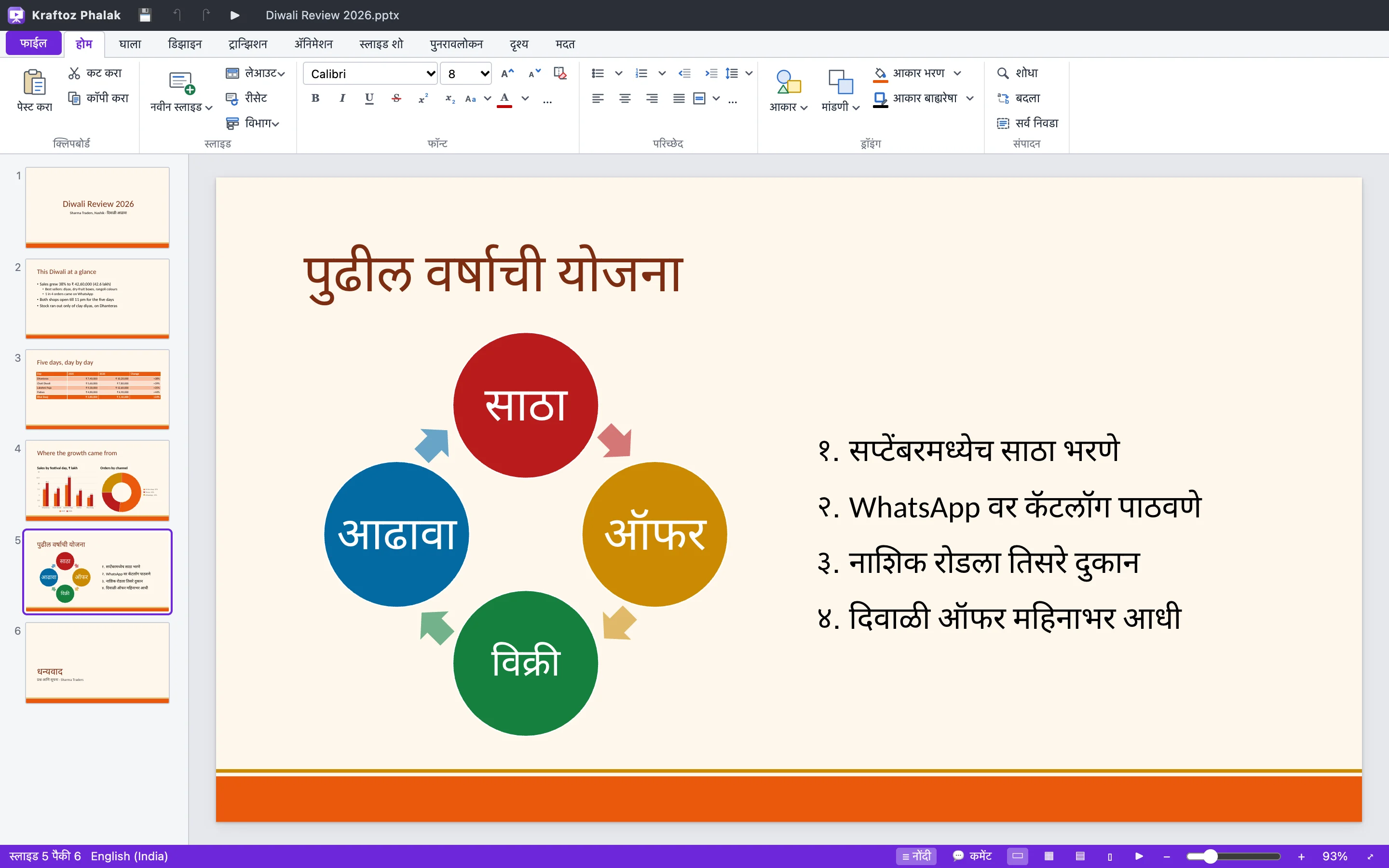
Typing with the computer's Hindi or Marathi keyboard
If you already type Hindi or Marathi with a keyboard set up on your computer (InScript, a phonetic keyboard or another layout), it works in Phalak as in any other app:
- Add the Hindi or Marathi keyboard in your computer's language settings.
- Switch to it, click in a text box on the slide, and type.
The text is Unicode, so it can be searched, spell-checked and opened on any computer.
You don't need to choose a Devanagari font first. If the font in use has no Devanagari letters (Calibri, for example), Phalak shows them in Noto Sans Devanagari, a font that comes with Phalak. The Font list on the Home tab also has these fonts for Indian text: Mangal, Nirmala UI, Noto Sans Devanagari, Mukta, Hind and Tiro Devanagari Hindi. Mangal and Nirmala UI, and the others apart from Noto Sans Devanagari, show only if they are installed on the computer.
Phonetic Typing
Phonetic Typing turns English letters into an Indian script as you type. namaste becomes नमस्ते. You don't need to set up a keyboard.
Turning it on and off
- Go to Review ▸ Indian Languages ▸ Phonetic Typing, or press Alt+Shift+H (⌥⇧H on a Mac).
- Click in a text box and type. Each word changes as you type it:
bhaaratbecomes भारत,hiMdIbecomes हिंदी. - Press Alt+Shift+H again, or click Phonetic Typing again, to go back to English letters.
While it's on, a small badge such as अ हिन्दी · मराठी shows in the status bar at the bottom of the window. Click the badge to turn it off.
Phalak remembers the setting. If you close Phalak with Phonetic Typing on, it is on the next time.
Choosing the script
Click the ▾ under Phonetic Typing and choose a script:
| Script | Languages |
|---|---|
| हिन्दी · मराठी | Devanagari (Hindi, Marathi, Sanskrit, Nepali) |
| বাংলা | Bengali / Assamese |
| ਪੰਜਾਬੀ | Gurmukhi (Punjabi) |
| ગુજરાતી | Gujarati |
| ଓଡ଼ିଆ | Odia |
| தமிழ் | Tamil |
| తెలుగు | Telugu |
| ಕನ್ನಡ | Kannada |
| മലയാളം | Malayalam |
Off — as the keyboard types at the top of the list turns Phonetic Typing off. Devanagari is the script the first time. After that, Alt+Shift+H turns on the script you used last.
Letters to type
The ▾ menu's How to Type Phonetically… shows the full list of letters.
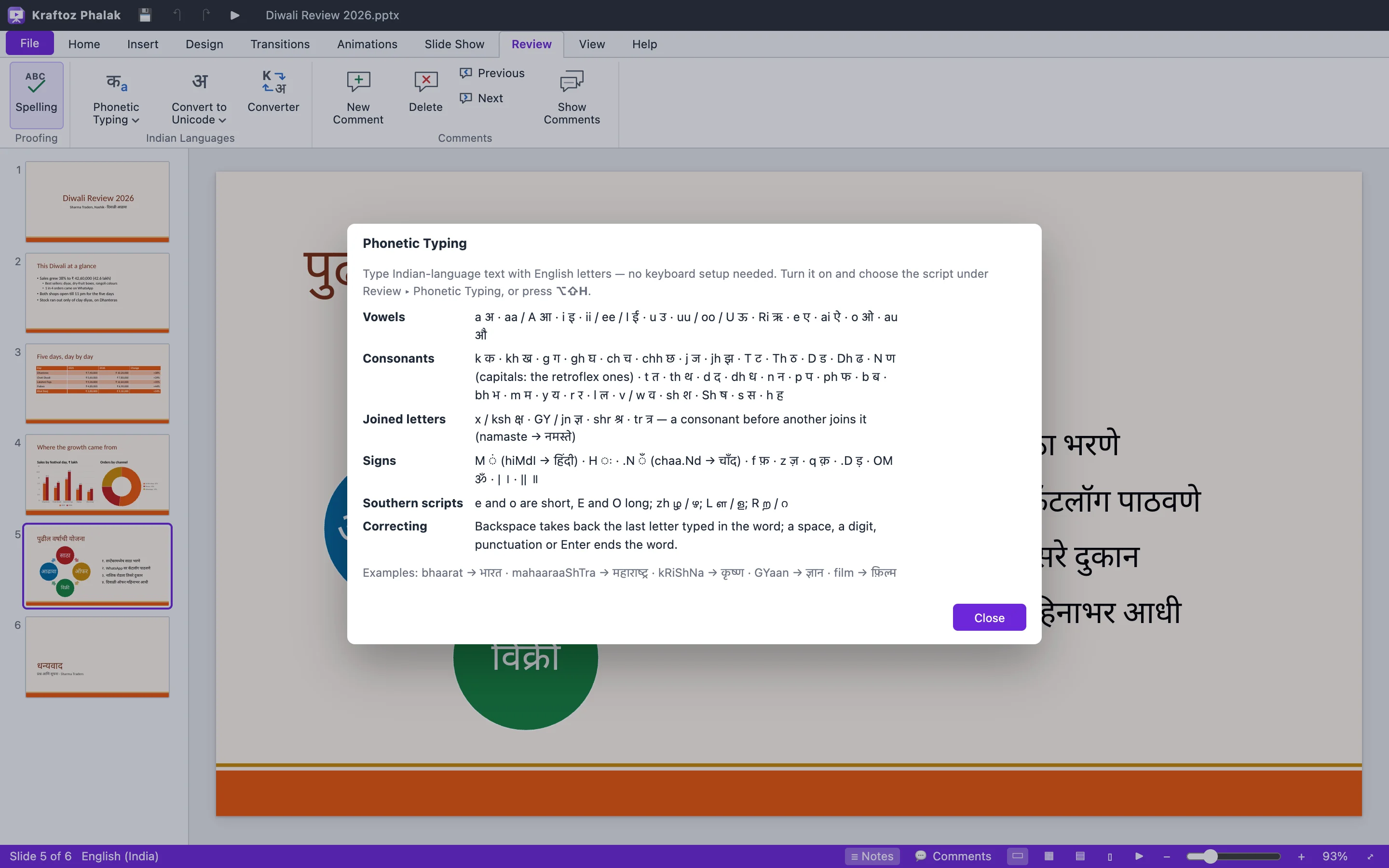
| What | Type |
|---|---|
| Vowels | a अ · aa or A आ · i इ · ii, ee or I ई · u उ · uu, oo or U ऊ · Ri ऋ · e ए · ai ऐ · o ओ · au औ |
| Consonants | k क · kh ख · g ग · gh घ · ch च · chh छ · j ज · jh झ · t त · th थ · d द · dh ध · n न · p प · ph फ · b ब · bh भ · m म · y य · r र · l ल · v or w व · sh श · Sh ष · s स · h ह |
| Retroflex letters (capitals) | T ट · Th ठ · D ड · Dh ढ · N ण |
| Joined letters | x or ksh क्ष · GY or jn ज्ञ · shr श्र · tr त्र |
| Signs | M ं (hiMdI → हिंदी) · H ः · .N ँ (chaa.Nd → चाँद) · f फ़ · z ज़ · q क़ · .D ड़ · OM ॐ · | । · || ॥ |
A consonant typed before another consonant joins it: namaste gives नमस्ते. More examples: mahaaraaShTra महाराष्ट्र, kRiShNa कृष्ण, GYaan ज्ञान, film फ़िल्म.
For Tamil, Telugu, Kannada and Malayalam, e and o give the short vowels and E and O the long ones. zh gives ழ or ഴ, L gives ள or ള, and R gives ற or റ.
Correcting a word
- Backspace takes back the last English letter of the word you are typing, and the word changes to match.
- A space, a digit, punctuation or Enter ends the word. After that, Backspace deletes letters as usual.
Where it works
Phonetic Typing works wherever you type text on a slide: placeholders, text boxes, shapes and table cells. It also works in the speaker notes under the slide and in the View ▸ Notes Page view.
Numbering points १. २. ३.
- Click in the list on your slide, or select the points you want to number. To number every point in a text box, select the box itself.
- Go to Home ▸ Paragraph and click the ▾ next to the Numbering button.
- Choose १. २. ३..
Each point now starts with a Devanagari number. Press Enter at the end of a point to add the next one, and it gets the next number.
The Numbering button itself, without the ▾, gives 1. 2. 3. To take the numbers off, choose None from the ▾ list. The other styles in the list are described in Text and lists.
Long lists and levels
- The numbers keep counting in Devanagari digits: the tenth point is १०. and the twelfth १२.
- An empty line gets no number and is not counted.
- Tab at the start of a point moves it one level in, and Shift+Tab moves it back out. Alt+Shift+→ and Alt+Shift+← do the same. Points on a lower level are numbered on their own, and the count starts again under each main point. The main points keep counting after them.
- A point you move in keeps its Devanagari numbering, and is numbered १. २. ३. on its own level.
Converting Kruti Dev and other old fonts to Unicode
Text typed in old Hindi and Marathi fonts such as Kruti Dev is not real Devanagari: it is English letters drawn as Hindi by the font. On a computer without the font it shows as rubbish such as Hkkjr, and it can't be searched or spell-checked. Convert to Unicode turns it into real Devanagari text.
When you open a presentation
When a presentation has text in Kruti Dev, DevLys, Walkman, Akruti or Chanakya, Phalak shows a bar above the slide naming the fonts and asking if you want to convert. Click Convert to Unicode on the bar to convert all of that text, or × to leave it.
Converting with the ribbon
- Choose what to convert:
- Click in a text box to convert that box.
- Select one or more shapes to convert them.
- Select nothing to convert the whole presentation, including tables.
- Click Review ▸ Indian Languages ▸ Convert to Unicode.
The button converts only text whose font is Kruti Dev, DevLys, Walkman, Akruti or Chanakya, and finds the right conversion from the font's name. The converted text goes back to the theme's font. The status bar says how many pieces of text were converted.
If the text's font has been changed already, the button finds nothing to convert. Then select the shapes and choose the old font from the ▾ under Convert to Unicode:
| Choice | Converts |
|---|---|
| Kruti Dev / DevLys / Walkman → Unicode | Text typed in Kruti Dev, DevLys or Walkman |
| Akruti → Unicode | Text typed in Akruti |
| Chanakya → Unicode | Text typed in Chanakya |
| Unicode → Kruti Dev | Devanagari text back to Kruti Dev, set in the font Kruti Dev 010 |
With shapes selected, these choices convert all their text, whatever its font. With nothing selected, they convert only text in an old font.
Press Ctrl+Z to undo a conversion.
The Converter
Review ▸ Indian Languages ▸ Converter opens the Hindi / Marathi Font Converter, for text that isn't on a slide yet, such as a paragraph copied from an old document.
- In Convert, choose the old font, or Unicode → Kruti Dev.
- Paste the text into Text. The converted text shows in Result as you type.
- Click Insert. If you were typing in a text box, the result goes in where the cursor was. Otherwise Phalak copies it, and you can paste it into a text box.
Note
The Kruti Dev converter doesn't change two marks: "]" should become a comma and "%" a colon, but they stay as they are. After converting, use Home ▸ Editing ▸ Replace to change them. Unicode → Kruti Dev also leaves "," and ":" as they are.
Fonts for Indian scripts in PDFs
File ▸ Save as PDF… and the Save as PDF button in File ▸ Print… put the Noto Sans Devanagari font in every PDF. Hindi and Marathi text, and Devanagari numbering, come out right in the PDF even on a computer or phone without Hindi fonts.
To use the fonts installed on your computer instead, such as Mangal or Nirmala UI:
- Go to File ▸ Print….
- Tick Use the fonts on this computer in PDFs. The browser may ask for permission to read the computer's fonts. Allow it.
- Click Save as PDF.
The setting is kept for the next PDF. The tick box shows only in browsers that can share the computer's fonts, and in the desktop app.
Phalak carries a font only for Devanagari. For Bengali, Tamil, Telugu and the other scripts, set the text in a font for that script that is installed on the computer, tick Use the fonts on this computer in PDFs, and check the PDF before you send it. See Printing and PDF for the other PDF settings.
The Festival Offer (Hindi) template
File ▸ New from Template… ▸ Festival Offer (Hindi) makes a five-slide Diwali offer for a shop, in Hindi, on the Marigold theme: the shop's name, the offers, a table of old and new prices in ₹, the address and timings in a list numbered १. २. ३., and a closing शुभ दीपावली! slide. Replace the text in [ ] brackets with your own. See Templates.
Menus in Hindi and Marathi
- Go to File ▸ Language….
- Choose हिंदी or मराठी (or English), and click OK.
Phalak opens again with its menus, ribbon and dialogs in that language. Your presentation stays open, and its text is not changed.
The menu language is a setting for Phalak on this computer. It isn't saved in the file, so the person you send the presentation to sees the menus in their own choice.
Some places in the Hindi and Marathi menus:
| English | हिंदी | मराठी |
|---|---|---|
| File ▸ Language… | फ़ाइल ▸ भाषा… | फाईल ▸ भाषा… |
| Home ▸ Numbering | होम ▸ क्रमांकन | होम ▸ क्रमांकन |
| Review ▸ Indian Languages | समीक्षा ▸ भारतीय भाषाएँ | पुनरावलोकन ▸ भारतीय भाषा |
| Review ▸ Phonetic Typing | समीक्षा ▸ फ़ोनेटिक टाइपिंग | पुनरावलोकन ▸ फोनेटिक टायपिंग |
| Review ▸ Convert to Unicode | समीक्षा ▸ यूनिकोड में बदलें | पुनरावलोकन ▸ युनिकोडमध्ये बदला |