Templates
A template is a ready presentation with the slides, headings and layout already in place. You replace the parts in [square brackets] with your own words and numbers. Phalak has six templates, for a business review, a product pitch, a class lesson, a project status report, a festival offer in Hindi and a company profile.
Templates are in File ▸ New from Template….
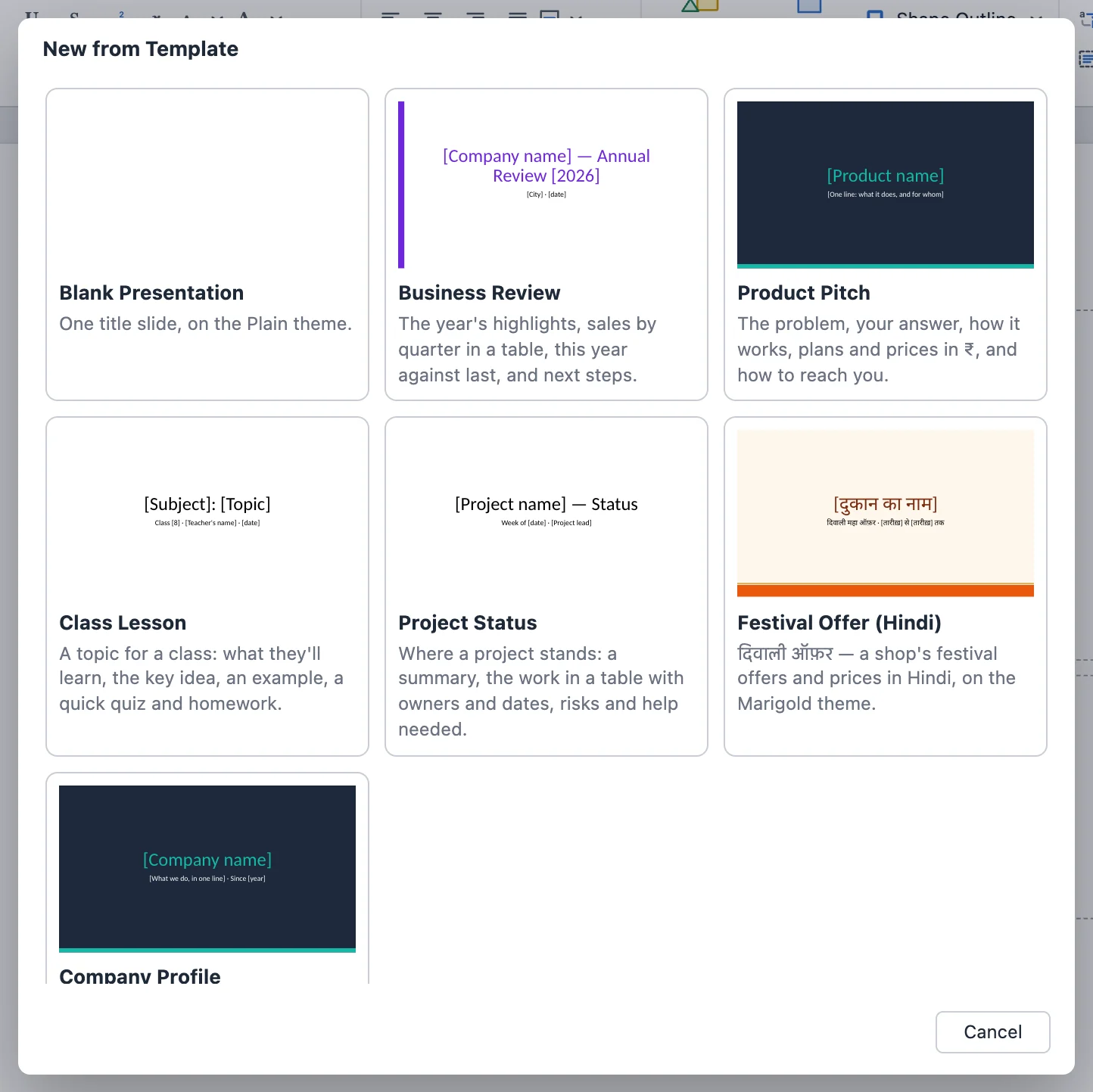
Starting a presentation from a template
- Go to File ▸ New from Template…. Each template shows its first slide, its name and a line about what is in it.
- Click a template.
- If the presentation you have open has changes you haven't saved, Phalak asks Start a new presentation? Click New to go ahead, or Cancel to go back and save first.
The template opens as a new presentation. Its name is the template's file name, for example Business Review.pptx or Diwali Offer.pptx. When you first save with File ▸ Save (Ctrl+S), Phalak suggests that name, and you can change it.
The blank presentation
The first card, Blank Presentation, gives one empty Title Slide on the Plain theme. It is the same as File ▸ New (Ctrl+N).
Filling in the [square brackets]
Every part you need to change is in square brackets, such as [Company name], [date] or ₹ [00,00,000].
- Click in the text with the brackets. You can also select its box and press Enter or F2 to start typing in it.
- Select the bracketed part, brackets and all, and type your own words over it.
- Do the same in each table cell that has brackets. Amounts and percentages in the tables are already aligned to the right.
Some brackets hold an example, such as [Sales grew 20% to ₹ 1,20,00,000 (1.2 crore)] or [Made in India, support in Hindi]. Keep the example's shape if it suits you, or write your own.
The text you type takes the template's fonts, colours and bullets. To add more points, press Enter at the end of a line. To add a slide, use Home ▸ New Slide (Ctrl+M). See Slides, layouts and sections and Text and lists.
Tip
Before you present or print, use Home ▸ Find (Ctrl+F) and search for [ to find any brackets you missed.
The templates
Each template uses one of Phalak's four themes and its standard layouts. You can change the theme afterwards on the Design tab: see Themes, backgrounds and the slide master. All the templates are widescreen (16:9).
Business Review
The year's highlights, sales by quarter in a table, this year against last, and next steps. Theme: Lotus. Six slides:
| Slide | Layout | What goes on it |
|---|---|---|
| 1 | Title Slide | [Company name] — Annual Review [2026], with [City] · [date] under it |
| 2 | Title and Content | Highlights: how much sales grew, where the growth came from, new customers, what went well, what you learnt |
| 3 | Title and Content, with a table | Sales by quarter: Apr–Jun, Jul–Sep, Oct–Dec and Jan–Mar, last year and this year in ₹, the change in %, and a Total row |
| 4 | Comparison | This year and last: two columns, each with sales in ₹ lakh, customers and people |
| 5 | Title and Content | Next steps: a numbered list of what you'll do, who does it, and by when |
| 6 | Section Header | Thank you, with your name, phone and email |
The last row of the sales table is styled as a total. To change that, click in the table and use Table Design ▸ Table Style Options ▸ Total Row. See Tables.
For a Diwali sales review, change the quarters to the festival days, and add a chart of the sales: see Charts and diagrams.
Product Pitch
The problem, your answer, how it works, plans and prices in ₹, and how to reach you. Theme: Slate, dark with a teal strip. Six slides:
| Slide | Layout | What goes on it |
|---|---|---|
| 1 | Title Slide | [Product name], and one line on what it does and for whom |
| 2 | Title and Content | The problem: who has it, what it costs them today, why the old way doesn't work |
| 3 | Title and Content | Our answer: what the product does, what makes it different, a customer's words |
| 4 | Two Content | How it works: three numbered steps on the left; Why us on the right |
| 5 | Title and Content, with a table | Plans and prices: Basic, Standard and Business, what each includes, and the price a month in ₹ |
| 6 | Section Header | Let's talk, with your name, phone or WhatsApp, email and website |
Class Lesson
A topic for a class: what the students will learn, the key idea, an example, a quick quiz and homework. Theme: Plain. Six slides:
| Slide | Layout | What goes on it |
|---|---|---|
| 1 | Title Slide | [Subject]: [Topic], with Class [8], the teacher's name and the date |
| 2 | Title and Content | Today we will learn: three numbered points |
| 3 | Title and Content | The key idea: the idea in one sentence, a word to remember, where we see it in daily life |
| 4 | Two Content | An example: the question and its steps on the left, the answer and why it works on the right |
| 5 | Title and Content | Quick quiz: three numbered questions |
| 6 | Title and Content | Homework: the exercise or page numbers, and the date it is due |
For a lesson in Hindi or Marathi, type over the English headings. To number the lists as १. २. ३., see Hindi, Marathi and Indian numbering.
Project Status
Where a project stands: a summary, the work in a table with owners and dates, risks and help needed. Theme: Plain. Five slides:
| Slide | Layout | What goes on it |
|---|---|---|
| 1 | Title Slide | [Project name] — Status, with the week and the project lead |
| 2 | Title and Content | Summary: overall (on track, at risk or late), what was finished this week, the next milestone and its date |
| 3 | Title and Content, with a table | The work: task, owner, due date (dd-mm-yyyy) and status for each task |
| 4 | Two Content | Done and next: what was done this week, and what comes next week |
| 5 | Title and Content | Risks and help needed: each risk and what you'll do about it, and the help you need, from whom, by when |
To add tasks to the table, click in its last row and use Table Layout ▸ Insert Below. See Tables.
Festival Offer (Hindi)
A shop's Diwali offers and prices, written in Hindi. Theme: Marigold, cream with an orange band. The file name is Diwali Offer.pptx. Five slides:
| Slide | Layout | What goes on it |
|---|---|---|
| 1 | Title Slide | [दुकान का नाम] (the shop's name), and दिवाली महा ऑफ़र with the dates of the offer |
| 2 | Title and Content | ख़ास ऑफ़र (special offers): a discount on every purchase, a gift above ₹ 2,000, prices for old customers, free home delivery |
| 3 | Title and Content, with a table | नए दाम (new prices): वस्तु, पहले, अब (item, before, now) for a box of sweets, a dry-fruit box and 12 diyas |
| 4 | Title and Content | हमसे मिलें (visit us): the address, phone or WhatsApp number and opening hours, numbered १. २. ३. |
| 5 | Section Header | शुभ दीपावली!, from the shop |
Type the shop's details in Hindi, or switch on phonetic typing (Review ▸ Phonetic Typing, Alt+Shift+H) to type them in English letters. For a Marathi offer, type over the Hindi text. See Hindi, Marathi and Indian numbering.
For other festivals, change the words: the same slides work for a Holi, Eid, Pongal or wedding-season offer.
Company Profile
About your company, what you do and for whom, your clients, and your GSTIN, address and contact. Theme: Slate. Six slides:
| Slide | Layout | What goes on it |
|---|---|---|
| 1 | Title Slide | [Company name], what you do in one line, and the year you started |
| 2 | Title and Content | About us: who you are, where you work, how many people |
| 3 | Two Content | What we do: your services on the left, the kinds of customers you work for on the right |
| 4 | Title and Content | Some of our clients: each client and what you did for them |
| 5 | Title and Content | Our details: GSTIN, address with PIN, phone, email and website |
| 6 | Section Header | Thank you, with your name, phone and email |
To add your logo to every slide, put it on the slide master: see Themes, backgrounds and the slide master.
Making your own template
Phalak doesn't save templates of your own, and you can't add to the New from Template list. To reuse a presentation as a starting point:
- Make the presentation the way you want it: theme, logo, headings and any text that stays the same.
- Save it as a .pptx file, for example Monthly Review – blank.pptx.
- Each time, open that file with File ▸ Open… (Ctrl+O), then use File ▸ Save As… (F12) at once to save it under a new name.
Note
If you press Ctrl+S before Save As, the changes go into your starting file.