Templates
A template is a ready-made document to fill in: a letter, a leave application, a notice, a biodata, a resume or a GST tax invoice. Shabd's templates are made for Indian offices, schools and shops, on A4 paper. You can also save your own documents as templates. Both are in File ▸ New from Template….
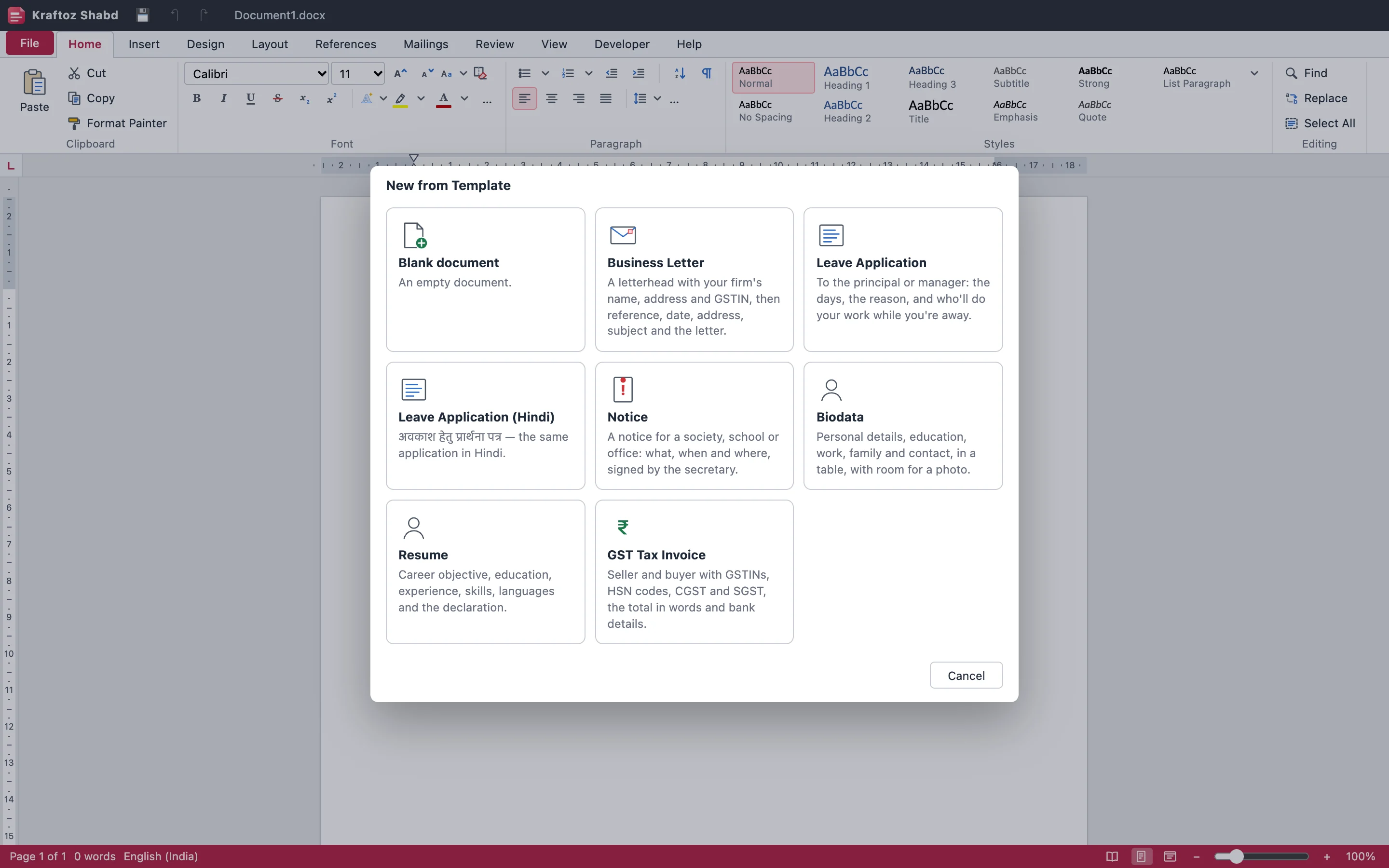
Starting a document from a template
- Click File ▸ New from Template….
- Click the template you want. Blank document gives an empty page.
- If the document you have open has changes you haven't saved, Shabd asks first. Click New to go on, and the unsaved changes are lost.
- The template opens as a new document, named Document2.docx or the next number. The template itself doesn't change, so you can use it again.
Filling in the [square brackets]
Everything you need to change is in [square brackets]: names, addresses, dates and the parts of the letter you write yourself. The rest is ready.
- Select the text in brackets, the brackets too, by dragging across it.
- Type your own text over it.
- Delete any line you don't need, such as Encl. when nothing is enclosed.
- Save the document with File ▸ Save (Ctrl+S). Shabd saves it as a .docx file.
Dates in the templates are written day first, such as [14-11-2026]. Shabd doesn't fill in today's date: type it, or use Insert ▸ Text ▸ Date & Time (see Hindi, Marathi and amounts in words).
Note
When a template opens, a tip says to click text in square brackets and type. Clicking only puts the cursor there: select the bracketed text first, or your text goes in beside it.
The templates
Business Letter
A letter on your firm's letterhead. At the top, the firm's name with its address, phone, e-mail and GSTIN, and a double line under them. Then the reference number and date on one line, the address, a subject line, the letter and the signature.
[Your Firm's Name]
[Building, Street, Area], [City] - [PIN Code], [State]
Phone: [+91 98xxx xxxxx]  ·  E-mail: [name@example.com]  ·  GSTIN: [27ABCDE1234F1Z5]

Ref. No.: [ABC/2026-27/001]                     Date: [14-11-2026]

To,
[Name]
[Designation]
[Company Name]
[Address]
[City] - [PIN Code]

Subject: [What the letter is about]
Dear Sir/Madam,
...
Thanking you,
Yours faithfully,
For [Your Firm's Name]

[Your Name]
[Designation]

Encl.: [List of enclosures]
The three paragraphs of the letter are in brackets too, each saying what goes there: why you are writing, the details, and what you'd like the reader to do next.
To send the same letter to many people, see Mail merge, envelopes and labels.
Leave Application
A leave application to a principal or a manager, for students and staff alike.
To,
The [Principal / Manager],
[School / Company Name],
[City]

Date: [14-11-2026]
Subject: Application for leave from [date] to [date]
Respected Sir/Madam,
I am [Your Name], [your class and roll number / your designation and
employee ID]. I request you to kindly grant me leave for [number] days,
from [date] to [date], as [the reason: illness in the family, a wedding at
home, a medical appointment…].
[During my leave, [colleague's name] will look after my work. I will be
reachable on [phone number] if anything is urgent.] I will complete any
work I miss when I return.
Kindly grant me leave for these days. I shall be thankful to you.
Thanking you,
Yours obediently,

[Your Name]
[Class / Designation]
[Roll No. / Employee ID]
Students fill in their class and roll number; staff fill in their designation and employee ID. Delete the sentence about a colleague if it doesn't apply.
Leave Application (Hindi)
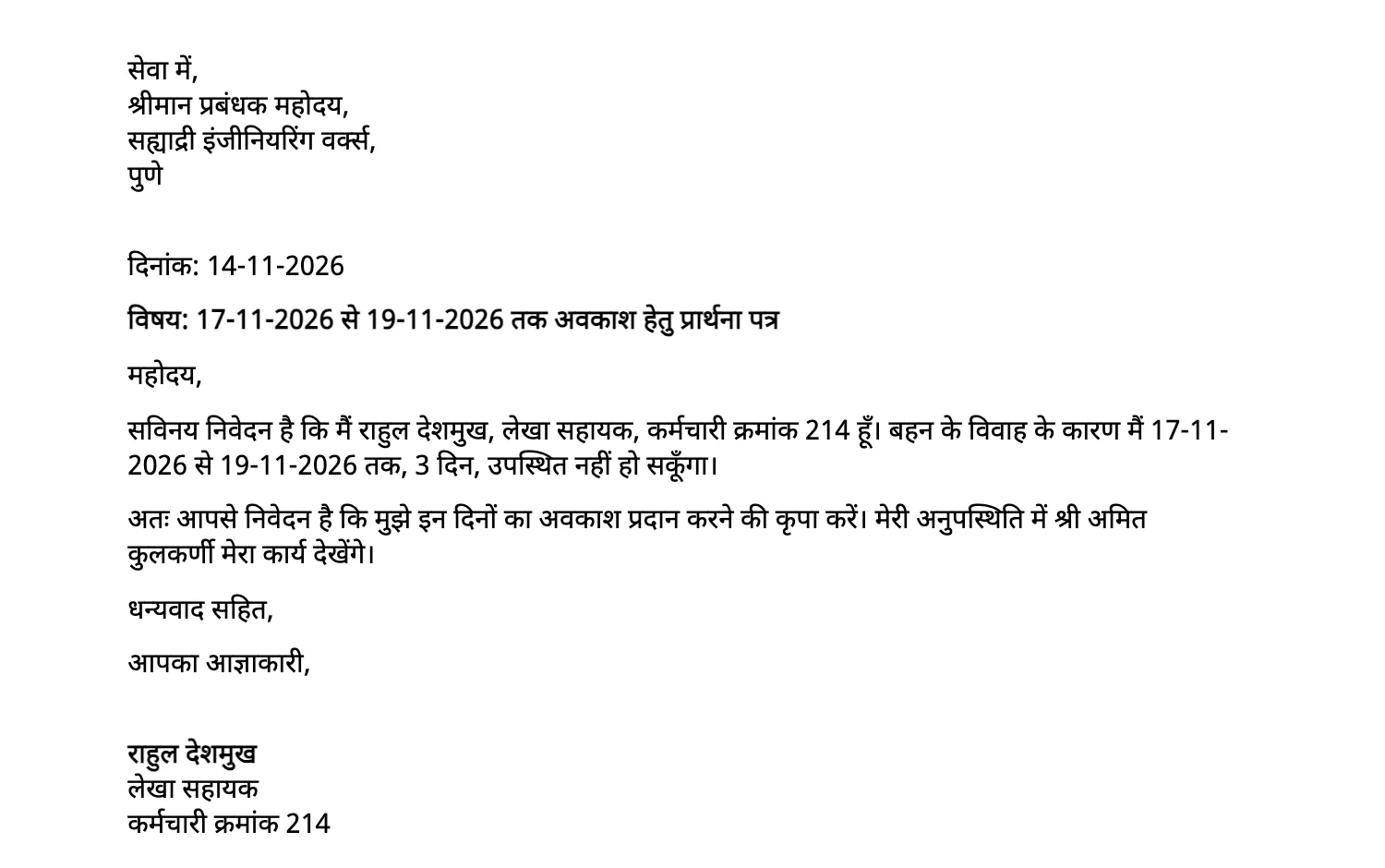
अवकाश हेतु प्रार्थना पत्र: the same application in Hindi, in the Nirmala UI font. With Hindi menus, it's called अवकाश प्रार्थना पत्र (हिंदी) in the list.
सेवा में,
श्रीमान प्रधानाचार्य / प्रबंधक महोदय,
[विद्यालय / कार्यालय का नाम],
[शहर]

दिनांक: [14-11-2026]
विषय: [दिनांक] से [दिनांक] तक अवकाश हेतु प्रार्थना पत्र
महोदय/महोदया,
सविनय निवेदन है कि मैं [आपका नाम], [कक्षा और अनुक्रमांक / पद और कर्मचारी
क्रमांक] हूँ। [कारण: घर में विवाह, अस्वस्थता…] के कारण मैं [दिनांक] से
[दिनांक] तक, [संख्या] दिन, उपस्थित नहीं हो सकूँगा/सकूँगी।
अतः आपसे निवेदन है कि मुझे इन दिनों का अवकाश प्रदान करने की कृपा करें। मेरी
अनुपस्थिति में [सहकर्मी का नाम] मेरा कार्य देखेंगे।
धन्यवाद सहित,
आपका आज्ञाकारी / आपकी आज्ञाकारिणी,

[आपका नाम]
[कक्षा / पद]
[अनुक्रमांक / कर्मचारी क्रमांक]
Besides the brackets, delete the words that don't apply to you: महोदय/महोदया, सकूँगा/सकूँगी, आपका आज्ञाकारी / आपकी आज्ञाकारिणी, and प्रधानाचार्य / प्रबंधक. Students write their class and roll number (कक्षा, अनुक्रमांक); staff write their post and employee number (पद, कर्मचारी क्रमांक).
If your keyboard doesn't type Hindi, turn on phonetic typing with Alt+Shift+H and type in English letters: namaste gives नमस्ते. See Phonetic typing.
Notice
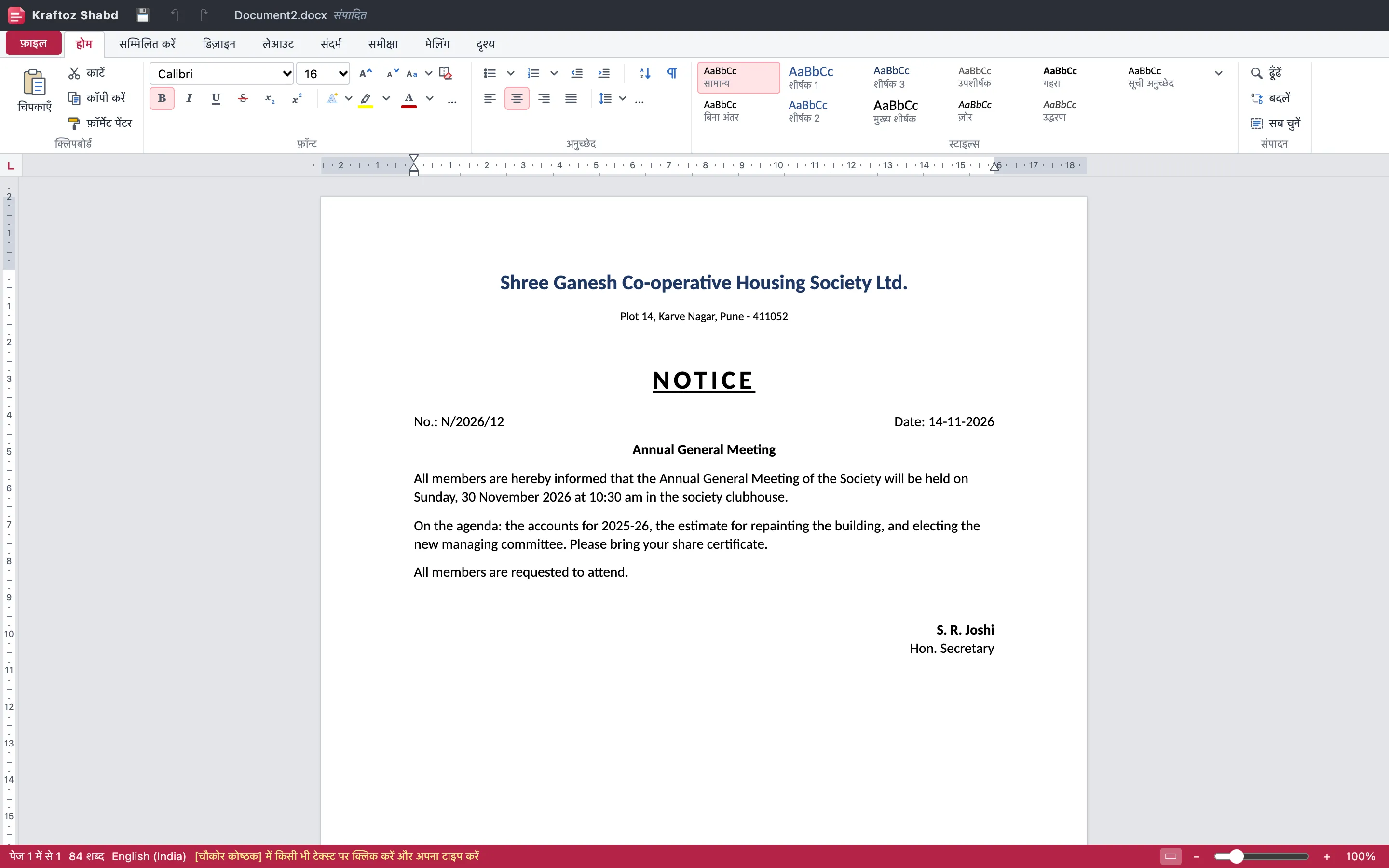
A notice for a housing society, a school or an office: the name and address centred at the top, NOTICE in large letters, the notice number and date, a title, the text, and the secretary's name on the right.
[Name of the Society / School / Office]
[Address], [City] - [PIN Code]

NOTICE
No.: [N/2026/12]                                Date: [14-11-2026]
[Title: Annual General Meeting]
All [members / students / staff] are hereby informed that [what is
happening] will be held on [day, date] at [time] in [the place].
[What it is for, what to bring, and anything else people should know.]
[All members are requested to attend.]

[Name]
[Secretary]
Biodata
A biodata with BIODATA at the top, the full name, and a box for a photo on the right. The details are in four two-column tables, under the headings Personal Details, Education and Work, Family and Contact.
| Heading | Rows |
|---|---|
| Personal Details | Date of Birth, Place of Birth, Height, Mother Tongue, Nationality |
| Education and Work | Education, Occupation, Employer, Annual Income |
| Family | Father, Mother, Brothers / Sisters, Native Place |
| Contact | Address, Mobile, E-mail |
The values are in brackets, such as [dd-mm-yyyy], [5 ft 6 in] and [₹ 6,00,000]. Nationality is already filled in as Indian. To add a row, such as Gotra or Blood Group, see Tables.
The photo box is a shape with the word [Photo] in it. To put your photo there, see Pictures, shapes, diagrams and charts.
Resume
A resume with your name in large letters, a contact line, and these headings: Career Objective, Education, Work Experience, Skills, Languages Known, Personal Details and Declaration.
- Education is a table with Qualification, Board / University, Year and Marks, and rows for a degree, HSC (12th) and SSC (10th).
- Work Experience has the job title, company, city and dates, with bullet points for what you did.
- Declaration has the usual line, "I hereby declare that the information given above is true to the best of my knowledge and belief.", then Place, Date and your name.
The headings use the Heading 1 style, so you can change how they all look at once (see Formatting text and paragraphs).
GST Tax Invoice
A tax invoice for a shop or a firm registered under GST, with slightly narrower side margins to fit the table.
- At the top: your firm's name, address, State Code, GSTIN and phone, then TAX INVOICE.
- Bill To: the buyer's name, address, GSTIN and State Code.
- On the right: Invoice No., Invoice Date, Place of Supply, and Reverse Charge (No).
- The items table: Sr., Description of Goods / Services, HSN/SAC, Qty, Rate (₹) and Amount (₹), with four rows. Under them, Taxable Value, CGST @ [9]%, SGST @ [9]% and Total.
- Amount in words: [Rupees Eleven Thousand Eight Hundred Only].
- Bank Details (bank and branch, account number, IFSC), and For [Your Firm's Name] with Authorised Signatory.
- A declaration in small print at the bottom.
The sample row is one item of ₹ 10,000.00, with CGST and SGST of ₹ 900.00 each and a total of ₹ 11,800.00.
The figures are ordinary text: Shabd doesn't work out the tax and total for you. Type them yourself, or put formulas in the cells with Table Layout ▸ Data ▸ Formula (see Tables). For the amount in words, select the total and use Insert ▸ Text ▸ Amount in Words (see Amounts in words).
My templates
Save any document as a template of your own: a letter on your own letterhead, a filled-in leave application, a school's report format.
Saving a template
- Make the document as you want every copy to start.
- Click File ▸ Save as Template….
- Type the Template name, and click Save. The status bar says "Saved under My Templates".
The template is kept in this browser. It shows under My Templates at the bottom of File ▸ New from Template…, with "Saved in this browser." under its name. Click it to start a new document from it, as with Shabd's own templates.
Saving again with the same name replaces the template.
Note
My Templates are stored in this browser only. They don't show on another computer or in another browser, and clearing the browser's site data deletes them. To keep a template as a file, use Save as .dotx File… (below).
Saving a template as a file
To keep a template as a file, or to give it to someone else, save it as a .dotx file:
- In Save as Template, click Save as .dotx File…, or
- Click File ▸ Save a Copy As ▸ Document Template (.dotx)….
To use a .dotx file, open it with File ▸ Open…. Shabd opens it as a new document, so the file itself stays as it is.
Deleting a template
- Click File ▸ New from Template….
- Under My Templates, click the × on the template's card.
- Click OK when Shabd asks whether to delete it from this browser.
Shabd's own templates can't be deleted.