Templates
Ganit has six ready-made workbooks for Indian shops and offices: a GST tax invoice, a salary sheet, an attendance register, a cash book, a stock register and a loan EMI schedule. Each one has its formulas, formats, column widths and print settings in place. You type the details, and Ganit works out the rest.
Templates are in File ▸ New from Template….
Starting a workbook from a template
- Go to File ▸ New from Template….
- Click a template. Blank workbook, the first card, gives an empty workbook.
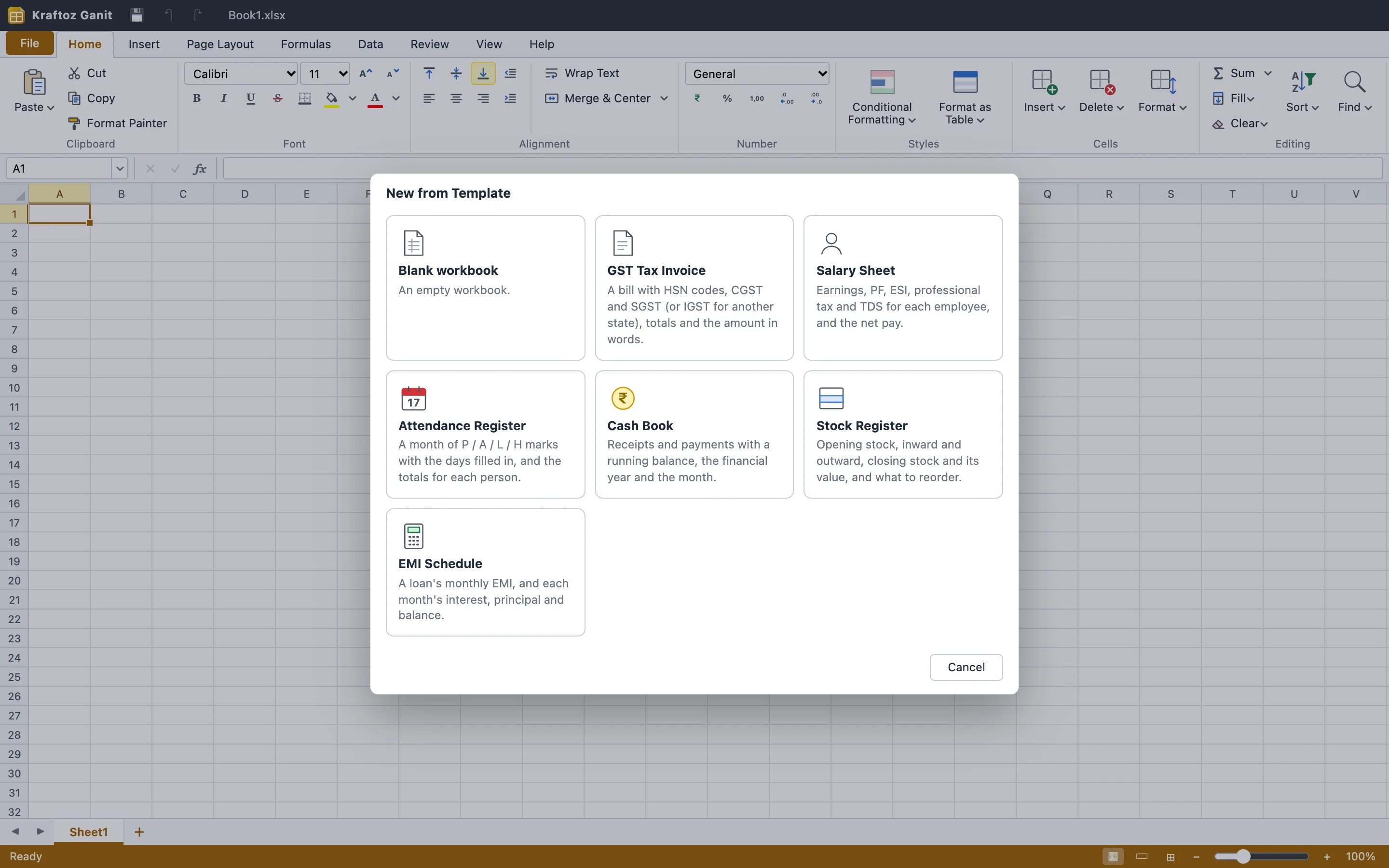
The template opens in place of the workbook you had open. If that workbook has changes you haven't saved, Ganit asks first. Click New to go ahead, or Cancel to go back and save it.
The new workbook is named after the template, like Tax Invoice.xlsx. It isn't saved anywhere yet. When you press Ctrl+S, Ganit asks where to save it and suggests that name. In a browser that can't ask, Ganit downloads the file with that name instead. See Opening, saving and sharing files.
Every template:
- has amounts in ₹ with lakh commas, and dates as dd/mm/yyyy,
- prints on A4, one page wide, centred across the page,
- comes with a few sample rows. Type over them, or delete them.
Saving your own template
Ganit has no command to save a workbook as a template, and the New from Template list can't be changed. To reuse a workbook of your own, such as your invoice with your shop's name and bank details:
- Open the template and fill in what stays the same each time.
- Save it with File ▸ Save As… (F12), for example as "Invoice blank.xlsx".
- For each new bill, open that file and save it at once under a new name with File ▸ Save As… (F12), like "INV-2026-27-045.xlsx". Then fill it in.
Note
If you fill in the saved file and press Ctrl+S, it saves over your blank copy. Use Save As… first.
GST Tax Invoice
A bill with HSN or SAC codes, CGST and SGST (or IGST for a buyer in another state), a round off, the invoice total and the amount in words. The sheet is called Invoice.
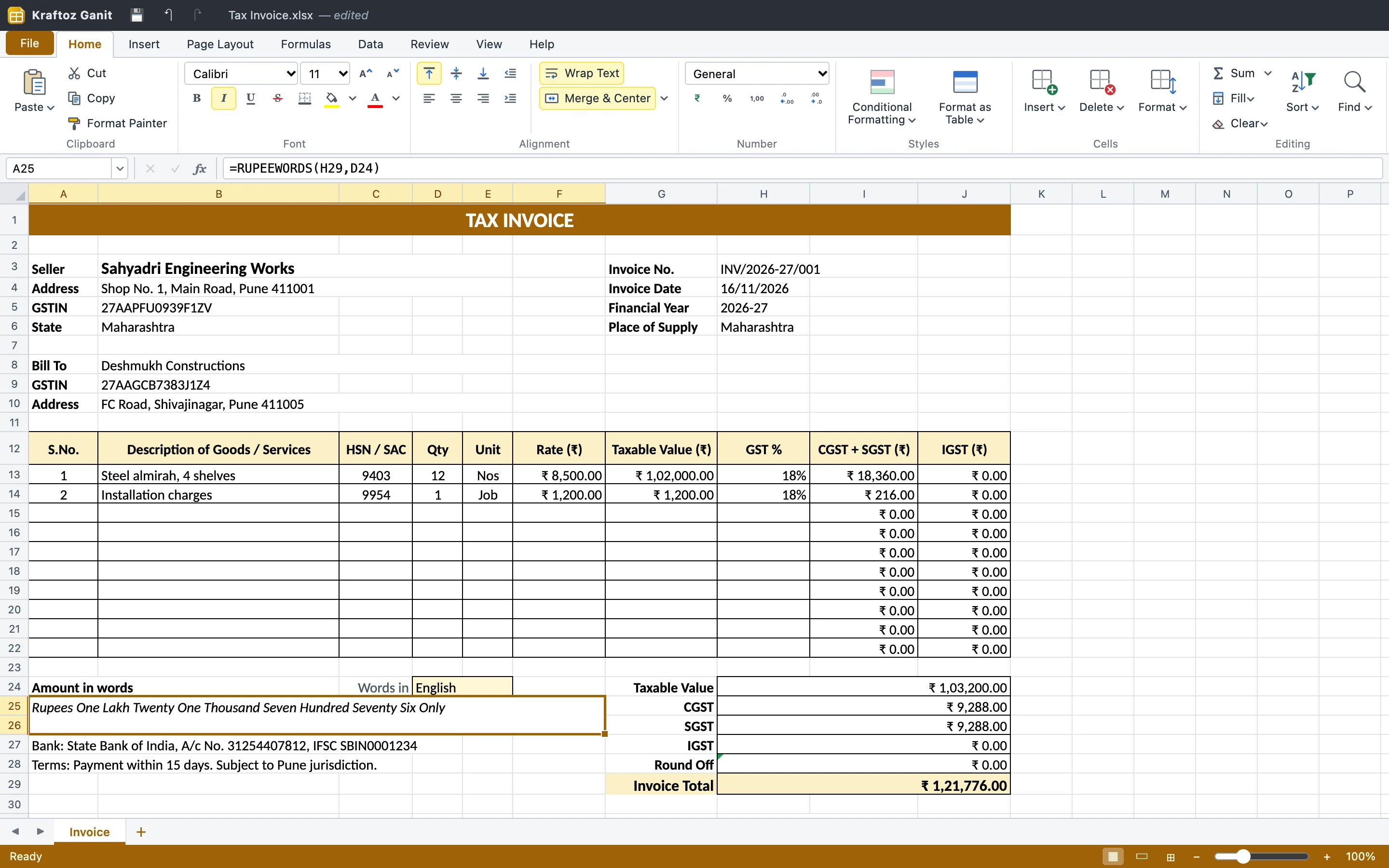
What's on the bill
| Part | Cells | What it holds |
|---|---|---|
| Top left | A3:B6 | Seller, Address, GSTIN and State |
| Top right | G3:H6 | Invoice No., Invoice Date, Financial Year and Place of Supply |
| Bill To | A8:B10 | The customer's name, GSTIN and address |
| Items | Rows 13 to 22 | Ten rows: S.No., Description of Goods / Services, HSN / SAC, Qty, Unit, Rate (₹), Taxable Value (₹), GST %, CGST + SGST (₹) and IGST (₹) |
| Totals | G24:H29 | Taxable Value, CGST, SGST, IGST, Round Off and Invoice Total |
| Below the items | A24:A28 | The amount in words, your bank details and your terms |
| Signature | H31 and H34 | "For Your Business Name" and Authorised Signatory |
What you type and what Ganit works out
| Cell | Typed or worked out | How |
|---|---|---|
| Seller, Address, GSTIN (B3:B5) | Typed | Your shop's details |
| State (B6) | Worked out | =IFERROR(GSTINSTATE(B5),""), from your GSTIN |
| Invoice No. (H3) | Typed | The template starts you off with INV/2026-27/001 |
| Invoice Date (H4) | Formula, type over it | =TODAY() |
| Financial Year (H5) | Worked out | =IFERROR(FY(H4),""), like 2026-27 |
| Place of Supply (H6) | Worked out | =IFERROR(GSTINSTATE(B9),""), from the customer's GSTIN |
| Customer's name, GSTIN, address (B8:B10) | Typed | |
| Description, HSN / SAC, Qty, Unit, Rate | Typed | One item on each row |
| GST % | Picked | From the cell's list: 0%, 0.25%, 3%, 5%, 12%, 18%, 28% or 40% |
| S.No. | Worked out | Numbers each row once it has a description |
| Taxable Value | Worked out | Qty × Rate |
| CGST + SGST, IGST | Worked out | Taxable Value × GST %, in one column or the other (see below) |
| Totals | Worked out | Sums of the columns, the round off and the total |
| Amount in words (A25) | Worked out | =RUPEEWORDS(H29,D24) |
Filling in the bill
- Go to File ▸ New from Template…, and click GST Tax Invoice.
- Type over "Your Business Name", the address and the GSTIN. Ganit fills in your State from the first two digits of the GSTIN.
- Type the invoice number next to Invoice No.
- Type the bill's date next to Invoice Date, like 13/11/2026. Financial Year follows it.
- Under Bill To, type the customer's name, GSTIN and address. Place of Supply fills in from the customer's GSTIN.
- Type each item on its own row: description, HSN or SAC code, quantity, unit and rate.
- Click the GST % cell of each row and pick the rate from its list.
- Change the bank line and the terms line under the items.
- Save the bill (Ctrl+S), or print it (File ▸ Print…, Ctrl+P).
CGST and SGST, or IGST
Ganit compares the first two digits of your GSTIN with the first two digits of the customer's. These digits are the state code. You don't choose the tax anywhere: change the customer's GSTIN, and the tax moves to the right column.
| Your GSTIN starts with | Customer's GSTIN starts with | Tax on the bill |
|---|---|---|
| 27 (Maharashtra) | 27 (Maharashtra) | CGST + SGST, half each |
| 27 (Maharashtra) | 29 (Karnataka) | IGST, the full rate |
Take the template's own two rows: a steel almirah (HSN 9403, 2 Nos at ₹ 8,500) and installation (SAC 9954, 1 Job at ₹ 1,200), both at 18%.
| Customer in Maharashtra | Customer in Karnataka | |
|---|---|---|
| Taxable Value | ₹ 18,200.00 | ₹ 18,200.00 |
| CGST | ₹ 1,638.00 | ₹ 0.00 |
| SGST | ₹ 1,638.00 | ₹ 0.00 |
| IGST | ₹ 0.00 | ₹ 3,276.00 |
| Invoice Total | ₹ 21,476.00 | ₹ 21,476.00 |
| Place of Supply | Maharashtra | Karnataka |
CGST and SGST in the totals are each half of the CGST + SGST column.
Round off
The Round Off line brings the total to whole rupees. It shows the paise added or taken off.
Say you sell 3 almirahs at ₹ 8,499.50, at 18%, within Maharashtra. The taxable value is ₹ 25,498.50 and the tax comes to ₹ 4,589.73. Round Off shows -₹ 0.23, and the Invoice Total is ₹ 30,088.00.
Amount in words
The row under Amount in words holds =RUPEEWORDS(H29,D24). H29 is the invoice total. D24 is the cell next to Words in, which says English. Pick हिंदी or मराठी from its list to write the amount in Hindi or Marathi.
| Words in | What the bill says for ₹ 30,088 |
|---|---|
| English | Rupees Thirty Thousand Eighty Eight Only |
| हिंदी | तीस हज़ार अट्ठासी रुपये मात्र |
| मराठी | तीस हजार अठ्ठ्याऐंशी रुपये फक्त |
For more on RUPEEWORDS, see Indian formats, words and languages.
Good to know
- Invoice Date holds
=TODAY(), so it changes to the day you open the file. Type the bill's date over it so the date stays put. - Both GSTIN cells check what you type. If a GSTIN fails the check, Ganit warns "This doesn't look like a valid GSTIN." Click Yes to keep it, or No to correct it.
- If the customer has no GSTIN, the two state codes can't match, and the tax goes under IGST. For a customer in your own state, type just your state's two digits (27 for Maharashtra) in the customer's GSTIN cell. Ganit warns that it doesn't look like a valid GSTIN. Click Yes to keep it, and the bill shows CGST and SGST.
- CGST and SGST aren't rounded on their own, so their paise can be one off from the column total.
- In the item rows you leave empty, S.No. and Taxable Value stay blank and the tax columns show ₹ 0.00.
- "Your Business Name" is also on the "For Your Business Name" line above the signature. Change both.
- The bill prints in portrait.
Note
The sample customer GSTIN in the template, 27AAGCB7383J1Z4, doesn't pass Ganit's own check, so Data ▸ Data Validation ▸ Circle Invalid Data circles it. Type your customer's real GSTIN over it.
Salary Sheet
Gross pay for the days paid, PF, ESI, professional tax and net pay, for up to 20 employees. You type the salary, the days paid and TDS. The sheet is called Salary.
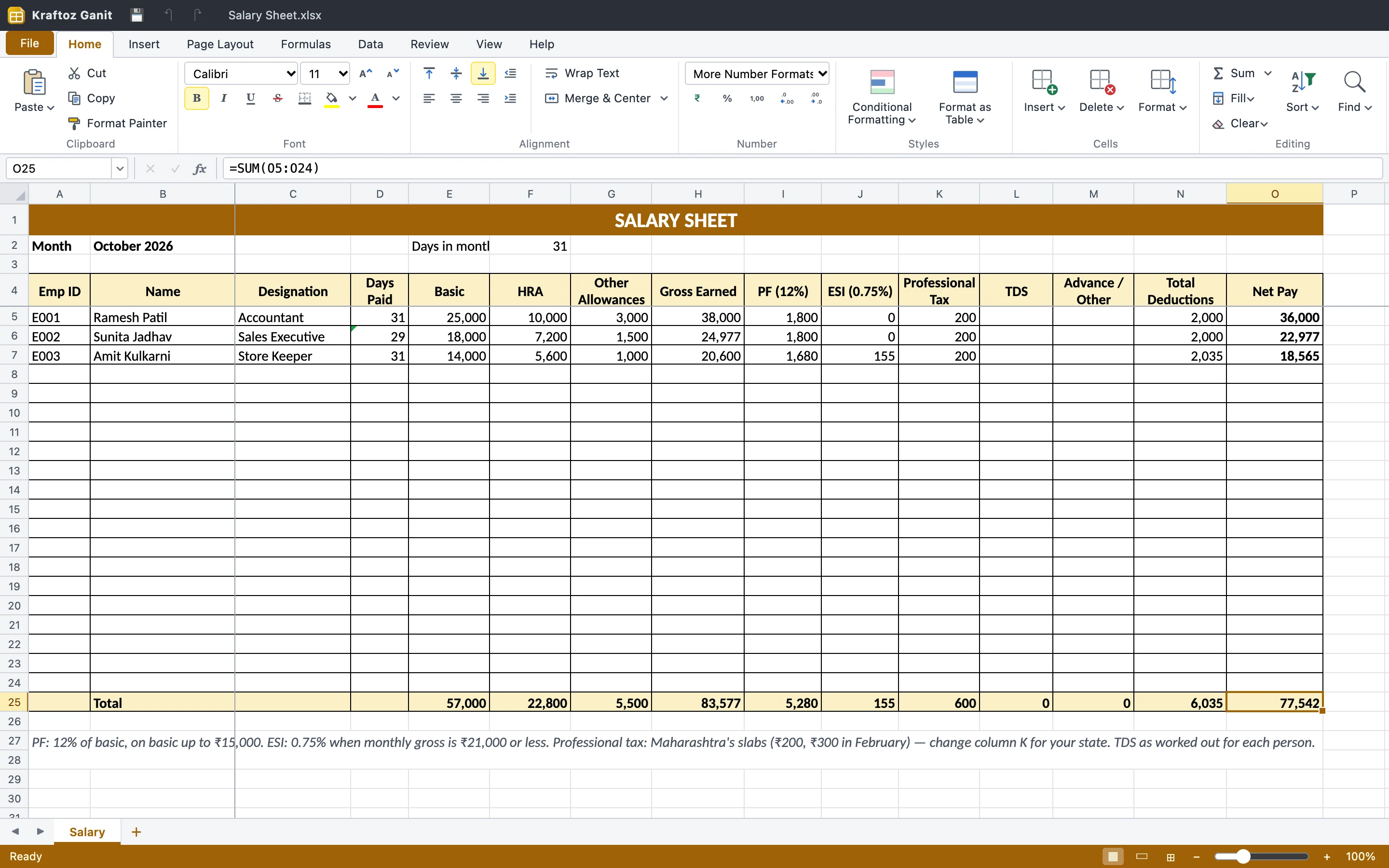
Filling in the sheet
- Go to File ▸ New from Template…, and click Salary Sheet.
- Check the Month in B2. It starts as the last day of last month, shown as the month and year. To change it, type the last day of the month you're paying for, like 30/11/2026. Days in month (F2) follows it.
- Type over the three sample employees, and add yours below them: Emp ID, Name and Designation.
- Type Days Paid for each person. For a full month, type the days in the month.
- Type the monthly Basic, HRA and Other Allowances.
- Type TDS and any Advance / Other deduction.
- Ganit fills in the rest: Gross Earned, PF, ESI, Professional Tax, Total Deductions and Net Pay.
Note
Days in month is the day of the date in B2. If you type a date in the middle of the month, like 15/11/2026, the month still shows as November 2026 but Days in month becomes 15, and everyone's pay is worked out wrongly. Always type the month's last day.
What you type and what Ganit works out
| Column | Typed or worked out | How |
|---|---|---|
| Emp ID, Name, Designation | Typed | |
| Days Paid | Typed | The sample rows hold =$F$2, the days in the month (two less for Sunita) |
| Basic, HRA, Other Allowances | Typed | The full monthly amounts |
| Gross Earned | Worked out | (Basic + HRA + Other) × Days Paid ÷ Days in month, to the nearest rupee |
| PF (12%) | Worked out | 12% of the basic earned, on basic up to ₹ 15,000, to the nearest rupee |
| ESI (0.75%) | Worked out | 0.75% of Gross Earned, rounded up, when the monthly Basic + HRA + Other is ₹ 21,000 or less |
| Professional Tax | Worked out | See the slabs below |
| TDS | Typed | As worked out for each person |
| Advance / Other | Typed | |
| Total Deductions | Worked out | PF + ESI + Professional Tax + TDS + Advance / Other |
| Net Pay | Worked out | Gross Earned − Total Deductions |
A row with no name stays blank. The Total row (row 25) adds up every money column.
The template's own figures
These are the three sample employees, for October 2026, a month of 31 days.
| Name | Days Paid | Monthly Basic + HRA + Other | Gross Earned | PF | ESI | Prof. Tax | Net Pay |
|---|---|---|---|---|---|---|---|
| Ramesh Patil | 31 | 25,000 + 10,000 + 3,000 | 38,000 | 1,800 | 0 | 200 | 36,000 |
| Sunita Jadhav | 29 | 18,000 + 7,200 + 1,500 | 24,977 | 1,800 | 0 | 200 | 22,977 |
| Amit Kulkarni | 31 | 14,000 + 5,600 + 1,000 | 20,600 | 1,680 | 155 | 200 | 18,565 |
Ramesh's basic is ₹ 25,000, but PF is worked out on ₹ 15,000 only, so it is ₹ 1,800. Amit's monthly salary is ₹ 20,600, under ₹ 21,000, so ESI applies to him: 0.75% of 20,600 is 154.50, rounded up to 155.
A helper paid ₹ 7,000 + 1,500 + 500 a month, for all 30 days of November 2026, with an advance of ₹ 1,000, gets a Gross Earned of ₹ 9,000, PF ₹ 840, ESI ₹ 68, professional tax ₹ 175, and a Net Pay of ₹ 6,917.
Professional tax
The template uses Maharashtra's slabs, on Gross Earned:
| Gross Earned | Professional Tax |
|---|---|
| Up to ₹ 7,500 | ₹ 0 |
| ₹ 7,501 to ₹ 10,000 | ₹ 175 |
| Above ₹ 10,000 | ₹ 200, and ₹ 300 when the month is February |
If you're in another state, change the formula in the Professional Tax column (column K) to your state's slabs. Change it in the first row, then copy it down.
Good to know
- The PF, ESI and professional tax figures are the ones written into the template. Rates and limits change, and they differ from state to state. Check the current rules before you pay salaries.
- The sheet shows what is taken from the employee's pay. The employer's own PF and ESI share isn't on it.
- Ganit doesn't work out TDS. Type each person's figure in the TDS column.
- The header row and the Emp ID and Name columns stay in view while you scroll.
- It prints in landscape, with the header row on every page.
- A note under the table repeats the rules the sheet uses, so whoever reads the printout knows.
Attendance Register
A month of attendance marks for up to 20 people, with the dates and weekdays filled in, and each person's totals. The sheet is called Attendance.
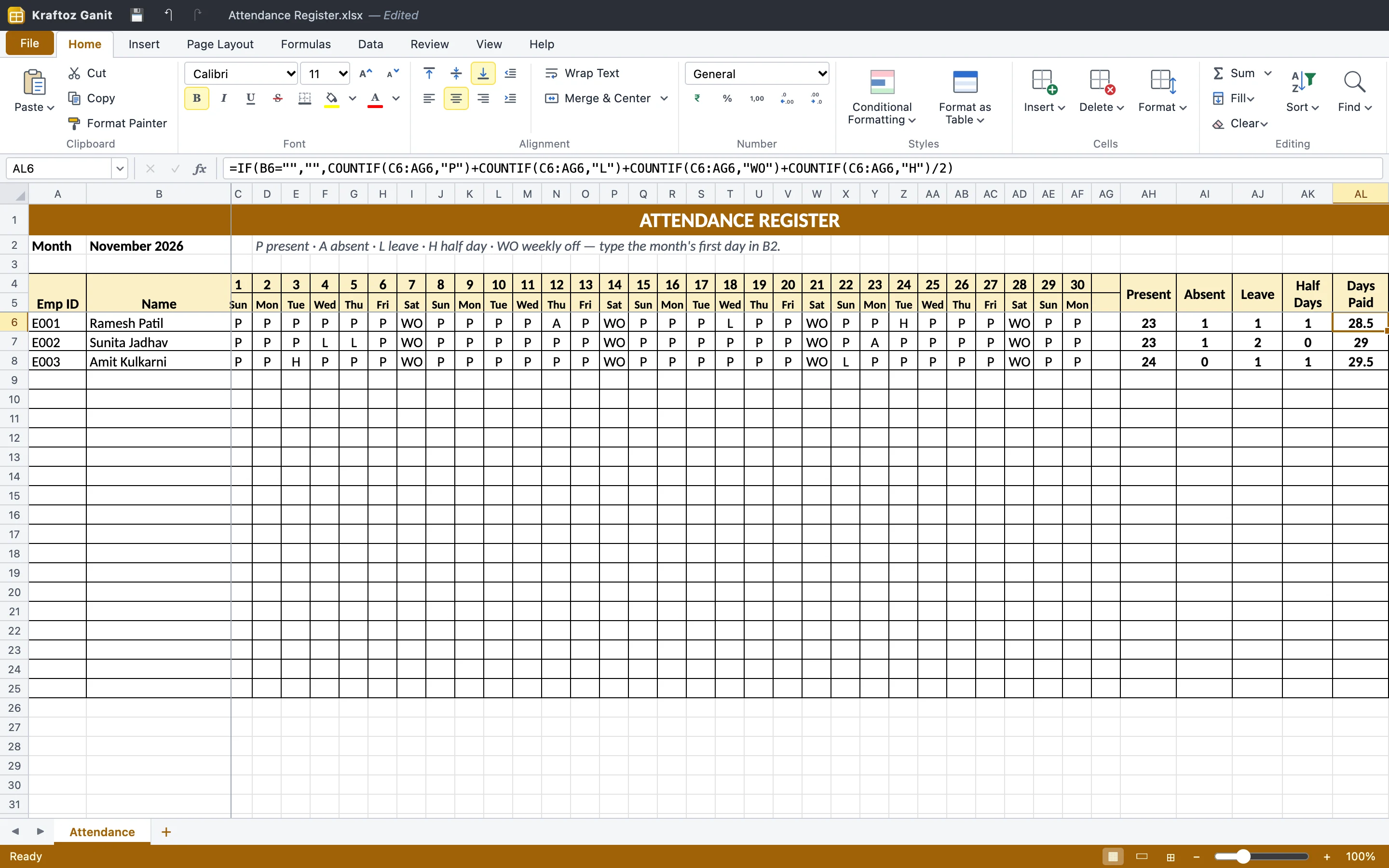
The marks
| Mark | Means | Counted as a paid day |
|---|---|---|
| P | Present | 1 |
| A | Absent | 0 |
| L | Leave | 1 |
| H | Half day | ½ |
| WO | Weekly off | 1 |
Each day cell has a list of these marks. Ganit doesn't let in anything else: it shows "Use P, A, L, H or WO." Absent days turn red, leave yellow and weekly offs grey.
Filling in the register
- Go to File ▸ New from Template…, and click Attendance Register.
- Check the Month in B2. It starts as this month. To change it, type the month's first day, like 01/11/2026. The day numbers (row 4) and weekdays (row 5) follow it, and the days after the month's end are left blank.
- Type over the three sample employees, and add yours below them: Emp ID and Name.
- Each day, type or pick a mark for each person.
- Ganit counts Present, Absent, Leave, Half Days and Days Paid at the right (columns AH to AL).
Days Paid is the P, L and WO marks, plus half the H marks. In the picture, Ramesh has 23 P, 1 L, 4 WO and 1 H, so his Days Paid is 28.5. You can type it in the Salary Sheet's Days Paid column.
Note
The days start from the date in B2. If you type a date in the middle of the month, like 15/11/2026, the first column is the 15th. Always type the month's first day.
The header rows and the Emp ID and Name columns stay in view while you scroll. The register prints in landscape, with both header rows on every page.
Cash Book
Receipts and payments with a running balance, and each entry's month and financial year. The sheet is called Cash Book.
Filling in the cash book
- Go to File ▸ New from Template…, and click Cash Book.
- Type the Opening balance in C2. The template starts with ₹ 25,000.
- Type over the four sample entries, and add yours below them, in date order: Date, Particulars, Voucher No., and the amount under Receipts (₹) or Payments (₹).
- Ganit fills in Balance (₹), Month and Financial Year for each entry.
Row 2 shows the totals next to the opening balance: total receipts (D2), total payments (E2), and the closing balance (F2).
| Date | Particulars | Voucher No. | Receipts | Payments | Balance | Month | Financial Year |
|---|---|---|---|---|---|---|---|
| 01/04/2026 | Cash sales | R-001 | ₹ 18,500.00 | ₹ 43,500.00 | Apr 2026 | 2026-27 | |
| 03/04/2026 | Shop rent for April | P-001 | ₹ 12,000.00 | ₹ 31,500.00 | Apr 2026 | 2026-27 | |
| 07/04/2026 | Received from Shree Traders | R-002 | ₹ 40,000.00 | ₹ 71,500.00 | Apr 2026 | 2026-27 | |
| 10/04/2026 | Electricity bill | P-002 | ₹ 3,450.00 | ₹ 68,050.00 | Apr 2026 | 2026-27 |
With these four entries, row 2 shows receipts of ₹ 58,500.00, payments of ₹ 15,450.00 and a closing balance of ₹ 68,050.00. An entry dated 02/01/2027 is in Jan 2027 and still in 2026-27.
- The balance runs down the rows: each row's balance is the opening balance plus the receipts less the payments up to that row. Keep the entries in date order.
- A row with no amount has no balance.
- The header row has filter buttons. To see one month, click the button on Month and pick it. See Tables, sorting and filtering.
- The book has room for 200 entries, rows 5 to 204.
- The header rows stay in view while you scroll. The book prints in portrait, with the header row on every page.
Stock Register
Opening stock, inward and outward, closing stock and its value, and which items to reorder. The sheet is called Stock.
Filling in the register
- Go to File ▸ New from Template…, and click Stock Register.
- As on (B2) shows today's date. Type the date of the count over it if you want it to stay put.
- Type over the three sample items, and add yours below them: Item Code, Item, Unit and HSN.
- For each item, type the Opening Qty, what came in (Inward) and what went out (Outward), the Rate (₹) and the Reorder Level.
- Ganit works out Closing Qty (Opening + Inward − Outward), Stock Value (₹) (Closing Qty × Rate) and Status.
Status says Reorder when the closing quantity is at or below the reorder level, and OK otherwise. Reorder cells turn red, and the Closing Qty column has green bars to compare the items at a glance.
| Item | Opening | Inward | Outward | Closing | Rate | Stock Value | Reorder Level | Status |
|---|---|---|---|---|---|---|---|---|
| Steel almirah | 12 | 6 | 9 | 9 | ₹ 8,500.00 | ₹ 76,500.00 | 5 | OK |
| Plastic chair | 80 | 40 | 95 | 25 | ₹ 650.00 | ₹ 16,250.00 | 30 | Reorder |
| Study table | 15 | 0 | 4 | 11 | ₹ 4,200.00 | ₹ 46,200.00 | 10 | OK |
The Total stock value row (row 105) adds up the Stock Value column: ₹ 1,38,950.00 for these three items.
- An empty Opening, Inward or Outward cell counts as 0.
- The register has room for 100 items, rows 5 to 104.
- The header row has filter buttons. To see only what to reorder, click the button on Status and pick Reorder.
- The header rows and the Item Code and Item columns stay in view while you scroll. The register prints in landscape, with the header row on every page.
EMI Schedule
A loan's monthly EMI, the total interest, and each month's interest, principal and balance. The sheet is called EMI.
Filling in the schedule
- Go to File ▸ New from Template…, and click EMI Schedule.
-
Type the loan's details in the yellow cells:
Cell What to type The template has C3 Loan amount ₹ 25,00,000.00 C4 Interest rate (yearly) 8.50% C5 Tenure (months) 240 C6 First EMI date 05/05/2026 -
Ganit works out the Monthly EMI, Total interest, Total payment and the date the Loan ends, in E3:E6, and fills in the schedule below.
The template's own loan, ₹ 25 lakh at 8.5% for 20 years:
| Monthly EMI | ₹ 21,695.58 |
| Total interest | ₹ 27,06,939.40 |
| Total payment | ₹ 52,06,939.40 |
| Loan ends | 05/04/2046 |
A car loan of ₹ 8,00,000 at 9.25% for 60 months, first EMI on 10/01/2027, gives an EMI of ₹ 16,703.92, total interest of ₹ 2,02,235.12, a total payment of ₹ 10,02,235.12, and ends on 10/12/2031.
The schedule
From row 10 there is one row for each EMI: EMI No., Due Date, Opening Balance (₹), EMI (₹), Interest (₹), Principal (₹) and Closing Balance (₹).
| EMI No. | Due Date | Opening Balance | EMI | Interest | Principal | Closing Balance |
|---|---|---|---|---|---|---|
| 1 | 05/05/2026 | ₹ 25,00,000.00 | ₹ 21,695.58 | ₹ 17,708.33 | ₹ 3,987.25 | ₹ 24,96,012.75 |
| 2 | 05/06/2026 | ₹ 24,96,012.75 | ₹ 21,695.58 | ₹ 17,680.09 | ₹ 4,015.49 | ₹ 24,91,997.26 |
| 240 | 05/04/2046 | ₹ 21,542.98 | ₹ 21,695.58 | ₹ 152.60 | ₹ 21,542.98 | ₹ 0.00 |
- Each month's interest is the opening balance × the yearly rate ÷ 12. The rest of the EMI goes to the principal.
- The EMI is worked out with
=PMT(C4/12,C5,-C3). See Formulas. - Due dates are a month apart, on the same day as the first EMI.
- Rows after the last EMI stay blank.
Note
The schedule has 360 rows, for loans of up to 30 years. With a longer tenure, the summary in E3:E6 is still right, but the schedule stops at month 360 with a balance left.
The header rows stay in view while you scroll. The schedule prints in portrait, with the schedule's header row on every page.