Shortcuts and settings
This chapter lists Alekh's keyboard shortcuts and shows how to set your own. It also covers the toolbars, the theme, the menu language and Tools ▸ Options….
Your shortcuts, toolbars, theme, language and options are kept in this browser (or in the desktop app). They are not saved in your drawings, and they don't move to another computer.
Keyboard shortcuts
Press F1, or go to Help ▸ Keyboard Shortcuts, to see the main shortcuts in Alekh. Type in Find a shortcut to search them. Customize… opens Tools ▸ Customize Shortcuts.
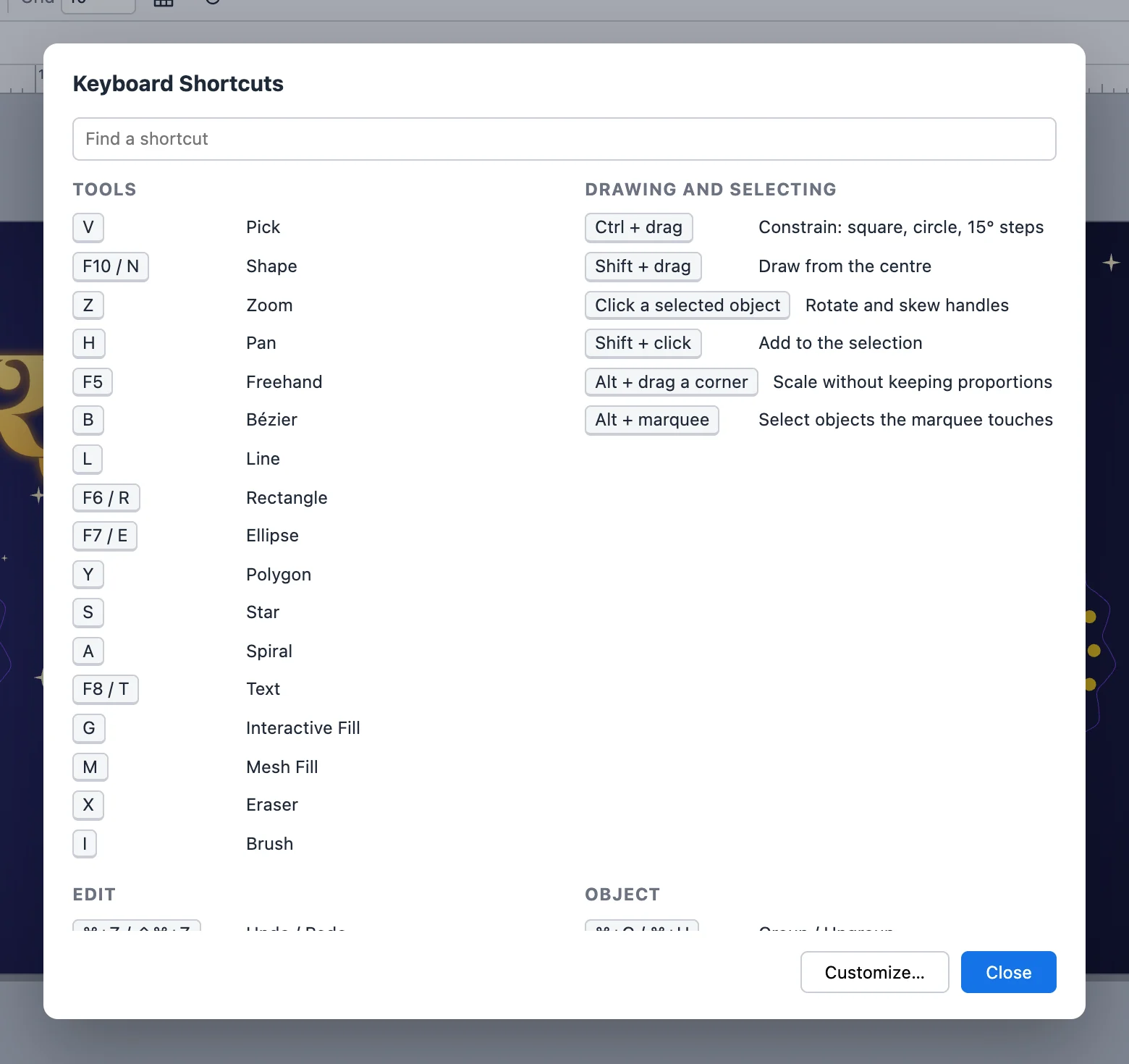
The tables below follow the groups in that dialog, with the other shortcuts shown in Alekh's menus added to them.
On a Mac, press ⌘ where this list says Ctrl. Alt is the Option key.
Tools
| Key | Tool |
|---|---|
| V | Pick |
| F10 or N | Shape |
| Z | Zoom |
| H | Pan |
| F5 | Freehand |
| B | Bézier |
| L | 2-Point Line |
| F6 or R | Rectangle |
| F7 or E | Ellipse |
| Y | Polygon |
| S | Star |
| A | Spiral |
| D | Graph Paper |
| F8 or T | Text |
| G | Interactive Fill |
| M | Mesh Fill |
| X | Eraser |
| I | Brush |
These single keys work when you aren't typing text.
Drawing and selecting
| Key | What it does |
|---|---|
| Ctrl + drag | Constrain: a square, a circle, or 15° steps |
| Shift + drag | Draw from the centre |
| Click a selected object | Rotate and skew handles |
| Shift + click | Add to the selection |
| Alt + drag a corner | Scale without keeping proportions |
| Alt + marquee | Select objects the marquee touches |
| Ctrl + click | Edit group contents |
| Enter | Finish a Pen or B-Spline curve |
| Esc | Cancel what you are drawing, or deselect |
Edit
| Key | Command |
|---|---|
| Ctrl+Z | Undo |
| Ctrl+Shift+Z | Redo |
| Ctrl+X | Cut |
| Ctrl+C | Copy |
| Ctrl+V | Paste (also pastes a picture copied in another program) |
| Ctrl+D | Duplicate |
| + | Duplicate in place |
| Ctrl+Shift+D | Step and Repeat… |
| Delete | Delete |
| Ctrl+A | Select All |
| Ctrl+F | Find and Replace… |
Object
| Key | Command |
|---|---|
| Ctrl+G | Group |
| Ctrl+U | Ungroup |
| Ctrl+L | Combine |
| Ctrl+K | Break Apart |
| Ctrl+Q | Convert to Curves |
| Shift+PgUp | To Front of Page |
| Shift+PgDn | To Back of Page |
| Ctrl+PgUp | Forward One |
| Ctrl+PgDn | Back One |
| P | Center to Page |
| Alt+Enter | Properties panel |
| Alt+F3 | Lens… |
With two or more objects selected, these keys distribute them:
| Key | Distribute across | Key | Distribute down |
|---|---|---|---|
| Shift+L | Left Edges | Shift+T | Top Edges |
| Shift+C | Centers Horizontally | Shift+E | Centers Vertically |
| Shift+R | Right Edges | Shift+B | Bottom Edges |
| Shift+P | Spacing Horizontally | Shift+A | Spacing Vertically |
The menus also show Ctrl+K for Effects ▸ Break Blend / Contour Apart, Text ▸ Straighten Text and Table ▸ Break Table Apart.
Text
| Key | What it does |
|---|---|
| Click or drag | Place the cursor or select text |
| Double-click | Select a word |
| Ctrl+A | Select all the text (while typing) |
| Ctrl+T | Text panel |
| Ctrl+Shift+T | Edit Text: the whole text in a box |
| Ctrl+F12 | Edit Text with the spelling checker |
| Ctrl+F11 | Glyphs (insert a special character) |
| Ctrl+F8 | Convert to Paragraph / Artistic Text |
| Ctrl+H | Find and Replace Text… |
| Alt+Shift+H | Phonetic typing on or off |
View
| Key | What it does |
|---|---|
| Arrow keys | Nudge the selection (Shift + arrow: super nudge) |
| Space + drag | Pan |
| Mouse wheel or pinch | Zoom |
| Ctrl++ | Zoom In |
| Ctrl+− | Zoom Out |
| Ctrl+1 | Actual Size (100%) |
| F4 | Zoom to All Objects |
| Shift+F4 | Zoom to Page |
| Shift+F2 | Zoom to Selection |
| Shift+F9 | Switch to the Last View |
| PgUp | Go to Previous Page |
| PgDn | Go to Next Page |
How far a nudge moves is set in Options.
Snapping and guides
| Key | Command |
|---|---|
| Ctrl+Y | Snap to Document Grid |
| Alt+Z | Snap to Objects |
| Alt+Q | Snapping Off / On |
| Alt+Shift+D | Dynamic Guides |
| Alt+Shift+A | Alignment Guides |
File, tables and help
| Key | Command |
|---|---|
| Ctrl+N | New |
| Ctrl+O | Open… |
| Ctrl+I | Import… |
| Ctrl+S | Save |
| Ctrl+P | Print… |
| Ctrl+E | Export SVG… |
| Ctrl+Shift+E | Export PNG… |
| Ctrl+M | Table ▸ Merge Cells |
| Ctrl+J | Tools ▸ Options… |
| F1 | Help ▸ Keyboard Shortcuts |
Opening menus
Press Alt and the menu's letter. The letter is underlined in the menu bar.
| Key | Menu | Key | Menu |
|---|---|---|---|
| Alt+F | File | Alt+C | Effects |
| Alt+E | Edit | Alt+B | Bitmaps |
| Alt+V | View | Alt+X | Text |
| Alt+L | Layout | Alt+T | Table |
| Alt+J | Object | Alt+O | Tools |
| Alt+W | Window | Alt+H | Help |
In an open menu:
| Key | What it does |
|---|---|
| ↑ and ↓ | Move between items |
| → | Open a submenu, or the next menu |
| ← | Go back |
| Enter or Space | Choose the item |
| A letter | Jump to the item starting with it (and choose it, if it's the only one) |
| Esc | Close the menu |
Your own shortcuts
You can put any menu command on a key of your choice.
- Go to Tools ▸ Customize Shortcuts….
- Type in Find a command to find the command, for example
weld. Each row shows the command's menu path, such as Object › Shaping › Weld, and its built-in key, if it has one. - Click the button at the right of the row (it shows — when the command has no key of yours).
- Press the keys you want, for example Ctrl+Shift+W. Press Esc to cancel.
- Click Done.
| Button | What it does |
|---|---|
| × next to a key | Removes your key from that command |
| Reset all | Removes all your shortcuts, after asking |
- A key can only do one thing. If you give a command a key that another command already has, the other command loses it.
- Your keys work everywhere except while you are typing in a text box or editing text, and they come before Alekh's built-in keys.
- The menus show your keys next to the commands after you reload Alekh.
Toolbars and the workspace
Turning bars on and off
Go to Window ▸ Toolbars, or right-click the menu bar, the standard toolbar, the property bar, the toolbox, the page navigator or the status bar. Click a bar to turn it on or off. A tick shows the bars that are on.
| Bar | What it is |
|---|---|
| Menu bar | The menus at the top |
| Status bar | The strip at the very bottom |
| Standard | The toolbar with New, Open, Save, Undo, PDF and Zoom |
| Property bar | The settings for the current tool or selection |
| Toolbox | The drawing tools |
| Color palette | The colours beside the side panel |
| Side panel | The Properties, Objects, Text and other panels |
| Page navigator | The page tabs at the bottom |
You can't turn off the last bar that can be right-clicked, so there is always a way to bring the others back.
Moving the toolbars
The standard toolbar, the property bar and the toolbox can be moved.
- Turn off Window ▸ Toolbars ▸ Lock Toolbars. Toolbars are locked when you start Alekh.
- Drag a bar by its grip, the dots at its start.
- Drop the standard toolbar or the property bar near the top or bottom of the drawing area to dock it there. You can put it above or below the other bar.
- Drop the toolbox near the left or right edge to dock it there.
- Drop a bar anywhere else to let it float over the drawing.
- Double-click a floating bar's grip to dock it where it started.
- Turn Lock Toolbars on again so you don't move bars by mistake.
Button size
Right-click a bar and go to Customize ▸ Default Button Size: Small, Medium or Large. You can also set it in Tools ▸ Options… under Button size. Medium is the default.
Putting everything back
Window ▸ Toolbars ▸ Reset to Default turns all the bars back on, puts them back in their places, and sets the default button size. The same command is in the toolbars' right-click menu under Customize ▸ Workspace.
Panels
Window ▸ Panels opens Properties, Objects, Text, Styles, Transform, Glyphs or Undo in the side panel. See Getting started.
Theme
Go to Window ▸ Theme and choose Light, Dark or Match System. Match System follows your computer's light or dark setting and changes when it does. Light is the default.
Menu language
Go to Window ▸ Language and choose English, हिंदी or मराठी. Alekh saves your drawing and restarts with its menus, dialogs, buttons and tooltips in that language. Your drawings don't change. See Getting started.
Options
Go to Tools ▸ Options… (Ctrl+J). Lengths are shown in the drawing's units. Change the units in File ▸ Document Properties….
Editing
| Option | What it does | Default |
|---|---|---|
| Nudge | How far the arrow keys move the selection | 1 px |
| Super nudge | How far Shift + an arrow key moves the selection | 10 px |
| Duplicate offset, H and V | How far across (H) and down (V) Ctrl+D puts the copy | 10 px and 10 px |
Version history
| Option | What it does | Default |
|---|---|---|
| Save a version every | How often Alekh keeps a version while you work, from 1 to 60 minutes | 3 minutes |
| Keep the newest | How many versions to keep, from 2 to 100 | 20 |
The versions are in File ▸ Version History… (see Version history).
Appearance
| Option | Choices | Default |
|---|---|---|
| Theme | Light, Dark, Match System | Light |
| Button size | Small, Medium, Large | Medium |
Click OK to keep your changes, or Reset to Defaults to put all the options back to the defaults above, then OK.