Getting started
This chapter shows the parts of the Alekh window and how to start a new design: a blank page, a template, a ready-made banner or a wedding card. It also covers the menu language, the theme, autosave, and installing Alekh so it works without internet.
Alekh runs in a web browser and as a desktop app. Both work the same way. Where they differ, this manual says so.
The Alekh window
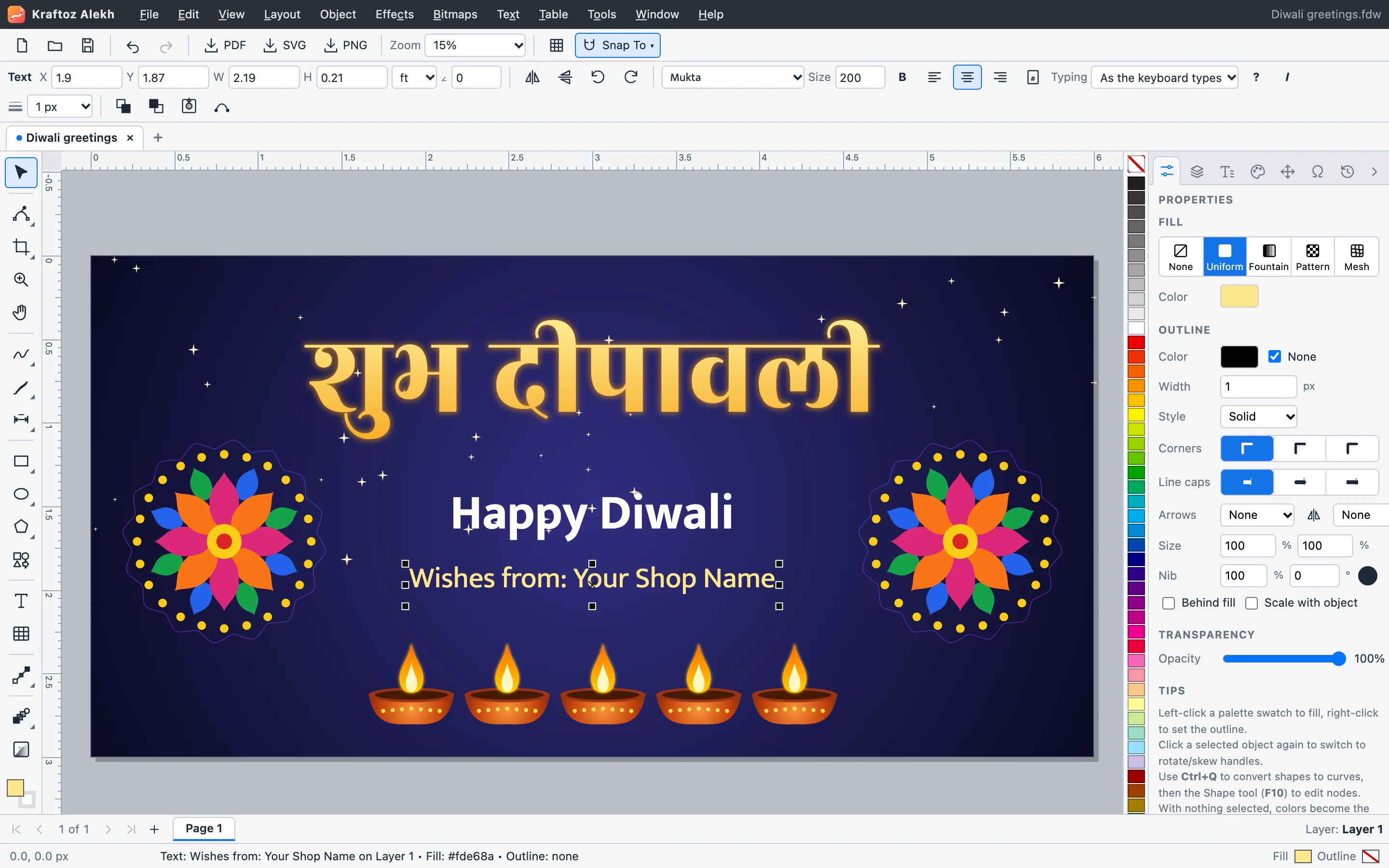
| Part | Where | What it does |
|---|---|---|
| Menu bar | Top | All of Alekh's commands. The drawing's name is at the right end. |
| Standard toolbar | Below the menus | New, Open, Save, Undo, Redo, PDF, SVG and PNG, the Zoom list, Show grid and Snap To. |
| Property bar | Below the standard toolbar | Settings for the tool you are using or the objects you have selected. With nothing selected, it shows the page's Width, Height, units and Grid. |
| Drawing tabs | Above the rulers | One tab for each open drawing. A dot on a tab means the drawing has changed. + starts a new drawing. |
| Toolbox | Left | The drawing tools. A small triangle at a button's corner means it holds more tools: click the corner, or hold the button down, to choose another one. |
| Drawing page | Centre | Your page, with rulers along the top and left. |
| Colour palette | Right | Click a colour to fill the selected objects. Right-click a colour to set their outline. |
| Side panel | Far right | The panels: Properties, Objects, Text, Styles, Transform, Glyphs and Undo. |
| Page navigator | Bottom | A tab for each page. Click a tab to go to that page. |
| Status bar | Very bottom | The pointer's position, a hint for the current tool or what is selected, and the fill and outline colours. |
If the window is narrow, the menus that don't fit move into a » menu at the end of the menu bar.
Opening menus from the keyboard
Press Alt and a menu's underlined letter to open it, for example Alt+F for File or Alt+J for Object. In an open menu, use the arrow keys to move, Enter to choose, and Esc to close. Typing a letter jumps to the item that starts with it.
The side panel
The side panel has a row of icons at the top, one for each panel. Point at an icon to see its name, and click it to open that panel. The arrow at the end of the row hides the panel and leaves only its icons beside the colour palette. Click any icon to show the panel again.
You can also open each panel from Window ▸ Panels:
| Panel | Shortcut | What it holds |
|---|---|---|
| Properties | Alt+Enter | Fill, outline and transparency of the selected objects |
| Objects | Pages, layers and objects | |
| Text | Ctrl+T | Character and paragraph formatting |
| Styles | Object, colour and text styles | |
| Transform | Position, rotate, scale, size and skew | |
| Glyphs | Ctrl+F11 | Special characters to insert |
| Undo | The steps you can undo and redo |
On a Mac, use ⌘ in place of Ctrl in these shortcuts.
The page navigator
- Click + to add a page.
- Double-click a page tab to rename it.
- Right-click a page tab for Insert Page After, Insert Page Before, Duplicate Page, Rename Page… and Delete Page.
- Drag a page tab to move the page.
Pages, layers and guides are covered in Pages, layers and guides.
Turning bars on and off
Right-click the menu bar, a toolbar, the toolbox, the page navigator or the status bar to turn bars on or off, or use Window ▸ Toolbars. See Shortcuts and settings for moving bars and changing the button size.
Menus in Hindi or Marathi
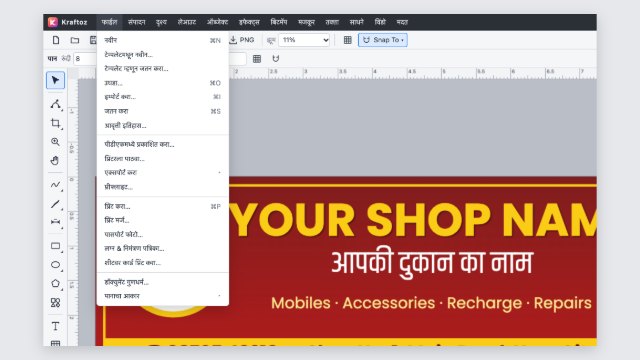
Alekh's menus, dialogs, buttons and tooltips can be in English, Hindi or Marathi.
- Go to Window ▸ Language.
- Choose English, हिंदी or मराठी.
Alekh saves your drawing, restarts in the new language, and opens the drawing again. Your text and your design don't change. Only the words of the menus and dialogs do.
The language names in the Language menu always stay in their own script, so you can find your way back to English.
Light and dark theme
Go to Window ▸ Theme and choose:
| Theme | What it does |
|---|---|
| Light | Light menus and panels. This is the default. |
| Dark | Dark menus and panels. |
| Match System | Follows your computer's light or dark setting. |
The theme changes only Alekh's menus and panels. Your page and its colours look the same in both.
Starting a new design
A blank page
Go to File ▸ New (Ctrl+N), or click + next to the drawing tabs. The new drawing opens in its own tab, named Untitled-2, Untitled-3 and so on, with the same page size as the drawing you were working on.
When you first start Alekh, the page is A4 portrait.
Setting the page size
With nothing selected, the property bar shows the page's Width and Height. Type the size in the document's units, or type it the shop way, such as 10 ft 6 in, 120 in or 3 m. In Width you can type both sides at once, such as 10x5 ft.
File ▸ Page Size has some quick sizes:
| Size | Page |
|---|---|
| A4 Portrait | 210 × 297 mm |
| A4 Landscape | 297 × 210 mm |
| Letter | 8.5 × 11 in |
| 1920 × 1080 | A wide screen picture, in pixels |
| 1080 × 1080 | A square social media post, in pixels |
For visiting cards, flex banners and other print sizes, use File ▸ New from Template (see below).
Units
The units are used by the rulers, the property bar, and the positions and sizes you type. Alekh has px, mm, cm, in, ft and pt.
To change them, choose from the units list on the property bar (next to Height when nothing is selected), or go to File ▸ Document Properties… and choose Units. The units belong to the drawing and are saved with it.
Document Properties
File ▸ Document Properties… holds the page size, units and bleed in one place:
| Field | What it does |
|---|---|
| Title, Author, Subject, Keywords | Go into PDFs you publish from the drawing |
| Notes | Your own notes, saved with the drawing |
| Units | The units for rulers, positions and sizes |
| Page size | Width × height, in the units the dialog opened with |
| Bleed | How far backgrounds and photos should run past the page edge, to be trimmed off. Click 3 mm for the usual print bleed. |
The bleed is shown as a dashed red line round the page. Alekh adds it round each page of the PDF when you publish. The dialog also shows how many pages the drawing has.
Starting from a template
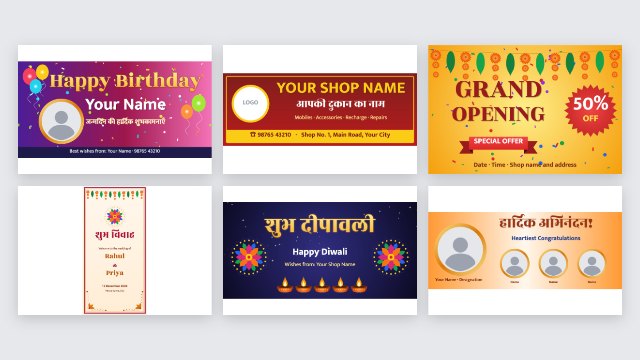
Go to File ▸ New from Template…. The template opens in a new drawing tab. The dialog has up to three groups.
Ready-made designs
Banners and boards in real flex sizes, with their text ready to type over:
| Design | Size |
|---|---|
| Birthday banner | 10 × 5 ft flex |
| Shop board | 8 × 3 ft flex |
| Grand opening sale | 6 × 4 ft flex |
| Wedding welcome | 3 × 6 ft standee |
| Diwali greetings | 6 × 3 ft flex |
| Congratulations (with photos) | 10 × 4 ft flex |
| Ganeshotsav | 6 × 4 ft flex |
Click a text to type your own words. To put a photo in one of the round photo frames, select the frame and use Object ▸ Clip Frame ▸ Place Inside Frame….
Blank sizes
A page of the right size with some starting text. Print sizes also get guides 5 mm in from each edge, to keep text inside the safe area.
| Template | Size | Units |
|---|---|---|
| Business card | 90 × 54 mm | mm |
| Business card (US) | 3.5 × 2 in | in |
| ID card (CR80) | 54 × 85.6 mm | mm |
| A4 flyer | 210 × 297 mm | mm |
| A5 leaflet | 148 × 210 mm | mm |
| A3 poster | 297 × 420 mm | mm |
| Certificate (A4 landscape) | 297 × 210 mm | mm |
| Letterhead (A4) | 210 × 297 mm | mm |
| Envelope DL | 220 × 110 mm | mm |
| Social post (1080 × 1080) | 1080 × 1080 px | px |
| Story (1080 × 1920) | 1080 × 1920 px | px |
| Banner (1200 × 628) | 1200 × 628 px | px |
| Flex banner 6 × 3 ft | 6 × 3 ft | ft |
| Flex banner 10 × 5 ft | 10 × 5 ft | ft |
| Flex 20 × 10 ft | 20 × 10 ft | ft |
| Standee 2.5 × 6 ft | 2.5 × 6 ft | ft |
| Hoarding 40 × 20 ft | 40 × 20 ft | ft |
The business card and ID card templates have fields such as «Phone» and «Name» for Print merge.
Note
The cards in this dialog show every print size in mm, so the flex sizes appear as, for example, 1828.8 × 914.4 mm. The new drawing is set to feet.
My templates
To keep a design as a starting point, open it and go to File ▸ Save as Template…. Give it a name and click Save. It then appears under My templates in File ▸ New from Template. Click × on a template to delete it.
Your templates are kept in this browser (or in the desktop app), not in a file. They don't move to another computer.
Note
If the current drawing has changes, Alekh asks before showing the templates and says unsaved changes will be lost. The template opens in a new tab, so the drawing you were working on stays open.
Wedding and invitation cards
File ▸ Wedding & Invitation Cards… makes a card with the traditional wording already written. You fill in the names and details.
- Choose the Occasion: Wedding, Engagement, Housewarming or Naming ceremony.
- Choose the Language: मराठी Marathi, हिंदी Hindi or English. The sample wording changes to match.
- Choose the Size: 5 × 7 in, 6 × 8 in, 7 × 10 in, A5, 6 × 6 in (square), 4 × 6 in or 8 × 4 in (wide).
- Pick a Style: Royal maroon and gold, Marigold on cream, Classic ivory and green, or Navy and gold.
- Fill in the fields, such as Bride, Groom, Date and day, Time (muhurat), Venue and Invited by. The fields change with the occasion.
- Click Make Card.
The card opens as a new drawing of the card's size, with 3 mm bleed and ornaments such as corner designs, a toran or a kalash. Click any text to change it. To print several cards on one sheet, use File ▸ Print Cards on a Sheet… (see Printing and prepress).
Autosave and recovery
Alekh saves your work in the background a moment after each change. If you close the browser tab or the app, the drawings you had open come back, each in its own tab with its name, the next time you start Alekh.
If Alekh runs into a problem it can't recover from, it shows Kraftoz hit a problem and restarts. Your drawing comes back from the autosave. If the problem happens again straight after the restart, you can choose Start empty (the drawing is kept in File ▸ Version History) or Try again.
Alekh also keeps older versions of your drawing every few minutes. See Version history.
Note
The autosave is kept in this browser on this computer. Clearing the browser's data for Alekh deletes it. Save your work to a file with File ▸ Save (see Opening, saving and exporting).
Installing Alekh and working offline
In the browser, Alekh keeps a copy of its files on your computer after the first visit. When that's done it shows a message that it can now work without internet. Without internet you can still design, save, print and publish PDFs. Fonts fetched from the internet and the website wait until you are back online.
To open Alekh from its own icon, like any other program:
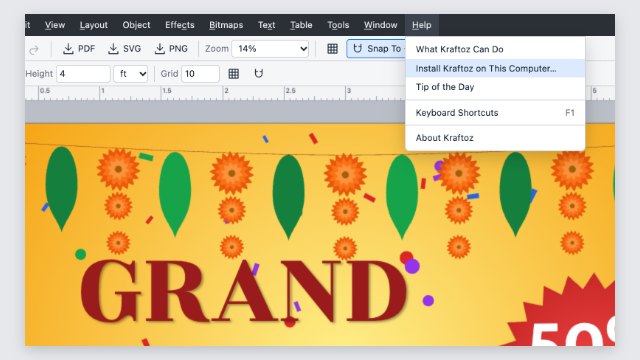
- Go to Help ▸ Install Kraftoz on This Computer….
- If your browser can install Alekh straight away, it asks you to confirm. Otherwise Alekh tells you where your browser's install command is.
Once installed, Alekh opens in its own window and works without internet. If you choose the command again from the installed Alekh, it tells you it is already installed.
Updates in the desktop app
The desktop app has Help ▸ Check for Updates… in place of the install command. It also checks by itself a few seconds after it starts. When a new version is out, Alekh shows the version you have and the new one:
- Update now saves your drawings, downloads and installs the update, and restarts. Your open drawings come back.
- Later skips this update until the next time you start Alekh.
Help and tips
| Command | What it does |
|---|---|
| Help ▸ What Kraftoz Can Do | A list of Alekh's features that are easy to miss, each with a picture and where to find it. Click Try It to open that feature. Untick Show a tip when Kraftoz starts to stop the tips at start-up. |
| Help ▸ Tip of the Day | A tip in a small card at the bottom right. It doesn't block the drawing. Use Next Tip for another, Try It to open the feature, or tick Don't show tips at start. |
| Help ▸ Keyboard Shortcuts (F1) | The keyboard shortcuts, by group, with a search box. See Shortcuts and settings. |
| Help ▸ About Kraftoz | The version number, what Alekh does, privacy and credits. |
Alekh shows a tip card when it starts. New tips come first, then any you haven't seen.