Getting started
Kraftoz Chhaya opens in your web browser. This chapter shows the parts of the window, what each module is for, how to change the menu language, and where Chhaya keeps your photos.
Opening Chhaya
When Chhaya opens, a start-up card shows a sunrise scene being developed while the photo engine loads. When it says Ready, click anywhere or press any key to start. The card also closes by itself after a few seconds.
The ? button at the top of the window shows the card again as an About screen. Click or press a key to go back.
If Chhaya can't start in your browser, the card says why. Chhaya draws photos with your computer's graphics chip (WebGL2), so a browser that has it turned off can't run Chhaya.
The first time
The first time you open Chhaya, a card asks you to accept the Kraftoz Terms of Use and Privacy Policy. The two links open the pages from kraftoz.com in a panel; Close or Esc closes the panel. Click Agree and continue to start. The card follows the menu language, and the browser remembers your answer, so it asks again only when the terms change.
The window
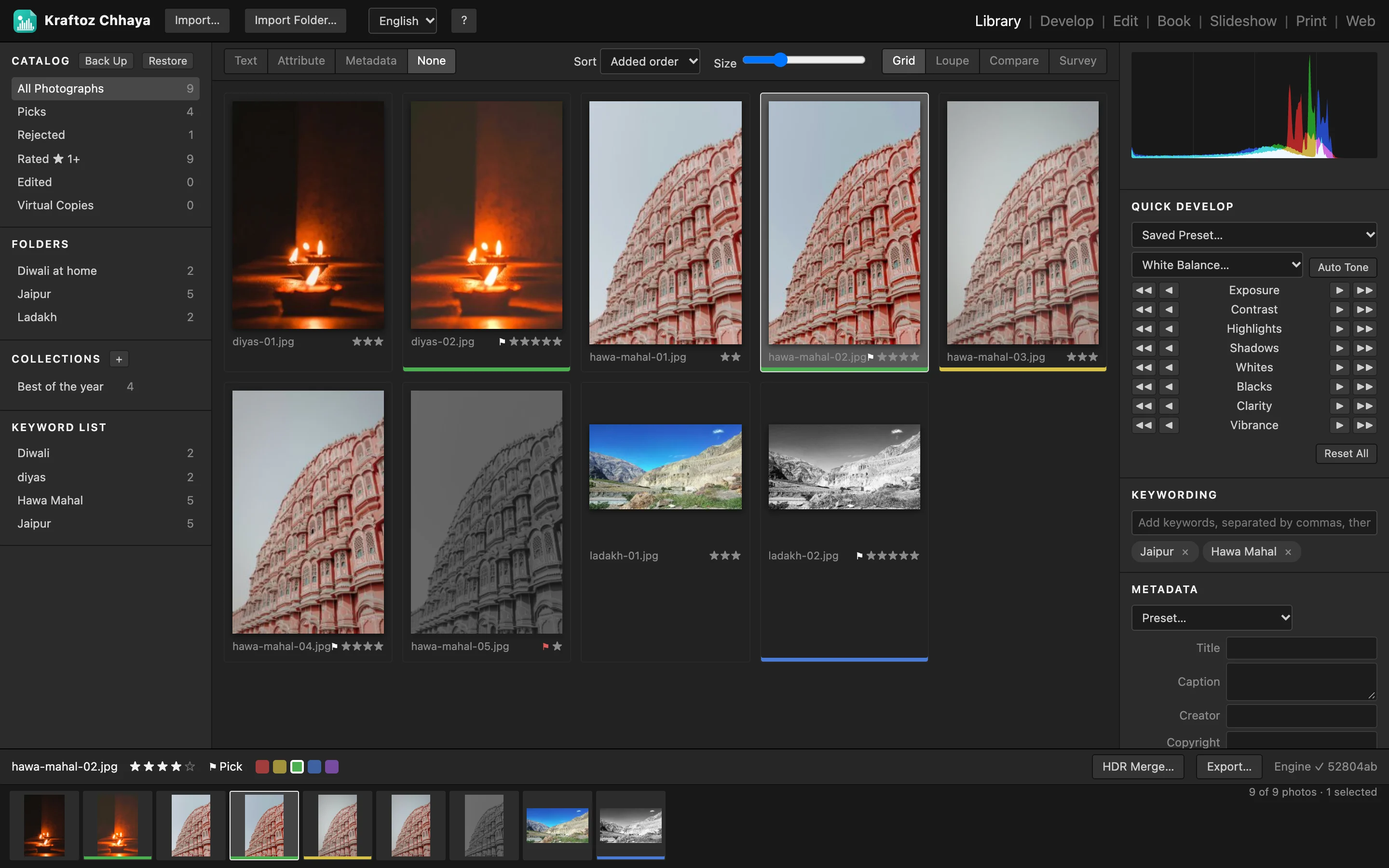
| Part | Where | What it holds |
|---|---|---|
| Top bar | Across the top | Import…, Import Folder…, the language list, ?, and the module names |
| Left panel | Left side | In the Library: Catalog, Folders, Collections, Keyword List. In Develop: Navigator, Presets, Snapshots, History |
| Centre | Middle | The grid of photos, or the photo you're working on |
| Right panel | Right side | In the Library: histogram, Quick Develop, Keywording, Metadata. In Develop: histogram, tools and the adjustment panels |
| Toolbar | Under the centre | The photo's file name, its stars, flag and colour labels, and buttons such as Export… |
| Filmstrip | Along the bottom | The photos you're looking at, in the same order as the grid, and how many are selected |
The filmstrip stays in every module. Click a photo in it to work on that photo.
The book, slideshow, print and web modules put their own settings in the left and right panels. Edit has its own menu bar, tools and panels.
Collapsing panels
In Develop, click a panel's heading (such as Basic or Tone Curve) to fold it away, and click again to open it. Groups in the Presets list fold the same way. Chhaya remembers which ones you folded. The left and right panels themselves can't be hidden.
The modules
Click a module's name at the top of the window, or press Ctrl+Alt with its number (⌘+Option on a Mac).
| Module | Key | What it does |
|---|---|---|
| Library | G, or Ctrl+Alt+1 | Import, look through, rate, flag, keyword and sort the shoot. See Organising in the Library. |
| Develop | D, or Ctrl+Alt+2 | Adjust a photo: white balance, exposure, colour, crop, spot removal and masks. The original file is never changed. See Develop: the Basic panel. |
| Edit | Ctrl+Alt+3 | Layers, selections and retouching on a copy of the photo. Ctrl+E edits a copy of the current photo. See Edit: layers and retouching. |
| Book | Ctrl+Alt+4 | An album with a cover and pages, filled from your photos, saved as PDF. |
| Slideshow | Ctrl+Alt+5 | The photos full screen with fades, captions and music, or saved as a video. |
| Ctrl+Alt+6 | Photos laid out on paper: grids, contact sheets and passport photo sheets. See Printing. | |
| Web | Ctrl+Alt+7 | A one-page gallery website of your photos, saved as a zip file to upload. |
Book, Slideshow and Web are in Book, slideshow and web gallery. Develop opens only when there's a photo in the catalog.
Menu language
Chhaya's menus, buttons and messages can be in English, Hindi or Marathi.
- In the top bar, open the language list (it shows English).
- Choose हिंदी (Hindi) or मराठी (Marathi).
The page reloads in that language. Photo names, keywords and anything you typed stay as they are. The browser remembers the language for next time.
Installing Chhaya as an app
Chhaya can be installed from the browser, so that it opens in its own window with its own icon, like other programs. In browsers that install web apps, such as Chrome and Edge, use the install button in the address bar or the browser's menu while Chhaya is open.
The installed app uses the same storage as the browser, so it shows the same catalog.
Note
Chhaya loads from the web each time it opens, so you need an internet connection to start it, even when it's installed. Your photos and edits are on your computer either way.
Where your photos are kept
When you import photos, Chhaya copies them into the browser's own storage on this computer. Your catalog (the photos, their ratings, keywords and collections, your edits and their history, and your presets) is kept there too. Nothing is uploaded: Chhaya reads and edits your photos on your own computer.
Some things to know about this storage:
- Each browser, and each browser profile, has its own catalog. Photos imported in Chrome don't appear in Edge.
- A private or incognito window forgets its photos when you close it.
- Clearing the browser's data for Chhaya's site deletes the catalog. After an import, Chhaya asks the browser to keep its storage even when the disk runs low, but you should still back up. See Backing up the catalog.
- The original files on your computer, card or drive are never changed or deleted by Chhaya.
What Chhaya downloads
Chhaya downloads two kinds of extra files, and only when you first need them:
| What | When | From |
|---|---|---|
| The RAW decoder | The first time you import or open a camera RAW file | Chhaya's own site. Photos in JPEG and other formats never need it. |
| The AI models | The first time you use an AI mask or selection: Subject, Sky, People or Background in Develop's Masks, Select ▸ Subject, Sky, Background or People in Edit, or Background Blur (AI) in Edit | Hugging Face (huggingface.co) |
There are two AI models. The subject model (about 5 MB) finds the main subject and the background. The sky and people model (about 87 MB) finds skies and people. Before the first download, Chhaya asks Download the AI mask models? Click Download to go ahead, or Not now to leave the AI tools unused. While a model downloads, a message at the bottom shows how many MB have arrived. Each model is downloaded once and then kept in the browser.
The models run on your computer. Your photos are not sent to Hugging Face, but Hugging Face sees your computer's internet address and which model was downloaded.