Getting started
Kraftoz Phalak is a presentation app that runs in your browser, or as a desktop app. This chapter shows the parts of the window, the views, how to start a presentation, how to change the menu language, and how Phalak keeps your work.
The first time you open Phalak
- A card says Welcome to Kraftoz Phalak. It has links to the Terms of Use and the Privacy Policy, which open over the card. Click Agree and continue. The browser remembers this, so the card comes back only when the terms change.
- The start-up card shows while Phalak gets ready. When it says Ready. Click anywhere or press any key to start., click or press a key, or wait a few seconds and it closes by itself.
Phalak then opens with a new presentation, Presentation1.pptx, with one title slide.
What opens next time
Phalak keeps the presentation you are working on in the browser (or in the desktop app). When you open Phalak again, the same presentation comes back, with its name. If it had changes you hadn't saved, the title still says Edited. See Your work is kept as you go.
The window
The title bar
At the left of the title bar are the app's name and four quick buttons:
| Button | What it does |
|---|---|
| 💾 Save | Saves the presentation (Ctrl+S) |
| ↶ Undo | Undoes the last change (Ctrl+Z) |
| ↷ Redo | Does it again (Ctrl+Y) |
| ▶ From Beginning | Starts the slide show from the first slide (F5) |
Next to them is the presentation's file name. — Edited after the name means there are changes you haven't saved to the file.
The ribbon
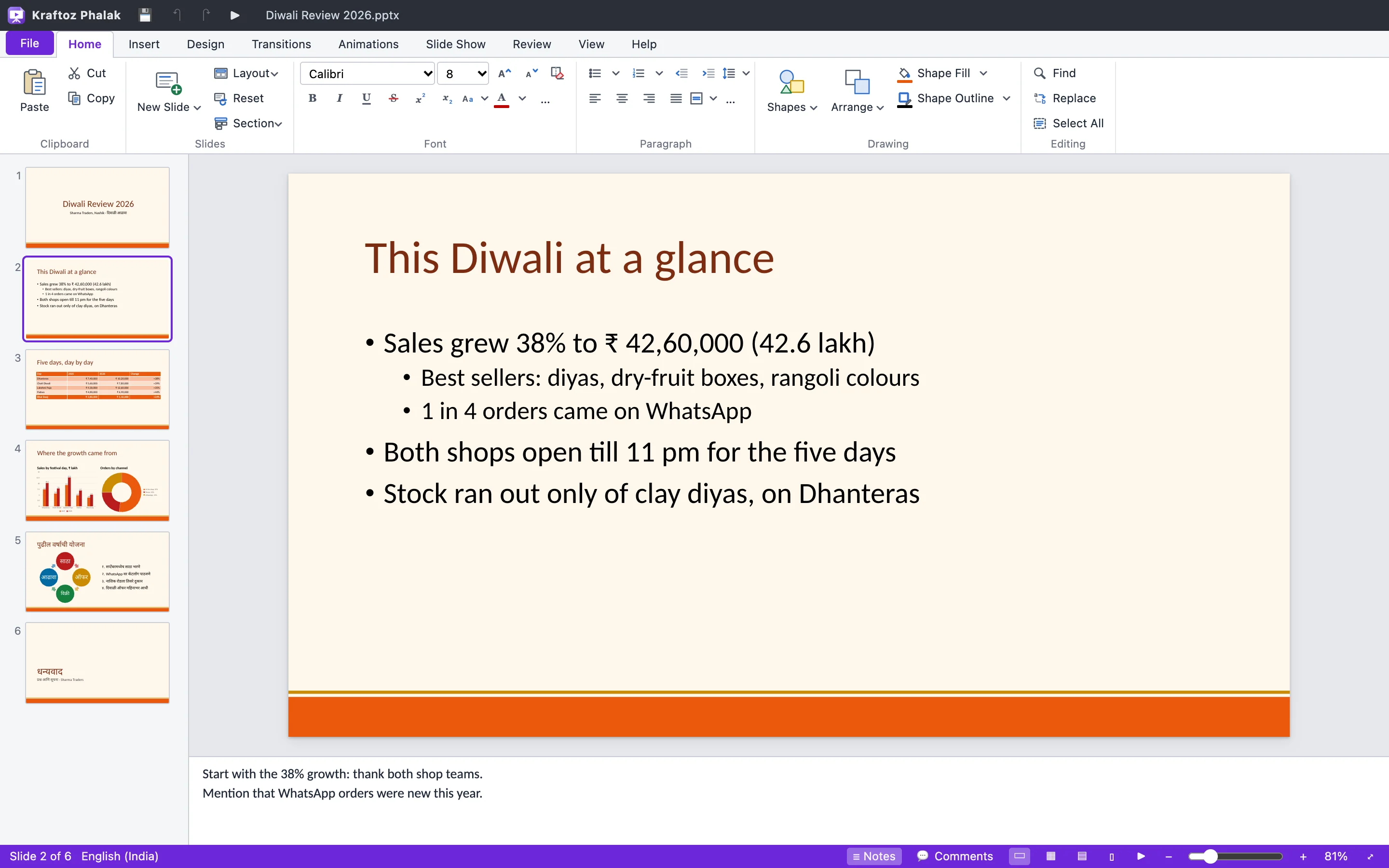
The ribbon has the commands, in tabs. Each tab is divided into groups, with the group's name under it.
| Tab | Groups |
|---|---|
| File | A menu: New, New from Template, Open, Save, Save As, Print, Save as PDF, Properties, Language, Install (or Check for Updates in the desktop app), About |
| Home | Clipboard, Slides, Font, Paragraph, Drawing, Editing |
| Insert | Slides, Tables, Images, Illustrations, Links, Comments, Text, Symbols, Media |
| Design | Themes, Customise |
| Transitions | Preview, Transition to This Slide, Timing |
| Animations | Preview, Animation, Advanced Animation, Timing |
| Slide Show | Start Slide Show, Set Up, Monitors |
| Review | Proofing, Indian Languages, Comments |
| View | Master Views, Presentation Views, Show, Zoom |
| Help | Keyboard Shortcuts, Install (or Check for Updates), About |
Point to a button to see its name and its shortcut key. A button with a small arrow (▾) opens a menu or gallery. Some buttons are split in two: click the picture to run the command, or the label with the arrow to choose from a menu. New Slide works this way.
The View ▸ Show group has a small launcher at the right of its name. It opens the Grid and Guides dialog.
Tabs that appear when you select something
Some tabs show only when you select something on the slide. They appear after the Help tab, in a different colour.
| You select | Tabs that appear |
|---|---|
| A shape or text box | Shape Format |
| A picture | Picture Format |
| A table | Table Design and Table Layout |
| A chart | Chart Design and Shape Format |
| A diagram | Diagram Design and Shape Format |
| A video or sound | Playback and Picture Format |
While you edit the slide master, a Slide Master tab comes first. See Themes, backgrounds and the slide master.
The message bar
A bar under the ribbon shows messages about the presentation, for example when an opened file has parts Phalak doesn't show yet, or text in an old Hindi font. Some messages have a button, such as Convert to Unicode. Click × to close the bar.
The slides pane
The slides pane at the left shows a small picture of each slide, with its number.
- Click a slide to show it in the editing area.
- A ★ on a slide means it has a transition or animations.
- A hidden slide is pale, and its number is struck through.
- If the presentation has sections, their names appear above their slides.
Working with slides in this pane is in Slides, layouts and sections.
The slide and the notes pane
The middle of the window shows the current slide, where you type and arrange things. Under it is the notes pane, where you type speaker notes for the slide. Drag the line between them to make the notes pane bigger or smaller. To hide the notes pane, click Notes in the status bar or untick View ▸ Show ▸ Notes.
Right-click an empty part of the slide for Paste, Layout, Reset Slide, Format Background…, Grid and Guides and Ruler.
The status bar
The status bar along the bottom shows, from left to right:
- Slide 2 of 6: the slide you are on, and how many there are.
- A badge such as अ हिन्दी · मराठी when phonetic typing is on. Click it to turn phonetic typing off.
- Short messages, such as Saved.
- Notes: shows or hides the notes pane.
- Comments: shows or hides the Comments pane. See Comments and proofing.
- The view buttons: Normal, Slide Sorter, Notes Page, Reading View and Slide Show.
- The zoom controls.
Zoom
The zoom controls are at the right end of the status bar.
- Click − or + to zoom out or in by 10%.
- Drag the slider, from 10% to 400%.
- Hold Ctrl and turn the mouse wheel over the slide.
- Click the percentage, or View ▸ Zoom ▸ Zoom, to open the Zoom dialog. Choose Fit, 400%, 200%, 100%, 66%, 50% or 33%, or type a Percent.
- Click ⤢ (Fit slide to current window) or View ▸ Zoom ▸ Fit to Window to fit the whole slide in the window again.
Zoom changes only how big the slide looks on screen. It doesn't change the slide.
Views
Choose a view on the View tab, in the Presentation Views group, or with the buttons in the status bar.
| View | What it shows |
|---|---|
| Normal | The slides pane, one slide to work on, and its notes. This is where you do most of your work. |
| Slide Sorter | All the slides as pictures in rows, in their sections. Use it to see the whole presentation and to move slides around. Double-click a slide to open it in Normal view. |
| Notes Page | Each slide on a page with its notes under it, as notes pages print. You can type the notes on each page. Double-click a page's slide to open it in Normal view. |
| Reading View | The slide show inside the window, with a small bar at the bottom. See below. |
View ▸ Master Views ▸ Slide Master is in Themes, backgrounds and the slide master. The slide show is in Presenting a slide show.
Reading View
Reading View plays the slide show in Phalak's window, under the title bar, instead of full screen. It is useful to check a presentation without leaving your other windows.
The bar at the bottom shows the slide number, and has:
- ◀ and ▶ for the previous and next slide (or animation).
- ☰ Menu, with Next, Previous, a list of all the slides to jump to, and End Show.
- Buttons for Normal, Slide Sorter and Slide Show, which end Reading View and switch to that view.
The slide show keys work here too. Press Esc to go back to the view you were in.
Starting a presentation
A new, blank presentation
Go to File ▸ New, or press Ctrl+N. The new presentation has one title slide on the Plain theme, in Widescreen (16:9) size. It is named Presentation2.pptx, Presentation3.pptx and so on.
If the presentation that's open has changes you haven't saved, Phalak asks first: Start a new presentation? Click New to go ahead and lose the changes, or Cancel to go back and save them.
A new presentation from a template
- Go to File ▸ New from Template….
- Click a template, for example Class Lesson or Product Pitch. Blank Presentation gives the same as File ▸ New.
- Click any text in [square brackets] and type your own.
The templates and what is in each are in Templates.
Opening a presentation
To open a .pptx file, use File ▸ Open… (Ctrl+O), or drag the file onto the slide. See Opening, saving and file types.
Menus in Hindi or Marathi
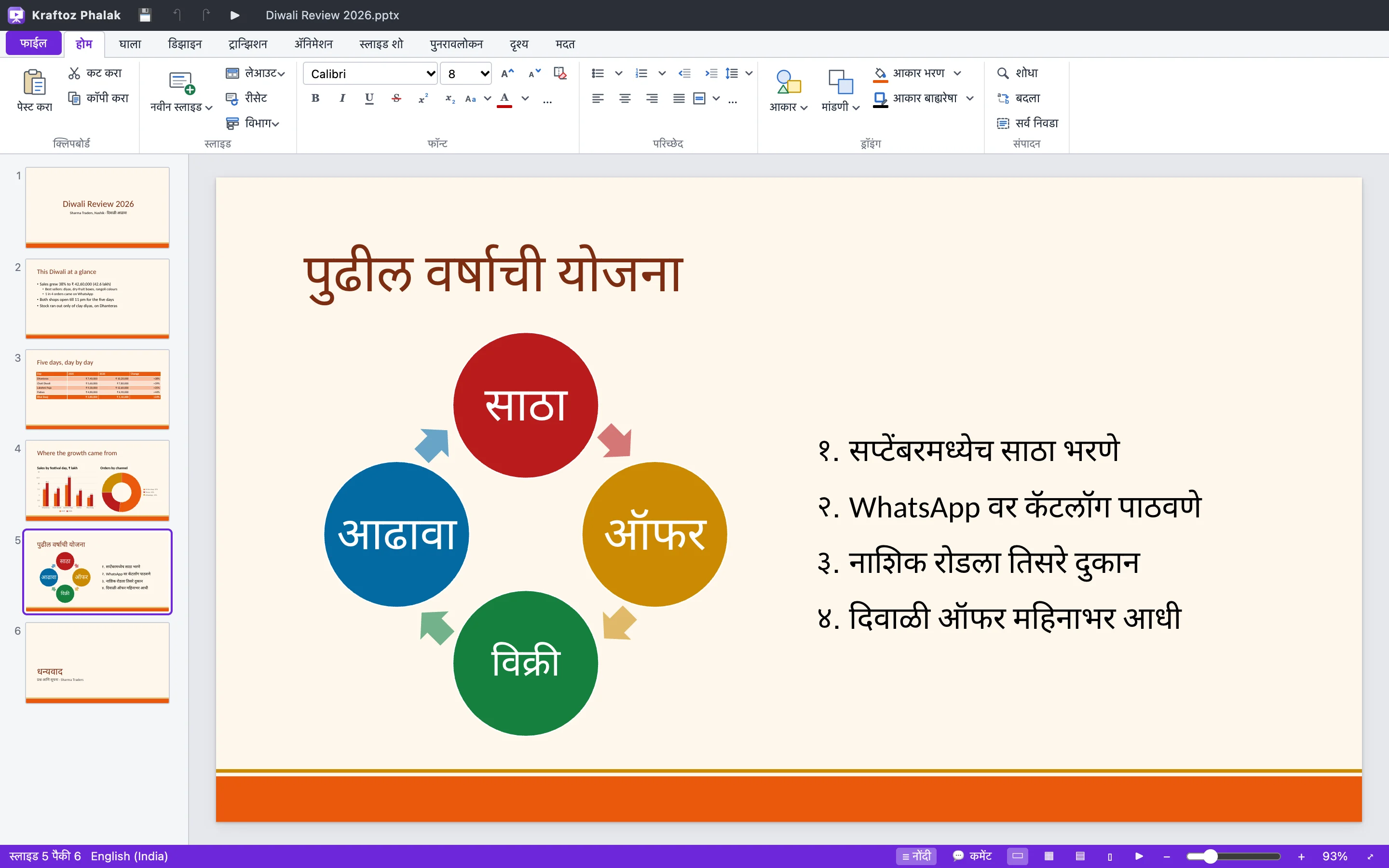
Phalak's menus, ribbon and dialogs can be in English, Hindi or Marathi.
- Go to File ▸ Language….
- Under Show menus, the ribbon and dialogs in:, choose English, हिंदी or मराठी.
- Click OK.
Phalak reloads in the new language, with your presentation still open. The text on your slides is not changed. In Hindi the menu is फ़ाइल ▸ भाषा…, and in Marathi फाईल ▸ भाषा….
To type Hindi and Marathi on the slides, see Hindi, Marathi and Indian numbering.
Installing Phalak on your computer
Installing Phalak from the browser gives it its own icon and window, and it works without internet.
- Go to File ▸ Install Kraftoz Phalak on This Computer…, or Help ▸ Install.
- If the browser offers to install, confirm it.
If the browser can't install it this way, the dialog tells you how:
- In Chrome or Edge: click the install icon at the right end of the address bar, or open the browser's ⋮ menu ▸ Cast, save and share ▸ Install page as app.
- In Safari on a Mac: File ▸ Add to Dock. On an iPhone or iPad: the Share button ▸ Add to Home Screen.
If Phalak is already installed and you are using it, the dialog says so.
The desktop app
In the Kraftoz Phalak desktop app:
- Open and Save use your computer's own file dialogs.
- Double-click a .pptx file, or open it with Phalak from the computer, to open it in Phalak. If the window already has a presentation you have changed, the file opens in a new window.
- File ▸ Check for Updates… and Help ▸ Check for Updates look for a newer version. Phalak also checks a few seconds after it starts. When there is one, click Update Now to download and install it; Phalak restarts with your presentation as it was. Later skips that version until the next start.
Working without internet
Once Phalak has opened in a browser, it keeps a copy of its files there. After that it works without internet: when it is ready, the status bar says Kraftoz Phalak now works without internet.
When you go offline, the status bar says so. Your presentation, saving, the slide show, printing and PDF all keep working. When you are online, Phalak loads its newest version.
Your work is kept as you go
Phalak keeps the presentation you are working on in the browser (or the desktop app) a moment after each change. If the browser closes, the computer restarts, or you reload the page, the presentation comes back when you open Phalak again.
This is not the same as saving. The kept copy is only in this browser on this computer, and only the last presentation you worked on is kept. To keep a presentation for good, or to send it to someone, save it as a .pptx file: see Opening, saving and file types.
Note
In the desktop app, only the first window's presentation is kept this way. A presentation opened in a second window is not kept, so save it before you close that window. Phalak doesn't ask about unsaved changes when a window closes.
Help
The Help tab has:
- Keyboard Shortcuts (F1): the shortcut keys, by group, with a box to search them. See Shortcuts and settings.
- Install, in the browser, or Check for Updates, in the desktop app.
- About: the version, what Phalak does, how it keeps your work private, and the credits. Licences and Privacy shows the licences of the parts Phalak uses.