Printing and PDF
Shabd prints from its Print page, where you choose which pages to print and see them as they will come out. The same page saves the document as a PDF, ready to send on e-mail or WhatsApp. Open it with File ▸ Print… or Ctrl+P (⌘P on a Mac).
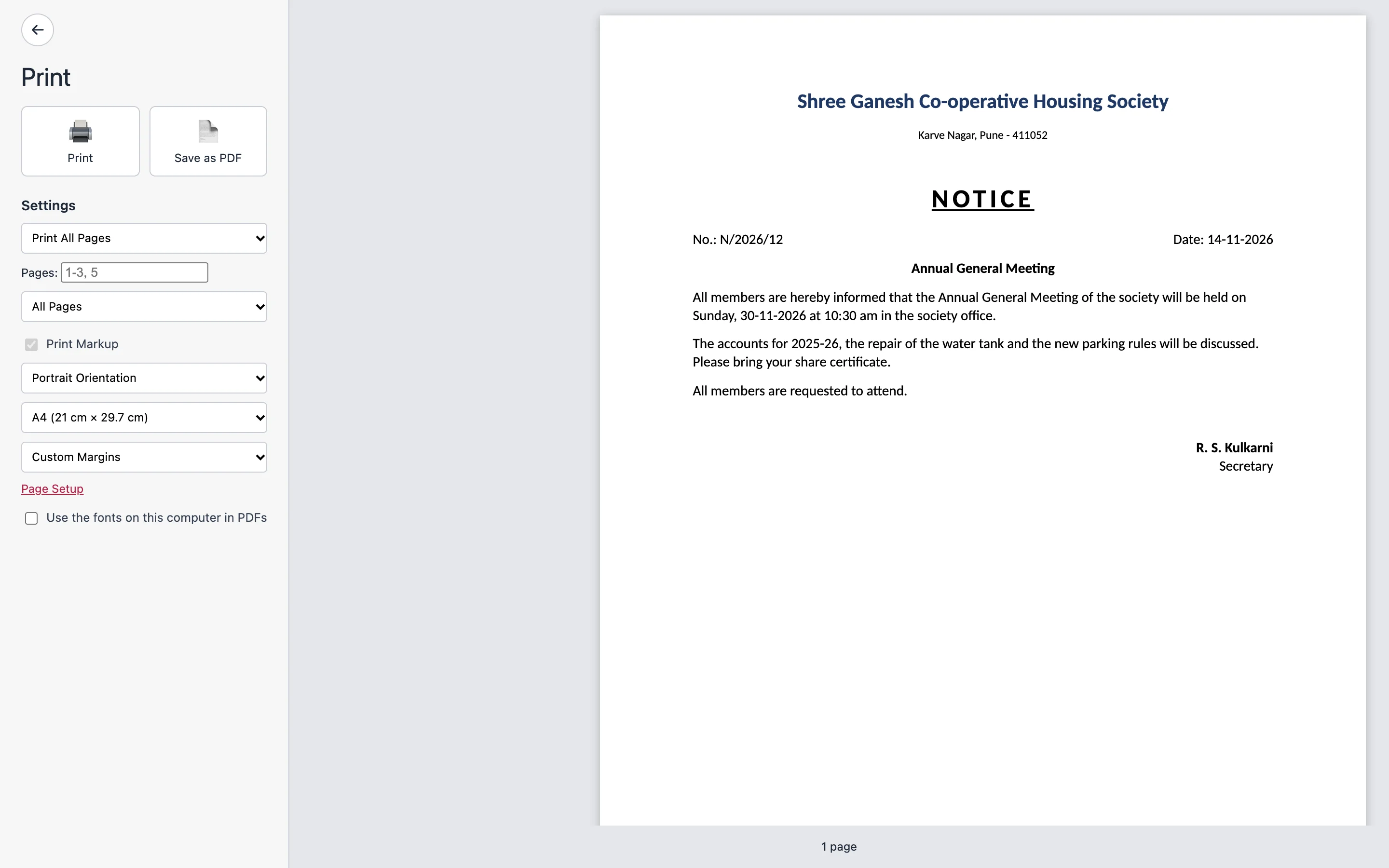
Printing a document
- Press Ctrl+P, or choose File ▸ Print….
- Check the pages on the right. The line under them says how many pages will print, such as 2 of 5 pages.
- Change the settings on the left if you need to (see the table below).
- Click Print. Your computer's print window opens.
- In the print window, choose the printer and the number of copies, then print.
The printer, the number of copies, collating and two-sided printing are in your computer's print window, not on Shabd's Print page. If the print window has a scale setting, keep it at 100% so the page prints at its real size.
To leave the Print page without printing, click ← at the top left, or press Esc.
The settings on the Print page
| Setting | What it does |
|---|---|
| Print All Pages | Every page. |
| Print Selection | Only the paragraphs you selected before opening the Print page. It is greyed out when nothing is selected. |
| Print Current Page | The page the cursor was on. |
| Custom Print | The pages typed in the Pages box. |
| Pages | Page numbers and ranges with commas between them, such as 1-3, 5, 8-. 8- means page 8 to the end. Typing here chooses Custom Print. Pages count from the start of the document. |
| All Pages / Only Print Odd Pages / Only Print Even Pages | All the chosen pages, or only the odd or even ones among them. |
| Print Markup | Prints tracked changes and comments as they show on screen. Untick it to print the document as if every change were accepted. It is greyed out when the document has no tracked changes or comments. |
| Portrait Orientation / Landscape Orientation | The orientation of the pages. |
| Paper size | A4, Letter, Legal, A3, A5, B5 (JIS) or Executive, with each one's size in cm. |
| Margins | Normal, Narrow, Moderate, Wide or Classic margins. Custom Margins opens the Page Setup dialog. |
| Page Setup | Opens the Page Setup dialog (see Page layout). |
| Use the fonts on this computer in PDFs | See Fonts in the PDF. |
If the Pages box has something Shabd can't read, such as page 9 of a 5-page document, the Print page says The page range isn't valid.
Note
The orientation, paper size and margins on the Print page change the document itself, for the section the cursor is in, the same as the Layout tab does. They stay changed when you leave the Print page. Press Ctrl+Z to undo them.
Printing on both sides by hand
If your printer doesn't print on both sides by itself:
- Choose Only Print Odd Pages and print.
- Put the printed sheets back in the paper tray, turned over. Which way they go depends on the printer: try with two sheets first.
- Choose Only Print Even Pages and print.
Saving as a PDF
A PDF looks the same on every phone and computer, and can't be changed by mistake. It is the best way to send a notice, a leave application or a quotation.
- On the Print page, click Save as PDF. The PDF has the pages chosen on the Print page, with or without markup as chosen there.
- Or choose File ▸ Save as PDF…. The PDF has every page, as the document shows it.
Shabd suggests the document's name with .pdf, and asks where to save it. Some browsers save it straight to the Downloads folder instead. When it's done, the status bar says Saved as PDF and lists the fonts it put in the file.
The PDF has real text, so it can be searched and copied, and lines and borders stay sharp at any zoom. Pictures, tables, charts, headers and footers, page numbers, page colour, page borders and watermarks all go into it. Pages of different sizes, such as one landscape page in a portrait report, each keep their own size.
The PDF's title is the Title in File ▸ Properties…, or the document's file name if there is no title.
Note
Links in the document are not clickable in the PDF, and the PDF has no bookmarks for its headings.
Fonts in the PDF
Shabd puts the fonts into the PDF, so it looks right on a phone or computer that doesn't have them.
- Hindi and Marathi text goes in with Noto Sans Devanagari when the PDF can't use the document's own font. A Hindi leave application in Nirmala UI, saved on a computer without Nirmala UI, comes out in Noto Sans Devanagari.
- Calibri goes in as Carlito, a free font with the same letter widths, so lines and pages break in the same places.
- Free fonts Shabd fetched from the internet, such as Mukta or Hind, go in as they are.
- Other fonts on your computer go in when Use the fonts on this computer in PDFs is ticked on the Print page. The browser asks once for permission to read the computer's fonts: allow it. The tick box only shows in browsers that can share the computer's fonts.
Check the font names in the status bar message after saving. If a font you used isn't there, the PDF used a stand-in for it.
Printing merged letters
After a mail merge, Mailings ▸ Finish & Merge ▸ Print Documents… opens the Merge to Printer dialog. Choose All, Current record, or a range From: … To:, and click OK. Shabd makes the letters as a new document, each on its own page, and opens the Print page for it. Print them, or click Save as PDF for one PDF of all the letters.
See Mail merge, envelopes and labels for setting up the letters, envelopes and labels.
Printing on letterhead
When the letterhead is already printed on the paper, the document must leave room for it.
- Measure the letterhead: how far it comes down from the top of the paper, and up from the bottom if it has an address strip there.
- Choose Layout ▸ Margins ▸ Custom Margins…. Set Top (cm) to that height plus about 1 cm, and Bottom (cm) the same way.
- Leave the header and footer empty, so nothing prints over the letterhead.
- Print one page on plain paper first, hold it against a letterhead sheet up to the light, and check that the text clears it.
- Put the letterhead paper in the tray the right way up and print.
If only the first sheet is letterhead and the rest are plain, leave the margins as they are. Instead, give the first paragraph extra space above it: in its Paragraph dialog, set Before (pt). 1 cm is about 28 pt.
Checking the pages before printing
View ▸ Views ▸ Read Mode shows the pages as they print, one or two at a time, to read without changing anything. Use the ‹ and › buttons, the arrow keys or the mouse wheel to turn the pages. Page Colour shows them on Sepia or Inverse (light text on dark) for easier reading on screen; this doesn't change the document. Click Edit Document, or press Esc, to go back.
Related chapters
- Page layout, headers and footers: paper size, margins, page numbers and watermarks.
- Review, track changes and protection: tracked changes and comments, which Print Markup prints.
- Mail merge, envelopes and labels: letters for everyone on a list.