Comments and proofing
The Review tab has three groups: Proofing for the spelling check, Indian Languages for Hindi and Marathi typing and conversion, and Comments for notes that the people working on a presentation leave for each other on its slides.
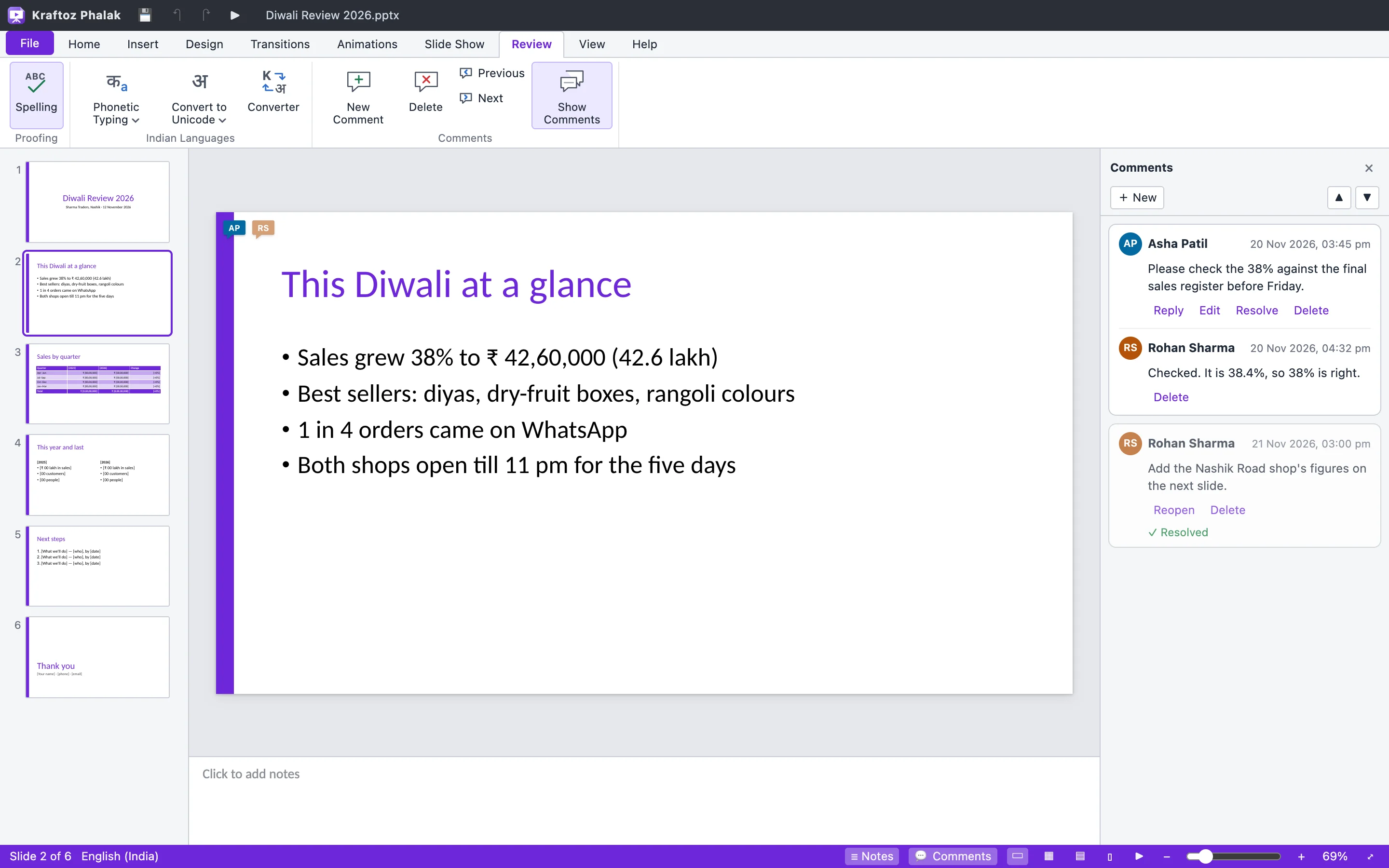
Spelling
Phalak underlines words that may be misspelled as you type, in slide text, table cells, the notes under the slide and comments.
- To turn the check off or on, click Review ▸ Proofing ▸ Spelling, or press F7. The button is lit while the check is on. It is on when Phalak starts.
- To correct a word, type over it.
The underlining comes from the spell checker of your browser (in the desktop app, of the computer), in the languages set there. To check Hindi or Marathi text, add that language to the browser's or computer's spell check languages.
The underlines don't print, and they don't show in the slide show.
Note
Right-clicking a word on the slide opens Phalak's own menu, so the spell checker's suggestions don't show there. Type the correct word yourself.
Comments
A comment is a note on a slide, such as "Please check the 38% against the sales register". Others can reply to it, and mark it resolved when it is dealt with. Comments are saved in the .pptx file, with their replies and whether they are resolved, so they come through when you share the file. They don't show in the slide show, and they don't print.
Your name on comments
The first time you add a comment, Phalak opens the User Name dialog. Type your name, for example Asha Patil, and your Initials (AP). If you leave the initials empty, Phalak makes them from your name. Click OK. Every comment and reply you write carries this name and the date and time.
Adding a comment
- Go to the slide.
- Click Review ▸ Comments ▸ New Comment, or press Ctrl+Alt+M. You can also use Insert ▸ Comments ▸ Comment, or + New at the top of the Comments pane.
- Type the comment in the box. Enter starts a new line.
- Click Post, or press Ctrl+Enter. To drop it, click Cancel or press Esc.
Phalak opens the Comments pane beside the slide, and puts a bubble with your initials at the slide's top left. Each person's comments have their own colour. If you were in another view, Phalak goes back to Normal view, as comments are added there.
Seeing the comments
The Comments pane lists the comments on the slide you are on, each with its replies.
- To open or close it, click Review ▸ Comments ▸ Show Comments, or Comments on the status bar. The × at the top of the pane also closes it.
- Click a bubble on the slide to open the pane at that comment.
- To go through every comment in the presentation, click Review ▸ Comments ▸ Previous or Next, or ▲ and ▼ in the pane. Phalak moves to each comment's slide in turn, and goes round to the first one after the last.
The pane shows only in Normal view.
Replying to a comment
- Under the comment, click Reply.
- Type your reply and click Reply, or press Ctrl+Enter.
Changing a comment
Click Edit under the comment or reply, change the text, and click Save. You can edit only what you wrote: the Edit button shows on comments and replies with your name.
Resolving a comment
When a comment has been dealt with, click Resolve under it. The comment stays in the pane, greyed, with ✓ Resolved under it, and its bubble on the slide is greyed too.
To open it again, click Reopen.
Deleting comments
- To delete a comment with its replies, click Delete under it. Or click the comment in the pane, then Review ▸ Comments ▸ Delete.
- To delete only a reply, click Delete under the reply.
- To delete more at once, click the arrow on Review ▸ Comments ▸ Delete and choose Delete All Comments on This Slide or Delete All Comments in This Presentation. Phalak asks before it deletes all the comments in the presentation.
Undo (Ctrl+Z) brings back a comment you deleted by mistake.
Note
Phalak asks for your name only once, and there is no menu command to change it afterwards. Comments you wrote under the old name can no longer be edited by you.
Indian Languages
The Indian Languages group has the tools for Hindi, Marathi and other Indian languages:
| Button | What it does |
|---|---|
| Phonetic Typing | Type in English letters and get Indian-language text: namaste becomes नमस्ते. Click the button (or press Alt+Shift+H) to turn it on or off. The arrow chooses the script: Devanagari for Hindi and Marathi, and others. |
| Convert to Unicode | Turns text typed in Kruti Dev, DevLys, Walkman, Akruti or Chanakya into Unicode, for the selection or the whole presentation. The arrow also has Unicode → Kruti Dev. |
| Converter | The Hindi / Marathi Font Converter: paste text in an old Hindi font and get Unicode, or the other way, then insert it. |
These are explained in Hindi, Marathi and Indian numbering.