Review, track changes and protection
The Review tab has the tools for checking a document and for working on it with other people: spelling and the thesaurus, the accessibility check, comments, track changes, comparing two versions, and restricting what others can change.
Your name on comments and changes
Each comment and tracked change shows who made it. Set your name before you review:
- Click Review ▸ Tracking ▸ User Name.
- Type your name, such as Asha Patil, and your Initials. Leave Initials empty and Shabd uses the first letters of your name.
- Click OK.
The name is kept on this computer. Until you set it, comments show "Author". See also Your name.
Spelling and words
Spelling
Shabd uses the browser's own spelling checker. Misspelled words get a red underline as you type. Right-click an underlined word for suggestions.
Review ▸ Proofing ▸ Spelling (F7) turns the underlines on and off. The browser checks in the proofing language shown in the status bar. To change it, see The proofing language. For Hindi and Marathi, see Checking spelling in Hindi or Marathi.
Note
Shabd has no spelling dialog that goes through the document word by word. Check the underlined words as you read.
Thesaurus
- Click in a word, or select it.
- Click Review ▸ Proofing ▸ Thesaurus (Shift+F7).
- Click a word in the list to put it in place of the selected word. Double-click a word to look up its own list.
You can also type a word in the box at the top. The thesaurus is for English only.
Word count and AutoCorrect
Review ▸ Proofing ▸ Word Count (Ctrl+Shift+G) shows the pages, words, characters and paragraphs. See Counting words.
Review ▸ Proofing ▸ AutoCorrect sets what Shabd corrects as you type. See AutoCorrect.
Checking accessibility
Review ▸ Accessibility ▸ Check Accessibility lists what makes the document hard to read for people who use a screen reader or have poor eyesight. The list is in three groups:
| Group | What Shabd looks for |
|---|---|
| Errors | Pictures, charts, diagrams and shapes without alt text; tables without a header row |
| Warnings | Text with too little contrast against its background; link text such as "click here"; three or more empty lines used for spacing; pictures and charts not in line with the text |
| Tips | Heading levels skipped, such as Heading 1 followed by Heading 3 |
Each item says what to do. Click an item to go to it in the document. Many items have a button that fixes them, such as Add a description, Use first row as header or Delete the empty lines. The list updates after each fix.
Comments
A comment is a note about some text, for the writer or other reviewers. It doesn't print unless you choose to print the markup.
Adding a comment
- Select the text the comment is about. With nothing selected, the comment is about the word at the cursor.
- Click Review ▸ Comments ▸ New Comment (Ctrl+Alt+M; ⌘⌥M on a Mac).
- Type the comment in the balloon beside the page, or in the Comments pane.
- Press Esc or click in the document when you're done.
The commented text is highlighted. A comment is plain text: it has no bold, colours or pictures.
Where comments are shown
With All Markup (the usual view), each comment is in a balloon in the margin to the right of the page, with a dotted line to its text. Click in commented text and its balloon is highlighted.
Review ▸ Comments ▸ Show Comments opens the Comments pane beside the page instead, with all the comments in the order they come in the document. Click it again to close the pane.
Replying and resolving
Each comment has three buttons:
- Reply adds a reply under the comment, with your name.
- Resolve marks the discussion finished. The comment is greyed out, its replies are hidden, and its text is no longer highlighted. Reopen brings it back.
- Delete removes the comment and its replies. To remove only a reply, click the × on it.
Going through comments
Previous and Next in the Comments group select the text of the previous or next comment. From the last one, Next goes back to the first.
Deleting comments
Click in a comment's text and click Review ▸ Comments ▸ Delete. To remove them all, click the arrow on Delete and choose Delete All Comments in Document.
Track changes
With Track Changes on, what you type and delete is marked instead of changed outright, so the writer can see each change and accept or reject it. A teacher correcting a student's essay, or a lawyer going through a draft agreement, works this way.
Turning Track Changes on
Click Review ▸ Tracking ▸ Track Changes (Ctrl+Shift+E). The button stays highlighted while it's on. Click it again to turn it off. Track Changes is saved with the document, so it's still on when the file is opened next.
While Track Changes is on:
- Typed text is underlined, in a colour for each reviewer.
- Deleted text stays, struck through, until the change is accepted.
- Pressing Enter or joining two paragraphs is marked too.
- Changes to formatting, such as making text bold or changing a paragraph's style, are kept with what the formatting was before.
- Cutting text and pasting it in another place is marked as a move: double struck through where it was, double underlined where it went, in green.
- A bar in the left margin marks each line with a change.
If you delete text you typed yourself with Track Changes on, it simply goes. It isn't marked as deleted.
Choosing what you see
Review ▸ Tracking ▸ Display for Review has four views:
| View | What you see |
|---|---|
| Simple Markup | The text as it would be with every change accepted, a red bar beside changed lines, and a comment icon in the margin. Click a red bar to see All Markup. |
| All Markup | Every change in colour, and comments in balloons beside the page |
| No Markup | The text as it would be with every change accepted, with no marks |
| Original | The text as it was, as if every change were rejected |
The views only change what you see. Accepting and rejecting are separate.
Show Markup sets what goes in the balloons in All Markup:
- Show Only Comments and Formatting in Balloons (the usual choice): comments and formatting changes in balloons, insertions and deletions in the text.
- Show Revisions in Balloons: deletions in balloons too, so the text reads as it would be.
- Show All Revisions Inline: no balloons. Comments are then shown in the Comments pane.
A balloon for a formatting change says what changed, such as "Formatted: Bold, Font colour: …", and has Accept and Reject buttons of its own.
The Reviewing Pane
Review ▸ Tracking ▸ Reviewing Pane opens a list of every change and comment in the document, in order. At the top it counts the revisions: insertions, deletions, moves, formatting and comments. Click an item to go to it. Click ✓ to accept a change or ✗ to reject it.
Accepting and rejecting changes
Accepting a change makes it part of the text: inserted text loses its underline, deleted text goes. Rejecting it undoes the change: inserted text goes, deleted text comes back.
- Click in a change, or click Review ▸ Changes ▸ Next to select the next one.
- Click Accept or Reject. Shabd moves to the next change.
The arrow on Accept or Reject has more choices:
| Choice | What it does |
|---|---|
| Accept and Move to Next | The change the cursor is in, then selects the next one |
| Accept This Change | The change the cursor is in, and stays there |
| Accept All Changes | Every change in the document |
| Accept All Changes and Stop Tracking | Every change, and turns Track Changes off |
Reject has the same four. If you select some text first, Accept and Reject act on all the changes in the selection. Accepting or rejecting one end of a move does both ends.
Previous and Next in the Changes group go from change to change without accepting anything.
Printing with or without the changes
On the Print page, Print Markup prints the changes and comments as the document shows them. Untick it to print the document as if every change were accepted, with no comments. See Printing and PDF.
Comparing two versions
Compare shows what changed between two versions of a document, when the changes were made without Track Changes. For example, a client sends back your quotation with some lines changed and doesn't say which.
- Open one of the two versions.
- Click Review ▸ Compare ▸ Compare. The Compare Documents dialog opens.
- Under This document is the, choose Revised document (compare with an earlier version) or Original document (compare with a later version).
- Under The other version, choose the other file. It must be a .docx file.
- In Label changes with, type the name the changes should show, such as the client's name.
- Click OK.
Shabd opens a new document, named Compare Result 1 and so on, with the revised text and the differences marked as tracked changes. Go through them and accept or reject each one as above. The two files you compared don't change.
Shabd compares paragraph by paragraph, and word by word inside paragraphs that changed a little. If the documents are the same, Shabd says so and doesn't open a new document.
Note
Compare finds changes to the text, tables and paragraphs. It doesn't mark changes to formatting alone, such as text made bold. Changes still tracked in either version are taken as accepted before comparing.
Restricting editing
Restrict Editing stops changes made by mistake. For example, a school sends a circular that parents should read but not change, or a form that should only be filled in.
- Click Review ▸ Protect ▸ Restrict Editing. The same button is on the Developer tab.
- Tick Allow only this type of editing in the document, and choose one:
| Choice | What others can do |
|---|---|
| No changes (Read only) | Read, select, copy, find, print and save. No typing. |
| Tracked changes | Edit, but every change is tracked. Track Changes can't be turned off. |
| Comments | Add and reply to comments. The text can't be changed. |
| Filling in forms | Type or choose only in the document's content controls. See Forms and content controls. |
- Click Yes, Start Enforcing Protection.
While the document is protected, the buttons that would change it are greyed out, and Shabd shows a message if you try them.
To stop the protection, click Restrict Editing again and click Stop Protection.
Note
Shabd doesn't set passwords on protection, so anyone with Shabd can stop it. It protects against mistakes, not against someone who wants to change the document. If a .docx file's protection has a password set in another app, Shabd keeps the protection and can't stop it; stop it in the app that set it.
Saving reviews
Comments with their replies and resolved state, tracked changes (including formatting changes and moves) and protection are saved in .docx files, and open in other word processors. Save a document you're reviewing as .docx. See Opening, saving and file types.
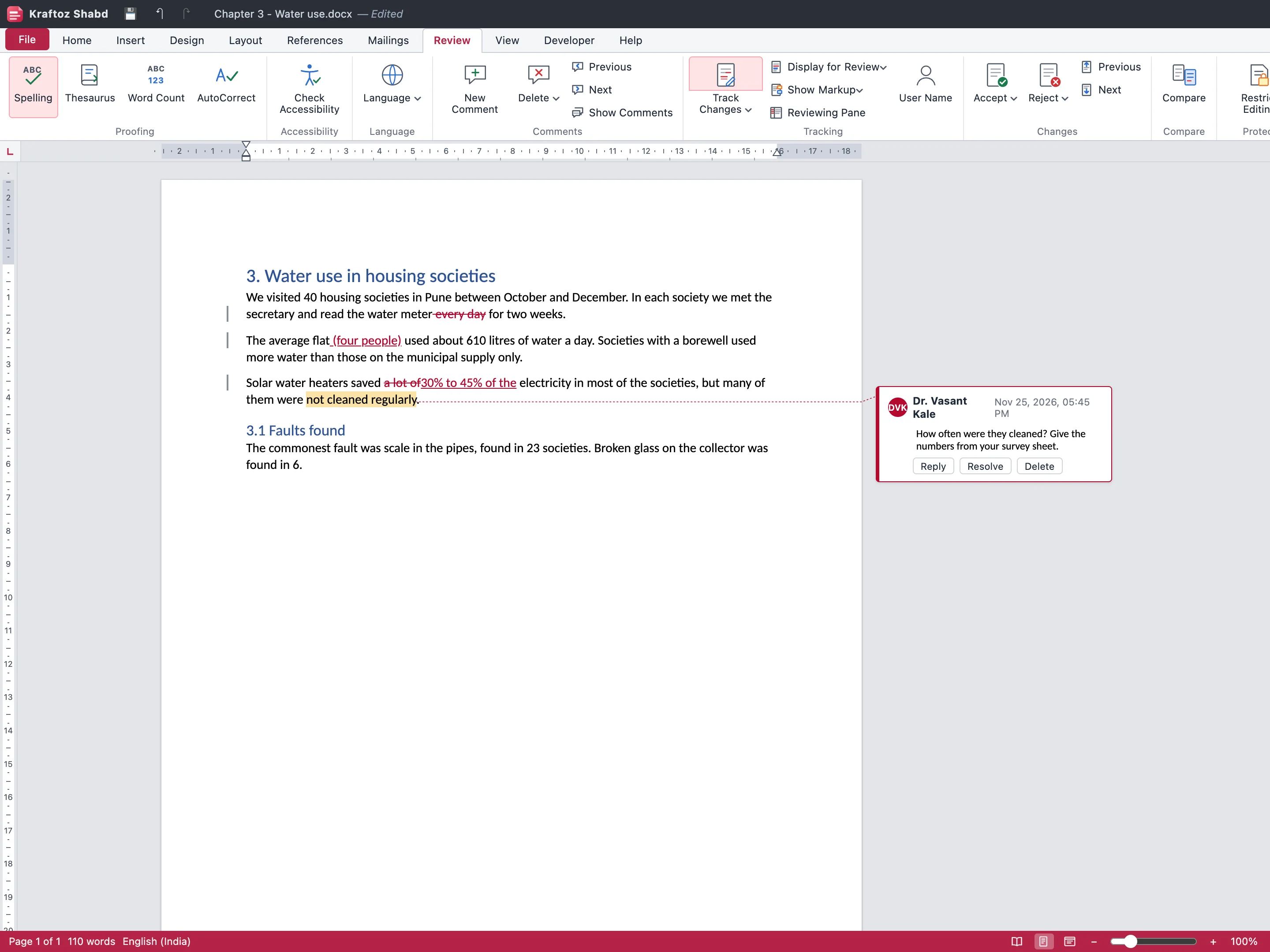
Example: a guide reviews a thesis chapter
A student in Pune sends Chapter 3 of her thesis to her guide, Dr. Vasant Kale, as a .docx file.
- Dr. Kale opens the file and sets Review ▸ Tracking ▸ User Name to "Dr. Vasant Kale".
- He turns on Track Changes and makes his corrections. He deletes "every day", adds "(four people)", and replaces "a lot of" with "30% to 45% of the".
- Where he wants more detail, he selects "not cleaned regularly", clicks New Comment and types his question.
- He saves the file and sends it back.
- The student opens it. She uses Next to go through the changes and Accept for each one she agrees with.
- She clicks Reply on the comment, adds the numbers to the text, and clicks Resolve.
- Before printing the final copy, she checks the Reviewing Pane shows no revisions left.