Presenting a slide show
The slide show plays your presentation full screen, one slide at a time, with its transitions and animations. Presenter View shows the slides to the audience on a projector or TV, and shows you your notes, the next slide and a timer on the laptop.
The commands are on the Slide Show tab.
Starting the slide show
| To start | Do this |
|---|---|
| From the first slide | Slide Show ▸ From Beginning, or press F5, or click ▶ at the top of the window next to Undo and Redo. |
| From the slide you are on | Slide Show ▸ From Current Slide, or press Shift+F5, or click the Slide Show button ▶ on the status bar. |
| In Presenter View | Slide Show ▸ Presenter View, or press Alt+F5. It starts from the slide you are on. |
The show fills the screen. If you start from a hidden slide, it starts from the next slide that isn't hidden.
When the last slide is done, the screen says End of slide show, click to exit. Click, or press any key that goes forward, to go back to editing. Phalak opens the slide where you stopped.
Moving through the show
Keys
| Key | What it does |
|---|---|
| → ↓ Space N Enter Page Down | Next animation, or the next slide |
| ← ↑ Backspace P Page Up | Back one animation, or the slide before |
| A slide number, then Enter | Go to that slide. The number you type shows at the bottom right as Go to slide 4. |
| Home | The first slide |
| End | The last slide, complete |
| B or . (full stop) | Black screen. Press it again, or any key that moves on, to come back. |
| W or , (comma) | White screen. Press it again to come back. |
| Esc or - (hyphen) | End the show |
The black screen is useful when you want the room to look at you, for example while you take questions at a society AGM.
Mouse
| Mouse | What it does |
|---|---|
| Click | Next animation, or the next slide |
| Right-click | Back one animation, or the slide before |
| Scroll wheel | Down goes forward, up goes back |
| Click a video or sound | Plays it, or pauses it, without moving on |
While the mouse pointer is over the show, three round buttons show at the bottom left: ◀ (Previous), ▶ (Next) and ✕ (End Show). The pointer hides after a few seconds without moving.
Leaving full screen, for example with the browser's own key, also ends the show.
Note
Phalak's slide show has no pens, highlighter or laser pointer, and no Rehearse Timings. To make slides move on by themselves, type the seconds for each slide in Transitions ▸ After. See Transitions and animations.
Setting up the show
Set Up Slide Show
Slide Show ▸ Set Up Slide Show opens the Set Up Show dialog.
| Option | What it does |
|---|---|
| Loop continuously until 'Esc' | After the last slide, the show starts again from the first. It runs until you press Esc. This is saved with the presentation. |
| Use timings, if present | Slides with an After time on the Transitions tab move on by themselves. Untick it to move every slide by hand. This is the same setting as Use Timings on the ribbon. |
Hidden slides are skipped in the slide show.
For a show that runs by itself, such as a new-arrivals loop on a TV at the shop counter:
- Select all the slides. On the Transitions tab, tick After and type the seconds, for example 8.
- Go to Slide Show ▸ Set Up Slide Show, tick Loop continuously until 'Esc' and Use timings, if present, and click OK.
- Press F5.
Note
Use Timings isn't saved with the presentation. It is ticked each time you open Phalak.
Hiding a slide
A hidden slide stays in the presentation but is skipped in the slide show. Use it for a backup slide you show only if someone asks, such as the detailed ₹ figures for each shop.
- Select the slide, or several slides, in the slide pane.
- Click Slide Show ▸ Hide Slide. You can also right-click the slide and choose Hide Slide.
The slide's number is crossed out and its picture is paler. Click Hide Slide again to show it.
During the show, you can still go to a hidden slide by typing its number and pressing Enter. Hidden slides are saved in the .pptx file. To print them too, see Printing and PDF.
Presenter View
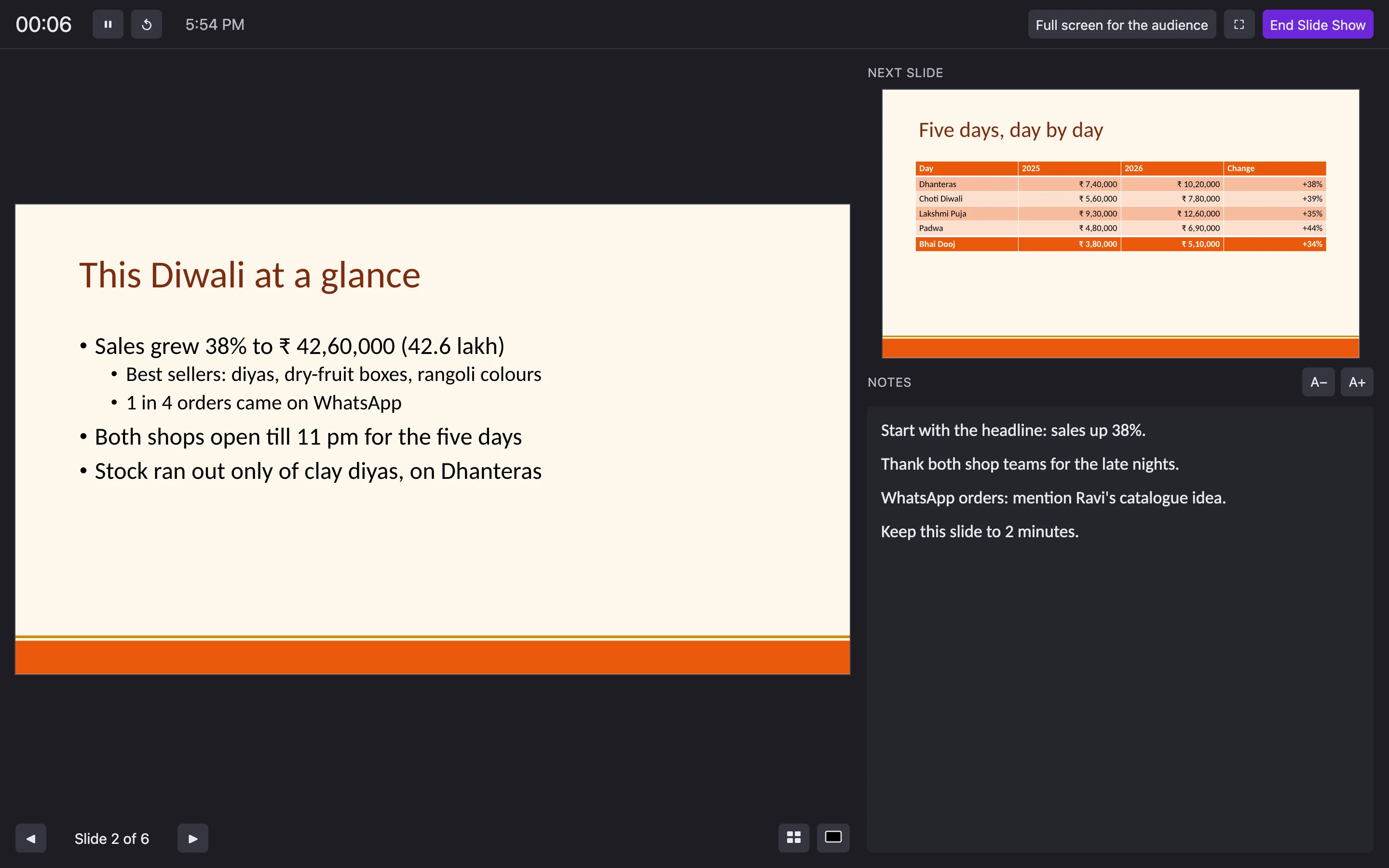
In Presenter View, the audience sees the slide show in a window of its own. Your screen shows:
- the current slide, as the audience sees it. Click it to go on.
- Next slide, or Next: animation while the slide still has animations to play, with a picture of what comes next. On the last slide it says End of slide show.
- Notes, the speaker notes you typed for this slide. A− and A+ make the notes smaller or larger.
- the timer, counting from the start of the show. ⏸ pauses it and ↺ starts it again from 00:00.
- the clock, the time of day.
- Slide 2 of 6, with ◀ and ▶ to move back and on.
- See all slides (the four squares), to jump to any slide. Click a slide to go to it. Hidden slides show paler. Press Esc or click ✕ to close the list.
- Black screen (B) (the dark rectangle), to make the audience's screen black. Click it again to come back.
- ⛶ Full screen, to make your own screen full screen.
- End Slide Show.
All the show's keys work in both windows. Closing the audience's window also ends the show.
Speaker notes
Type the notes for each slide in the Notes box under the slide. If you don't see it, click Notes on the status bar, or tick View ▸ Notes. Notes show in Presenter View as plain text, one paragraph per line.
Starting Presenter View
- Click Slide Show ▸ Presenter View, or press Alt+F5.
- The audience's window opens. If the computer has a second screen and the browser can tell where it is, Phalak puts the window on that screen. The browser may first ask whether Phalak can see your screens. Allow it.
- Click Full screen for the audience. A message in the audience's window says Press F for full screen. Click in that window and press F. Press F again to leave full screen.
If the window opens on the wrong screen, drag it to the projector's screen, then click in it and press F.
To use Presenter View for every show, tick Slide Show ▸ Use Presenter View. F5, Shift+F5 and the slide show buttons then all start in Presenter View. Phalak remembers this setting.
When pop-ups are blocked
The audience's window is a pop-up window. If the browser blocks it, Presenter View still opens on your screen with the message Allow pop-ups for this site to show the slides in a second window. The show runs on your screen alone, which is useful for rehearsing your talk with the notes and timer.
To show the slides to the audience, allow pop-ups for Phalak in the browser's site settings (most browsers show a blocked pop-up icon in the address bar), end the show and start Presenter View again.
Reading View
View ▸ Reading View, or the Reading View button on the status bar, plays the slide show inside Phalak's window instead of full screen, from the slide you are on. Use it to check a deck at your desk, or to show it to one or two people.
It has its own status bar with Slide 3 of 10, ◀ (Previous), ☰ (Menu: Next, Previous, every slide by its title, End Show), ▶ (Next), and buttons for the views: Normal, Slide Sorter, Reading View and Slide Show. Press Esc to go back to editing.
Presenting from a laptop to a projector or TV
- Connect the laptop to the projector or TV with an HDMI cable (or the adapter your laptop needs), and switch the projector or TV to that input.
- In the computer's display settings, choose to extend the desktop to the second screen if you want Presenter View. Choose duplicate (mirror) if you want everyone to see the same screen as you, and use the plain slide show.
- Open the presentation in Phalak.
- For Presenter View, press Alt+F5 and make the audience's window full screen on the projector (see above). For the plain slide show, press F5.
If the slides look small or cut off on the projector, check the slide size under Design ▸ Slide Size. Most projectors and TVs today are widescreen (16:9). See Themes, backgrounds and the slide master.
Checklist for a school or office presentation
A day or two before:
- Run the whole show from the beginning with F5 and check every transition and animation.
- Type notes for each slide, and rehearse once in Presenter View with the timer.
- Hide backup slides you may not need, such as detailed figures for the Diwali sales review.
- Save the presentation, and save a PDF copy as a backup. See Printing and PDF.
- Copy both files to a pen drive, in case you have to use another computer.
On the day:
- Charge the laptop and carry its charger, and an HDMI cable or adapter.
- Connect to the projector early, and check that the slides fill the screen.
- Turn off notifications and close other windows, so nothing pops up on the projector.
- If the slides have videos or sounds, check the speakers.
- Start from the beginning with F5 (or Alt+F5 for Presenter View), and keep B in mind for a black screen while you talk.