Entering and editing data
This chapter covers getting data into a sheet: typing it, filling series, copying and pasting, finding and replacing, limiting what can be typed in a cell, links, and importing a bank statement. Most of these commands are on the Home tab, in the Clipboard, Cells and Editing groups, and on the Data tab.
Typing in a cell
- Click the cell.
- Type. What you type replaces what was in the cell.
- Press Enter to go to the cell below, or Tab to go to the cell on the right.
| Key | What it does |
|---|---|
| Enter / Shift+Enter | Enters what you typed and moves down / up |
| Tab / Shift+Tab | Enters it and moves right / left |
| Arrow keys | Enter it and move that way (while typing a new entry) |
| Ctrl+Enter | Puts the same entry in every selected cell |
| Alt+Enter | Starts a new line inside the cell |
| Esc | Cancels, and leaves the cell as it was |
If you select a range first, Enter and Tab move inside the range only. This is handy for filling in a block of cells, such as a row of daily sales.
Ganit shows the mode in the status bar: Enter while you type a new entry, Edit while you change one.
What Ganit makes of what you type
Ganit recognises numbers, amounts, dates and times as you type them, and stores them as numbers that formulas can add up. It also picks a number format to show them in.
| You type | The cell shows | Ganit stores |
|---|---|---|
1250 |
1250 | the number 1250 |
12,50,000 |
12,50,000 | 1250000, in the Indian comma format |
₹1,250.50 |
₹ 1,250.50 | 1250.5, in the ₹ format |
Rs. 500 |
₹ 500.00 | 500, in the ₹ format |
18% |
18% | 0.18 |
(500) |
-500 | -500 |
13/11/2026 |
13/11/2026 | the date 13 November 2026 |
13-11-2026 |
13/11/2026 | the same date |
1/4/26 |
01/04/2026 | 1 April 2026 |
13 Nov 2026 |
13-Nov-2026 | 13 November 2026 |
2026-04-01 |
01/04/2026 | 1 April 2026 |
1/2 |
1-Feb | 1 February of this year |
10:30 or 10:30 AM |
10:30 | the time 10:30 in the morning |
13/11/2026 10:30 |
13/11/2026 10:30 | the date and the time |
TRUE |
TRUE | the logical value TRUE |
'00123 |
00123 | the text 00123 |
- Dates are day first, as in India: 1/4/26 is 1 April, not 4 January. A two-digit year such as 26 means 2026.
- Amounts: you can type lakh commas (1,25,000), a ₹ sign or Rs. before the amount. Brackets mean a negative amount.
- Text is anything Ganit doesn't recognise as a number, a date or a time: names, item descriptions, GSTINs, PAN numbers. Text lines up on the left of the cell, numbers on the right.
- Leading zeros go from a number:
00123becomes 123. To keep the zeros, type an apostrophe first ('00123) or format the cells as Text first (Home ▸ Number ▸ number format box ▸ Text). The apostrophe is not shown in the cell. - Words like
12.5 lakhorNov 2026stay as text. Type the number (1250000) or a full date (1/11/2026) instead, and use a number format to show it the way you want. See Formatting cells.
To put a formula in a cell, start with =, for example =C2*D2. See Formulas.
Today's date and the time
| To enter | Do this |
|---|---|
| Today's date, fixed | Ctrl+; |
| The time now, fixed | Ctrl+Shift+: |
| A date that always shows today | Insert ▸ Values ▸ Today, then press Enter. This types =TODAY(). |
| A date and time that always show now | Insert ▸ Values ▸ Now, then press Enter. This types =NOW(). |
Ctrl+; puts the date in the cell as you would type it (13/11/2026), so it does not change tomorrow. Use it for bill dates and entries in a cash book. =TODAY() changes every day.
Editing a cell
To change part of what is in a cell, rather than type it all again:
- Double-click the cell, or select it and press F2, and edit inside the cell.
- Or click in the formula bar and edit there. The formula bar is easier for long text and long formulas.
Use the arrow keys, Home and End to move inside the text, then press Enter. Esc cancels the change.
While you edit a formula, F2 switches between moving inside the text (Edit) and picking cells with the arrow keys (Point). See Formulas.
Clearing cells
| To | Do this |
|---|---|
| Clear what is in the cells, keep the formatting | Press Delete, or right-click ▸ Clear Contents |
| Clear the cell and start typing in it | Press Backspace |
| Clear more | Home ▸ Editing ▸ Clear, then choose |
The Clear menu has:
| Command | What it clears |
|---|---|
| Clear All | The contents, the formatting, comments, notes and links |
| Clear Formats | Only the formatting: the cells go back to the plain look |
| Clear Contents | Only the values and formulas |
| Clear Comments and Notes | Only the comments and notes |
| Clear Hyperlinks | The links, but the cells keep their blue underlined look |
| Remove Hyperlinks | The links and their look |
Undo and redo
Ctrl+Z undoes the last change, and you can keep pressing it to go further back. Ctrl+Y (or Ctrl+Shift+Z) redoes. The ↶ and ↷ buttons in the title bar do the same.
AutoFill with the fill handle
The fill handle is the small square at the bottom-right corner of the selection. Drag it down or across to fill the next cells. You can also drag it up or to the left.
What Ganit fills depends on what you start with:
| You select | Drag down 5 cells and you get |
|---|---|
1 |
1, 1, 1, 1, 1 (copies) |
1 and 2 |
3, 4, 5, 6, 7 |
5 and 10 |
15, 20, 25, 30, 35 |
01/04/2026 (a date) |
02/04/2026, 03/04/2026… (one day at a time) |
Jan |
Feb, Mar, Apr, May, Jun |
April |
May, June, July, August, September |
Mon |
Tue, Wed, Thu, Fri, Sat |
Item 1 |
Item 2, Item 3, Item 4… |
INV-001 |
INV-002, INV-003, INV-004… |
Q1 |
Q2, Q3, Q4, Q5, Q6 |
A formula, such as =C2*D2 |
=C3*D3, =C4*D4… (the references move) |
| Any other text | Copies |
- Two or more numbers continue their step. Ganit works out the step from all the numbers you select.
- Month and day names go round: after Dec comes Jan, and after Sun comes Mon.
- Text with a number at the end counts up, and keeps any zeros in front (INV-001, INV-002).
- The formatting of the cells is copied too, and so is conditional formatting.
Note
Two dates a month apart, such as 01/04/2026 and 01/05/2026, don't fill month by month. Ganit continues the number of days between them (30), giving 31/05/2026, 30/06/2026 and so on. For the first of each month, type the first date and use =EDATE(A2,1) in the next cell, then fill that formula down.
Fill Down and Fill Right
Home ▸ Editing ▸ Fill has:
| Command | Shortcut | What it does |
|---|---|---|
| Down | Ctrl+D | Copies the top cell of the selection into the cells below it. With a single cell selected, copies the cell above it. |
| Right | Ctrl+R | Copies the left cell of the selection into the cells to its right. With a single cell selected, copies the cell to its left. |
| Fill by Example | Ctrl+E | See below. |
Fill Down and Fill Right copy the contents and the formatting, and move the references in formulas.
Fill by Example
Fill by Example fills a column by following an example or two that you type. Use it to take first names out of full names, make initials, join a first and last name, or take the user name from an e-mail address.
For example, with full names in column A:
| A | B | |
|---|---|---|
| 1 | Name | First name |
| 2 | Rahul Sharma | Rahul |
| 3 | Priya Patil | |
| 4 | Sunil Kale | |
| 5 | Asha Deshmukh |
- Type the first answer,
Rahul, in B2. - With B2 selected, go to Data ▸ Data Tools ▸ Fill by Example, or press Ctrl+E. It is also in Home ▸ Editing ▸ Fill.
- Ganit fills B3:B5 with Priya, Sunil and Asha. The status bar says "Fill by Example changed 3 cells".
The column must be next to the data. Ganit fills only the empty cells of the column, so you can check the results and type a correction.
If the result isn't what you want, type one or two more examples and press Ctrl+E again. If Ganit can't see the pattern, it says: "Fill by Example couldn't see a pattern. Type a couple more examples in this column, then try again (Ctrl+E)."
Copying, cutting and pasting
| To | Do this |
|---|---|
| Copy | Select the cells and press Ctrl+C, or Home ▸ Clipboard ▸ Copy |
| Cut (to move) | Ctrl+X, or Home ▸ Clipboard ▸ Cut |
| Paste | Click where the copy should go and press Ctrl+V, or Home ▸ Clipboard ▸ Paste |
A moving border marks the copied cells. Press Esc to remove it.
- Paste puts in the values, formulas and formatting. References in formulas move to fit the new place:
=C2*D2copied one row down becomes=C3*D3. - If you copy one cell and select a range before pasting, the cell is pasted into every cell of the range.
- Cut and paste moves the cells.
Pasting from other programs
You can copy a table from a web page, an e-mail, a PDF or another spreadsheet app and paste it with Ctrl+V. Ganit puts each line in a new row, and values separated by tabs in the next columns. Numbers, ₹ amounts and dates are recognised the same way as when you type them.
A picture on the clipboard, such as a screenshot, is pasted as a picture on the sheet.
Note
The ribbon's Paste button and the right-click Paste paste cells copied in Ganit. If the browser doesn't let them read the clipboard, Ganit says "Use Ctrl+V to paste from other programs".
Paste options
The ▾ under Home ▸ Clipboard ▸ Paste has these quick ways to paste cells copied in Ganit:
| Command | What it pastes |
|---|---|
| Paste | Everything (Ctrl+V) |
| Paste Values | The values only. Formulas become their results. |
| Paste Formulas | The formulas, without the formatting |
| Paste Formatting | The formatting only |
| Transpose | Everything, with rows turned into columns and columns into rows |
| Paste Link | A formula pointing at each copied cell, such as =A1 |
| Paste Special… | The dialog below (Ctrl+Alt+V) |
The right-click menu on a cell has Paste, Paste Values, Paste Formulas, Paste Formatting and Paste Special… too.
To copy only the look of cells, Home ▸ Clipboard ▸ Format Painter is quicker: select the cells with the look you want, click Format Painter, then click the cell to paint. Esc cancels. See Formatting cells.
Paste Special
Paste Special pastes part of what you copied, or adds, subtracts, multiplies or divides it into the cells you paste on.
- Copy the cells (Ctrl+C). Paste Special works with copied cells, not cut ones.
- Select where to paste.
- Press Ctrl+Alt+V, or choose Paste ▾ ▸ Paste Special….
- Choose what to paste and the operation, and click OK.
Under Paste:
| Option | What it pastes |
|---|---|
| All | Everything |
| Formulas | The formulas (and values) only |
| Values | The values only |
| Formats | The formatting only |
| Comments and notes | The comments and notes only |
| Validation | The data validation rules only |
| All except borders | Everything but the borders |
| Column widths | The widths of the copied columns |
| Formulas and number formats | The formulas and the number formats |
| Values and number formats | The values and the number formats |
Under Operation:
| Option | What it does |
|---|---|
| None | Replaces what is there |
| Add | Adds the copied values to the values there |
| Subtract | Subtracts them |
| Multiply | Multiplies by them |
| Divide | Divides by them |
The operations work with All, Formulas, Values, All except borders and the two "number formats" choices. They are turned off for Formats, Comments and notes, Validation and Column widths.
At the bottom:
- Skip blanks: empty copied cells don't clear the cells they land on.
- Transpose: turns rows into columns and columns into rows.
- Paste Link (button): pastes formulas that point at the copied cells, so the pasted cells change when the originals change.
Example: raise a kirana shop's rates by 10%. The rates for seven items are in D2:D8.
- Type
1.1in seven empty cells, for example H2:H8, and copy them. - Select D2:D8 and open Paste Special.
- Choose Values and Multiply, and click OK. A rate of 145.00 becomes 159.50.
- Delete H2:H8.
Note
With an operation, copy as many cells as you paste into. If you copy a single cell, such as one cell with 1.1, and paste it with Multiply on D2:D8, only D2 changes.
Inserting and deleting rows, columns and cells
| To | Do this |
|---|---|
| Insert rows above the selection | Insert ▸ Cells ▸ Rows, or Home ▸ Cells ▸ Insert ▸ Insert Sheet Rows, or right-click a row number ▸ Insert |
| Insert columns to the left | Insert ▸ Cells ▸ Columns, or Home ▸ Cells ▸ Insert ▸ Insert Sheet Columns, or right-click a column letter ▸ Insert |
| Delete the selected rows | Home ▸ Cells ▸ Delete ▸ Delete Sheet Rows, or right-click a row number ▸ Delete |
| Delete the selected columns | Home ▸ Cells ▸ Delete ▸ Delete Sheet Columns, or right-click a column letter ▸ Delete |
Ganit inserts or deletes as many rows or columns as you have selected. Select three rows to insert three.
Ctrl++ (Ctrl and the plus key) opens the Insert dialog, and Ctrl+- opens the Delete dialog. They are also Home ▸ Cells ▸ Insert ▸ Insert Cells…, Home ▸ Cells ▸ Delete ▸ Delete Cells… and on the right-click menu. Choose Entire row or Entire column and click OK. If whole rows or columns are selected, Ctrl+- deletes them without asking.
Formulas that use the cells are updated. A formula that pointed at a deleted cell shows #REF!.
Note
The Insert and Delete dialogs work on whole rows or columns only. Ganit can't shift single cells down or to the right.
To add, delete or move sheets, see Sheet tabs. To hide rows and columns, or change their size, see Formatting cells.
Find and Replace
Finding
- Press Ctrl+F, or go to Home ▸ Editing ▸ Find ▸ Find….
- In Find what, type what you are looking for, such as a party's name or a bill number.
- Click Find Next. Ganit selects the next cell that has it. Click again for the next one.
| Option | What it does |
|---|---|
| Match case | Capital and small letters must match |
| Match entire cell contents | The whole cell must be what you typed, not just contain it |
| Look in formulas | Searches the formulas as typed, instead of the values shown |
| Within: whole workbook | Goes on to the other sheets |
If nothing matches, the dialog says Kraftoz Ganit can't find it.
Replacing
- Press Ctrl+H, or go to Home ▸ Editing ▸ Find ▸ Replace….
- Type what to find in Find what, and the new text in Replace with.
- Click Find Next to go to the first match, then Replace to change it and go to the next. Or click Replace All.
The dialog then says how many replacements were made.
Note
Replace All changes every match on the sheet on screen, in values and in formulas, whatever Look in formulas and Within: whole workbook are set to. Check the result, and press Ctrl+Z if it changed too much.
Go To
Press Ctrl+G or F5, or go to Home ▸ Editing ▸ Find ▸ Go To…. In Reference, type a cell (B5), a range (A1:C10), a cell on another sheet (Sheet2!A1) or a name, and click OK.
You can also type the reference in the Name Box. See Getting started.
Data validation
Data validation controls what can be typed in cells: a choice from a list, a number in a range, a date, or a valid GSTIN. Use it for forms and registers that other people fill in, such as a payment status column or a GST number column.
- Select the cells.
- Go to Data ▸ Data Tools ▸ Data Validation.
- Set the rule on the Settings tab, and optionally a message on the Input Message and Error Alert tabs.
- Click OK.
The rule checks what people type. It does not change values already in the cells (see Finding cells that break the rules).
Settings
In Allow, choose what may be typed:
| Allow | What may be typed | You fill in |
|---|---|---|
| Any value | Anything (no rule) | |
| Whole number | Whole numbers only | Data and the limits |
| Decimal | Any number | Data and the limits |
| List | One of a list of items | Source |
| Date | Dates | Data and the dates |
| Time | Times | Data and the times |
| Text length | Text of a certain length | Data and the length |
| Custom | Whatever makes a formula TRUE | Formula |
| GSTIN (India) | A valid 15-character GSTIN | |
| PAN (India) | A valid 10-character PAN |
For whole numbers, decimals, dates, times and text length, Data is one of: between, not between, equal to, not equal to, greater than, less than, greater than or equal to, less than or equal to. Between and not between ask for a Minimum and Maximum (or Start date and End date, Start time and End time).
The limits can be values, or cells and formulas starting with =. Dates can be typed like 01/04/2026, or be a formula like =TODAY().
Tick Ignore blank to allow the cell to be left empty.
A list. In Source, type the items with commas between them, such as Paid,Due,Part paid, or point at cells that hold the list, such as =$H$2:$H$10. Tick In-cell dropdown to show an arrow beside the cell. Click the arrow, or press Alt+↓, and pick an item.
Custom. Type a formula that is TRUE for allowed entries, written for the top-left cell of the selection. For example, =COUNTIF($A:$A,A2)=1 for no repeated bill numbers in column A.
GSTIN and PAN. These check the form of the number: for a GSTIN, the state code, the PAN inside it and the check character; for a PAN, five letters, four digits and a letter. Ganit adds a ready error message, such as "Type a valid 15-character GSTIN, like 27AAPFU0939F1ZV." The functions ISGSTIN and ISPAN do the same check in a formula. See Indian formats, words and languages.
Input Message
Tick Show input message when cell is selected, and type a Title (up to 32 characters) and the Input message (up to 255 characters). The message appears beside the cell when someone selects it, for example "Type the date of the bill, like 15/04/2026."
Error Alert
Tick Show error alert after invalid data is entered to stop or warn when someone types something the rule doesn't allow. Choose the Style, and type a Title and an Error message. Without a message, Ganit shows "This value doesn't match the data validation restrictions defined for this cell."
| Style | What the person can do |
|---|---|
| Stop | Retry to type again, or Cancel. The value can't go in. |
| Warning | Asked "Continue?": Yes keeps the value, No to type again, Cancel |
| Information | OK keeps the value, Cancel |
Changing or removing a rule
Select a cell with the rule and open Data Validation again. Change the settings and click OK, or click Clear All to remove the rule from the selected cells.
To copy a rule to other cells, copy a cell that has it and use Paste Special ▸ Validation.
Finding cells that break the rules
The ▾ on Data ▸ Data Tools ▸ Data Validation has:
- Circle Invalid Data: draws a circle round each cell on the sheet whose value breaks its rule, for example values that were there before the rule, or were pasted in. If there are none, the status bar says so.
- Clear Validation Circles: removes the circles.
Links
A link in a cell opens a web page, sends an e-mail, or goes to another place in the workbook, such as a summary sheet's link to each month's sheet.
- Select the cell.
- Go to Insert ▸ Links ▸ Link, or press Ctrl+K.
- Choose what the link goes to, fill in the boxes, and click OK.
| Link to | Fill in |
|---|---|
| Web page or file | Address, such as https://www.example.in |
| Place in this workbook | Sheet or name, and the Cell reference on that sheet |
| E-mail address | E-mail address, and an optional Subject |
For every kind:
- Text to display is what the cell shows. Leave it as it is to keep the cell's text.
- ScreenTip is an optional note that shows when you point at the link.
Click a link to follow it. To select a cell with a link without following it, click and hold, or use the arrow keys.
Right-click a cell with a link for Edit Link…, Open Link, Copy Link and Remove Link. To remove the links from many cells, select them and use Home ▸ Editing ▸ Clear ▸ Remove Hyperlinks (or Clear Hyperlinks to keep the blue underline).
Links made with the HYPERLINK function are formulas: change them in the formula bar. See Function reference.
Importing a bank statement
Data ▸ Get Data ▸ Bank Statement turns a statement downloaded from netbanking into a clean table, with totals and a summary, on a sheet of its own. It also reads a party ledger exported from accounting software.
It reads .csv, .txt, .tsv, .xlsx and .xls files, and the web-page statements (.htm, .html, or named .xls) that some banks give.
- Download the statement from your bank's netbanking as a .csv or .xlsx file.
- In Ganit, go to Data ▸ Get Data ▸ Bank Statement and choose the file.
- The Bank Statement dialog shows what Ganit found. Check it (see below) and click Import.
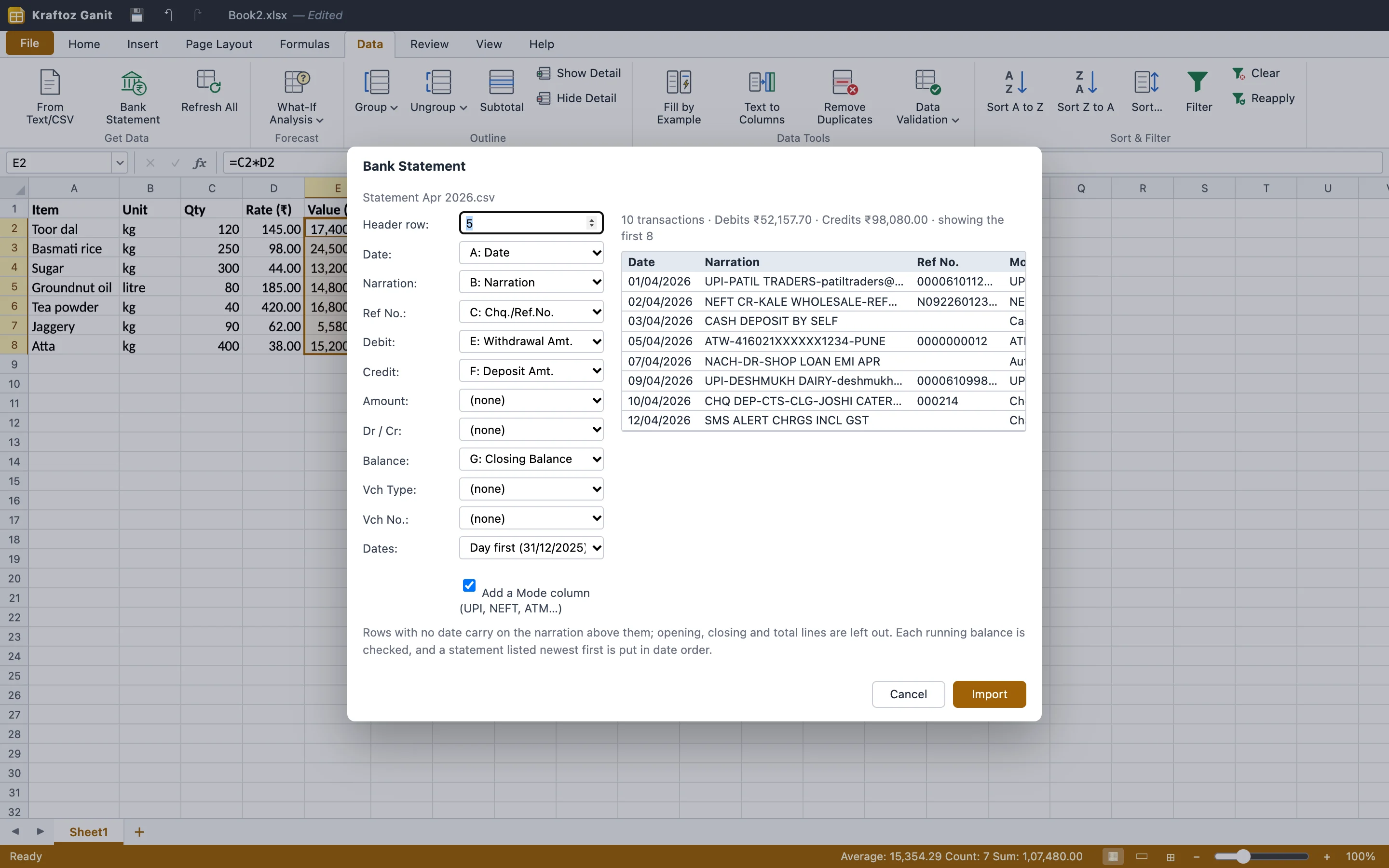
Checking what Ganit found
Ganit finds the statement's header row among the bank's address and account lines, and matches the columns by their names, such as Txn Date, Narration, Chq./Ref.No., Withdrawal Amt., Deposit Amt. and Closing Balance. If it can't find the header, the dialog says so in red, and you choose the columns yourself.
| Field | What to set |
|---|---|
| Header row | The row number of the statement's column headings |
| Date, Narration, Ref No. | The columns that hold these |
| Debit, Credit | The withdrawal and deposit columns |
| Amount, Dr / Cr | For statements with one amount column and a Dr / Cr column, instead of Debit and Credit |
| Balance | The running balance column |
| Vch Type, Vch No. | For a ledger: the voucher type and number |
| Dates | Day first (31/12/2025) or Month first (12/31/2025) |
| Add a Mode column (UPI, NEFT, ATM…) | Adds a column that says how each payment was made |
Choose (none) for a column the statement doesn't have.
Above the preview, Ganit shows the number of transactions and the total debits and credits. It also shows how many running balances don't add up, if any, and whether the statement is listed newest first. The preview shows the first rows; a row whose balance doesn't add up is marked in red.
While reading the statement, Ganit:
- joins a narration that runs onto the next line (a row with no date) to the row above
- leaves out opening balance, closing balance and total lines
- reads dates in the usual Indian forms and amounts with lakh commas, Dr / Cr and brackets
- checks each running balance against the debits and credits
- puts a statement listed newest first into date order
What the import makes
Ganit adds a new sheet, named after the file, with:
- A table with the columns Date, Narration, Ref No., Mode, Debit, Credit and Balance (Particulars, Vch Type and Vch No. for a ledger), and a total row with the sums of Debit and Credit. Reference numbers are kept as text, so their zeros stay.
- A Check column, only when some running balances don't add up. Those rows are marked Check.
- A summary beside the table: Opening balance, Total debits, Total credits, Closing balance, Transactions, From and To dates, and a line saying whether every running balance adds up.
The Mode column sorts each narration into UPI, NEFT, RTGS, IMPS, Auto-debit, Charges, ATM, Card, Interest, Salary, Cheque, Cash, Transfer or Other, from the words in it. Filter the table by Mode to see, for example, all UPI payments or all bank charges for the month. See Tables, sorting and filtering.
The whole import is one step of undo: Ctrl+Z takes the sheet away again.
If Ganit finds no transactions under the header, it says "No transactions found under the header. Check the columns chosen for Date and the amounts."
Text to Columns and Remove Duplicates
Data ▸ Data Tools also has Text to Columns, to split one column into several, and Remove Duplicates. See Tables, sorting and filtering.