Contents, footnotes, citations and index¶
The References tab has the tools for long documents such as a project report, a thesis or a school magazine: a table of contents, footnotes and endnotes, citations with a bibliography, captions for tables and pictures, cross-references, and an index. Shabd works out the numbers and page numbers for you and updates them when you ask.
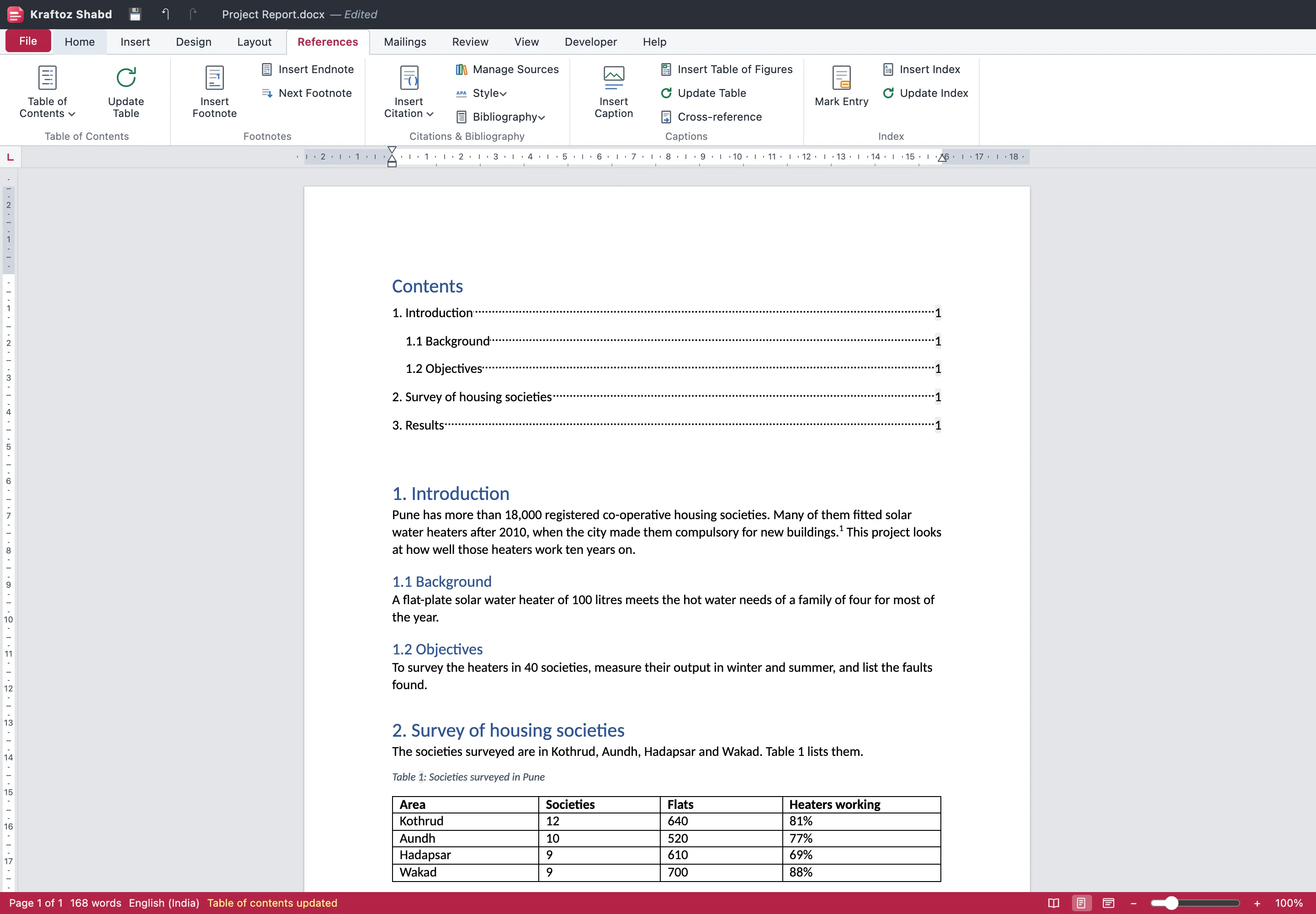
Table of contents¶
A table of contents lists the document's headings with their page numbers. Each entry is a link: click it to go to that heading.
Shabd builds the table from paragraphs in the heading styles (Heading 1, Heading 2, Heading 3 and so on). Set your chapter and section titles in these styles first, from Home ▸ Styles. See Formatting text and paragraphs.
Inserting a table of contents¶
- Click where the table should go, for example in an empty paragraph at the top of the report.
- Go to References ▸ Table of Contents ▸ Table of Contents and choose one:
| Choice | What you get |
|---|---|
| Automatic Table 1 (Contents) | The heading "Contents", then Heading 1 to Heading 3 |
| Automatic Table 2 (Table of Contents) | The heading "Table of Contents", then Heading 1 to Heading 3 |
| Custom Table of Contents… | Your own number of levels and heading |
The table goes in before the paragraph with the cursor. Each entry has a dotted line to its page number at the right margin. Level 2 and level 3 entries are indented.
A document has one table of contents. Inserting it again replaces the one that is there.
Choosing the levels and the heading¶
Choose Table of Contents ▸ Custom Table of Contents….
- Show levels: how many heading levels to list, from 1 to 9. With 2, the table lists Heading 1 and Heading 2 only. The default is 3.
- Heading: the title above the table. Leave it empty for a table with no title.
Updating the table¶
The table doesn't change by itself when you add a chapter or the pages move. Click References ▸ Table of Contents ▸ Update Table. Shabd makes the entries and page numbers again, with the same levels and heading.
Update the table once more just before you print or save the final PDF.
Removing the table¶
Choose Table of Contents ▸ Remove Table of Contents.
Footnotes and endnotes¶
A footnote is a note at the foot of the page, linked to a small number in the text. An endnote is the same kind of note, collected at the end of the document.
Inserting a note¶
- Click just after the word or sentence the note is about.
- Click References ▸ Footnotes ▸ Insert Footnote (Ctrl+Alt+F), or Insert Endnote (Ctrl+Alt+D).
- Shabd puts the number in the text and opens the note for typing. Type the note.
- Click back in the text when you're done.
On a Mac the shortcuts are ⌘⌥F and ⌘⌥D.
How notes are numbered and placed¶
- Footnotes are numbered 1, 2, 3… and endnotes i, ii, iii…, in the order their marks come in the text. If you add a note before an earlier one, the numbers after it move up by themselves.
- Footnotes are printed at the foot of the page that has their mark, under a short line. A page gives its footnotes at most half its height; a long note goes on at the foot of the next page.
- Endnotes are printed after the last paragraph of the document, under a short line.
Note
Shabd has no choice of number format for notes (such as *, †, or a, b, c), and no command to change footnotes into endnotes or back. Notes in a .docx made elsewhere are shown with Shabd's own numbering.
Editing a note¶
Click the note's text at the foot of the page, or double-click its number in the text. Type your changes and click back in the text.
Moving between notes¶
Next Footnote moves the cursor to the next footnote mark after it. From the last one it goes back to the first.
Citations and bibliography¶
A citation names a source in the text, such as (Gandhi, 1927). The bibliography is the list of all the sources at the end. Both are made from the document's list of sources, so you type each book or article once.
Choosing the style¶
References ▸ Citations & Bibliography ▸ Style offers two styles:
| Style | A citation looks like |
|---|---|
| APA (author, year) | (Patil, 2021) |
| MLA (author) | (Patil) |
APA is the default. When you change the style, every citation and the bibliography change to it. In a .docx file the style is saved as APA sixth edition or MLA seventh edition.
Adding a source¶
- Click References ▸ Citations & Bibliography ▸ Manage Sources. The Source Manager opens.
- Click New…. The Create Source dialog opens.
- Choose the Type of Source: Book, Book Section, Journal Article, Web site or Report.
- Type the Author as Last, First Middle. Put a semicolon between authors:
Patil, Sunil; Joshi, Meera. For an organisation, such as a ministry or a company, tick Corporate Author and type its name. - Type the Title, and the other fields the type of source asks for:
| Type of source | Fields |
|---|---|
| Book, Report | Year, City, Publisher |
| Book Section | Book Title, Year, Pages, City, Publisher |
| Journal Article | Journal Name, Year, Volume, Issue, Pages |
| Web site | Name of Web Site, Year, URL |
- Leave Tag name empty and Shabd makes one from the author and year, such as Pat21. Or type your own. Each source's tag must be different.
- Click OK.
The Source Manager lists the sources under Current List, sorted by author. A ✓ shows the ones cited in the document. Click Edit… to change a source or Delete to remove it. Citations and the bibliography change with it.
Inserting a citation¶
- Click where the citation goes, usually at the end of a sentence before the full stop.
- Click References ▸ Citations & Bibliography ▸ Insert Citation.
- Choose the source from the list, or Add New Source… to create one and cite it at once.
Inserting the bibliography¶
- Click where the list should go, usually on a new page at the end.
- Click Bibliography and choose one:
- Bibliography, References or Works Cited add that heading (in Heading 1) and the list.
- Insert Bibliography adds the list with no heading.
The list has every source in the document, sorted by author, in the chosen style. Titles of books, journals and web sites are in italics. When you add, change or delete a source, or change the style, the bibliography changes too.
Captions¶
A caption is a numbered label above or below a table, picture or equation, such as "Table 1: Societies surveyed in Pune". Shabd numbers each kind on its own: Figure 1, Figure 2…, Table 1, Table 2…
Inserting a caption¶
- Select the picture, or click in the table. For an equation, click in the paragraph with it.
- Click References ▸ Captions ▸ Insert Caption. The Caption dialog opens.
- In Caption, type the words after the number. Shabd puts a colon between the number and your words.
- Choose the Label: Figure, Table or Equation. When the cursor is in a table, Table is chosen for you.
- Choose the Position: Below selected item or Above selected item. Tables usually have their caption above, figures below.
- Click OK.
The caption is a paragraph in the Caption style. The dialog shows how it will read before you click OK.
Note
Click in the document's text before you choose Insert Caption. If a footnote is still open for typing, the caption goes into the footnote and doesn't show.
Table of figures¶
A table of figures lists the captions of one label with their page numbers, like a table of contents for figures or tables.
- Click where the list should go.
- Click References ▸ Captions ▸ Insert Table of Figures.
- Choose the Caption label: Figure, Table or Equation.
- Include label and number keeps "Table 1:" at the start of each entry. Untick it to list only the caption's words.
- Right align page numbers puts the page numbers at the right margin, with a dotted line.
- Click OK.
Each entry is a link to its caption. A report can have one table of figures for each label, such as a List of Figures and a List of Tables. Type a heading above each yourself.
To make the numbers and pages right again after changes, click Update Table in the Captions group. It updates every table of figures in the document.
Cross-references¶
A cross-reference is text that refers to another part of the document, such as "see Table 2" or "on page 14", and keeps up when that part moves or gets a new number.
- Click where the reference goes, and type the words before it, such as "see ".
- Click References ▸ Captions ▸ Cross-reference.
- Choose the Reference type: Heading, Bookmark, Figure, Table or Equation.
- Choose what to Insert reference to:
| Reference type | Choices |
|---|---|
| Heading | Heading text, Page number |
| Bookmark | Bookmark text, Page number |
| Figure, Table, Equation | Entire caption, Only label and number, Page number |
- Under For which, click the heading, bookmark or caption.
- Keep Insert as hyperlink ticked to make the reference a link to its target.
- Click Insert.
For "see Table 2", choose Table, then Only label and number. Bookmarks are added with Insert ▸ Bookmark.
Index¶
An index is an alphabetical list of words and topics at the end of a book or report, with the pages they're on. You mark the entries first, then insert the index.
Marking entries¶
- Select the word or phrase.
- Click References ▸ Index ▸ Mark Entry (Alt+Shift+X). The Mark Index Entry dialog opens with the selected text in Main entry.
- To list it under a broader entry, type the broader one in Main entry and this one in Subentry. For example, main entry "Solar water heater", subentry "cleaning".
- Under Options, choose Current page to list this page, or Cross-reference to point to another entry instead, such as "See Flat-plate collector".
- Under Page number format, tick Bold or Italic to show this entry's page number that way, for example for the main page on a topic.
- Click Mark to mark this place, or Mark All to mark the text everywhere it appears: the first time in each paragraph, as a whole word, with the same capital and small letters.
Shabd turns on the formatting marks so you can see the entries. They don't print.
Inserting the index¶
- Click where the index goes, usually at the end of the document.
- Click References ▸ Index ▸ Insert Index.
- Set the number of Columns, from 1 to 4. The default is 2.
- Tick Right align page numbers to put the page numbers at the right of each column with a dotted line, or leave it to put them after a comma.
- Tick Headings for letters (A, B, C…) to put a letter above each group.
- Click OK.
Entries are sorted in alphabetical order, with subentries indented under their main entry. With more than one column, Shabd puts the index in a section of its own with continuous section breaks before and after it, so the rest of the document keeps one column.
If the document already has an index, Insert Index makes it again with the new settings.
Updating the index¶
After you mark more entries or the pages move, click Update Index.
Example: a final-year project report¶
A B.E. student in Pune writes a project report on solar water heaters in housing societies. The college asks for a contents page, a list of tables, footnotes for rules quoted, and references in APA.
- Type the chapter titles in Heading 1 ("1. Introduction", "2. Survey of housing societies") and the sections in Heading 2 ("1.1 Background").
- On the page after the certificate, click References ▸ Table of Contents ▸ Automatic Table 1 (Contents).
- After each table, click in it and use Insert Caption with Label Table and Position Above: "Table 1: Societies surveyed in Pune".
- Below the contents, type "List of Tables" and use Insert Table of Figures with Caption label Table.
- Where the report quotes the municipal rule, use Insert Footnote and type the rule's name and year.
- Add each book and paper in Manage Sources, and cite them with Insert Citation as you write.
- On the last page, choose Bibliography ▸ References.
- Before printing, click Update Table in the Table of Contents group and in the Captions group, so every page number is right.
Save the report as .docx to keep the contents, notes, sources and captions for the next draft. See Opening, saving and file types and Printing and PDF.