Opening, saving and file types
Shabd works with .docx files: it opens them and saves them, and other word processors open what it saves. It also opens .doc, .odt, .rtf and .txt files, and saves copies as .odt, .rtf, .txt and .dotx. The commands are in the File menu.
Opening a document
- Go to File ▸ Open… (Ctrl+O).
- Choose the file and click Open.
You can also drag a document from your computer onto the page.
If the document on screen has changes you haven't saved, Shabd asks first: "Open another document?" Click Open to go ahead and lose those changes, or Cancel to go back and save them.
Shabd opens these files:
| File | What it is | When you save |
|---|---|---|
| .docx | A document | Saved back as .docx |
| .docm | A document with macros | Saved as .docx. The macros are not kept. |
| .dotx, .dot | A template | Opens as a new document (Document2.docx…), so the template stays as it was |
| .doc | An older document | Saved as .docx |
| .odt, .fodt | An OpenDocument text | Saved as .docx |
| .rtf | Rich Text Format | Saved as .docx |
| .txt | Plain text | Saved as .docx |
When you open a .doc, .odt, .rtf or .txt file, its name in the title bar changes to .docx, for example Notice.odt becomes Notice.docx. The file you opened is not changed.
What each kind of file keeps
.docx files open with their text, formatting, styles, lists, tables, pictures, shapes, text boxes, charts, diagrams, equations, headers and footers, footnotes, comments and tracked changes.
.odt files open with paragraphs and headings and their formatting, lists, tables, pictures and text boxes, shapes, equations, footnotes and endnotes, links, bookmarks, comments, page numbers, and the page setup with headers and footers.
.rtf files open with the text and its character and paragraph formatting, styles, lists, tables, PNG and JPEG pictures, links, footnotes and endnotes, bookmarks, the page setup, and headers and footers.
.doc files open with the text, each paragraph's alignment, indents, spacing and heading level, bold, italic, underline, size and colour, tables, footnotes, tabs, and line and page breaks. Pictures and drawings, headers and footers and the document's own styles are not read.
.txt files open with each line as a paragraph, in the normal style.
When something can't be shown
If a file has things that Shabd doesn't show yet, a bar under the ribbon names them, for example:
Kraftoz Shabd doesn't show these yet, and leaves them out when it saves: pictures and drawings, headers and footers, its styles (kept as Normal and Heading 1–9).
Things this bar can name:
| From | What may be left out |
|---|---|
| .docx | Older drawings and embedded objects, grouped shapes and drawing canvases, diagrams without their drawing, pictures in EMF, WMF or TIFF, freeform shapes (shown as rectangles) |
| .odt | Pictures in EMF, WMF or TIFF, embedded objects (charts, spreadsheets), some drawing shapes (shown as rectangles), lines, groups and freeform drawings |
| .rtf | Comments, text boxes and shapes (their text is kept), pictures in old formats |
| .doc | Pictures and drawings, headers and footers, its styles |
If you save over the original file, those things are gone from it. To keep the original as it was, click Save As a Copy… on the bar and save under a new name.
When a file doesn't open
Shabd shows Can't open this file with the reason:
| Message | What to do |
|---|---|
| This file isn't a document (.docx). | The file isn't a document, or it is damaged. |
| This is a workbook: open it in Kraftoz Ganit. | It's a spreadsheet. Open it in Kraftoz Ganit. |
| This document has a password. Open it in the app that made it, take the password off, and save it as .docx. | Shabd can't open .doc files with a password. |
| This .doc file is in an older format than Kraftoz Shabd reads. Open it in another word processor and save it as .docx. | Very old .doc files can't be read. |
| This .doc file is damaged. | Try another copy of the file. |
Saving a document
Go to File ▸ Save (Ctrl+S), or click the save button in the title bar.
- In Chrome or Edge, the first save of a new document asks where to save it and what to call it. After that, Save writes to the same file without asking. A .docx file you opened with File ▸ Open… is saved back to the same file.
- In other browsers, each save downloads the document as a .docx file to your Downloads folder.
- In the desktop app, Save uses your computer's own Save dialog the first time, then saves to the same file.
The status bar says "Saved", and — Edited goes from the title bar.
Save As
File ▸ Save As… (F12, or Ctrl+Shift+S) saves the document under a new name or in a new place, as .docx. From then on, Save writes to the new file.
Shabd always saves as .docx. To make a file in another format, use Save a Copy As.
Save a Copy As
File ▸ Save a Copy As saves a copy in another format. The document on screen stays as it is, and Save still writes to the .docx file.
| Command | What the copy keeps |
|---|---|
| OpenDocument Text (.odt)… | The text with its formatting and paragraph styles, lists, tables, pictures, shapes and text boxes, equations, footnotes and endnotes, links, bookmarks, comments, page numbers and dates, and each section's page setup with its headers and footers |
| Rich Text Format (.rtf)… | The text with its formatting, lists (as their numbers and bullets), tables, pictures, footnotes and endnotes, links and fields, sections with their page setup, and headers and footers |
| Plain Text (.txt)… | The text only, one line for each paragraph and each table cell |
| Document Template (.dotx)… | The whole document, as a template |
Note
In .odt and .rtf copies, tracked changes are accepted: insertions are kept and deletions are left out. In .odt a continuous section break starts a new page. In .rtf, comments, shapes and text boxes are left out; a text box's text is kept, after its paragraph. A .txt copy leaves out pictures, shapes, charts, equations, footnotes, headers and footers. It is saved in UTF-8, so Hindi and Marathi text stay as they are.
Shabd does not save .doc files. Save as .docx, which other word processors open.
Save as Template
Save as Template keeps the document as a starting point for new documents, such as your shop's letterhead or a society notice you send every month.
- Go to File ▸ Save as Template….
- Type the Template name.
- Click Save.
The template shows under My Templates in File ▸ New from Template…, in this browser. To delete one, click the × on its card there.
To have the template as a file too, to keep or to use on another computer, click Save as .dotx File… in the same dialog. Opening a .dotx file in Shabd starts a new document from it. See Templates.
Save as PDF
File ▸ Save as PDF… asks where to save the PDF (or downloads it), then saves every page as it is shown. The status bar says which fonts were embedded. For a choice of pages, use File ▸ Print… and its Save as PDF button. See Printing and PDF.
Document properties
File ▸ Properties… holds the document's Title, Subject, Author and Keywords. They are saved in the .docx file. The title also becomes the title of a PDF you save.
The author you type here is remembered in the browser and given to new documents.
Fonts the computer doesn't have
When you open a document, Shabd checks its fonts. If it uses a free font that this computer doesn't have, such as Mukta or Hind, Shabd asks:
These fonts aren't on this computer: Mukta. They're free on Google Fonts. Downloading them sends your IP address and the font names to Google; your work itself stays here. Download is remembered in this browser.
- Download gets the fonts, and the status bar says "Loaded automatically from Google Fonts:" with their names. Shabd keeps them in the browser, so they work offline next time, and embeds them in PDFs.
- Not now leaves the text in a stand-in font. Shabd doesn't ask again until you reload the page or restart the app. The document itself still names the right font.
Shabd asks only when you are online. Choosing such a font in Home ▸ Font also gets it.
Fonts that are not free, such as Kruti Dev, Mangal or Calibri, are not downloaded. If the computer doesn't have them, the text shows in a stand-in font.
Kruti Dev text
When a document has text typed in an old Hindi font such as Kruti Dev, DevLys, Walkman, Akruti or Chanakya, Shabd offers to turn it into Unicode:
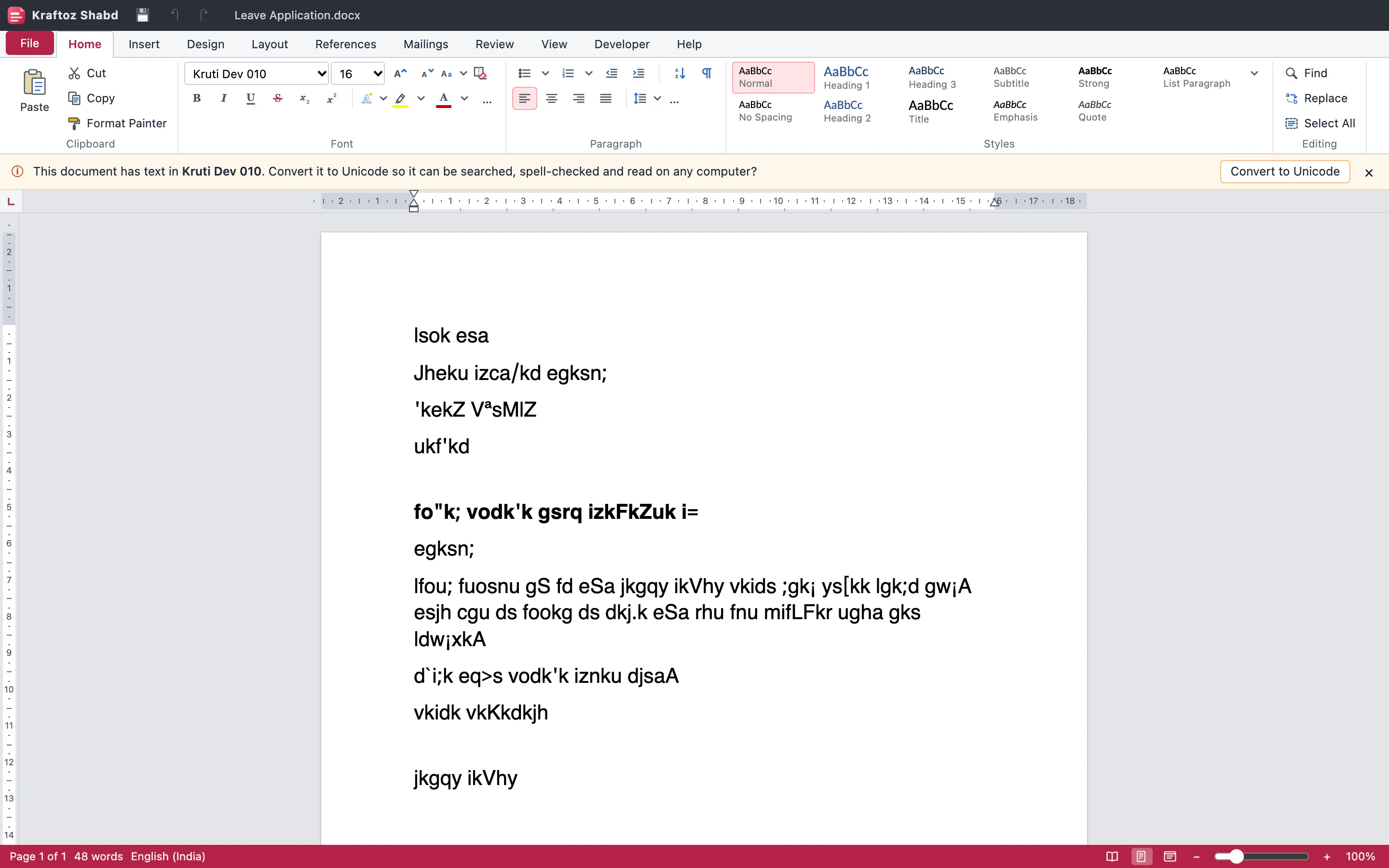
Click Convert to Unicode to convert the whole document. See Hindi, Marathi and amounts in words for the converter and its limits.
Note
If the bar about things Shabd can't show appears when a file opens, the Kruti Dev bar doesn't. Use Review ▸ Indian Languages ▸ Convert to Unicode instead.
Closing a document
Shabd has no Close command. To stop working on a document, save it, then start a new one with File ▸ New, open another one, or close the browser tab or the app.
Shabd keeps the last document in the browser even when you close it without saving, and opens it again next time. See Your work is kept as you go.