Tables
A table puts text and numbers in rows and columns: a price list, a quotation, a class's marks, a fee chart or a time table. You make tables from Insert ▸ Tables ▸ Table.
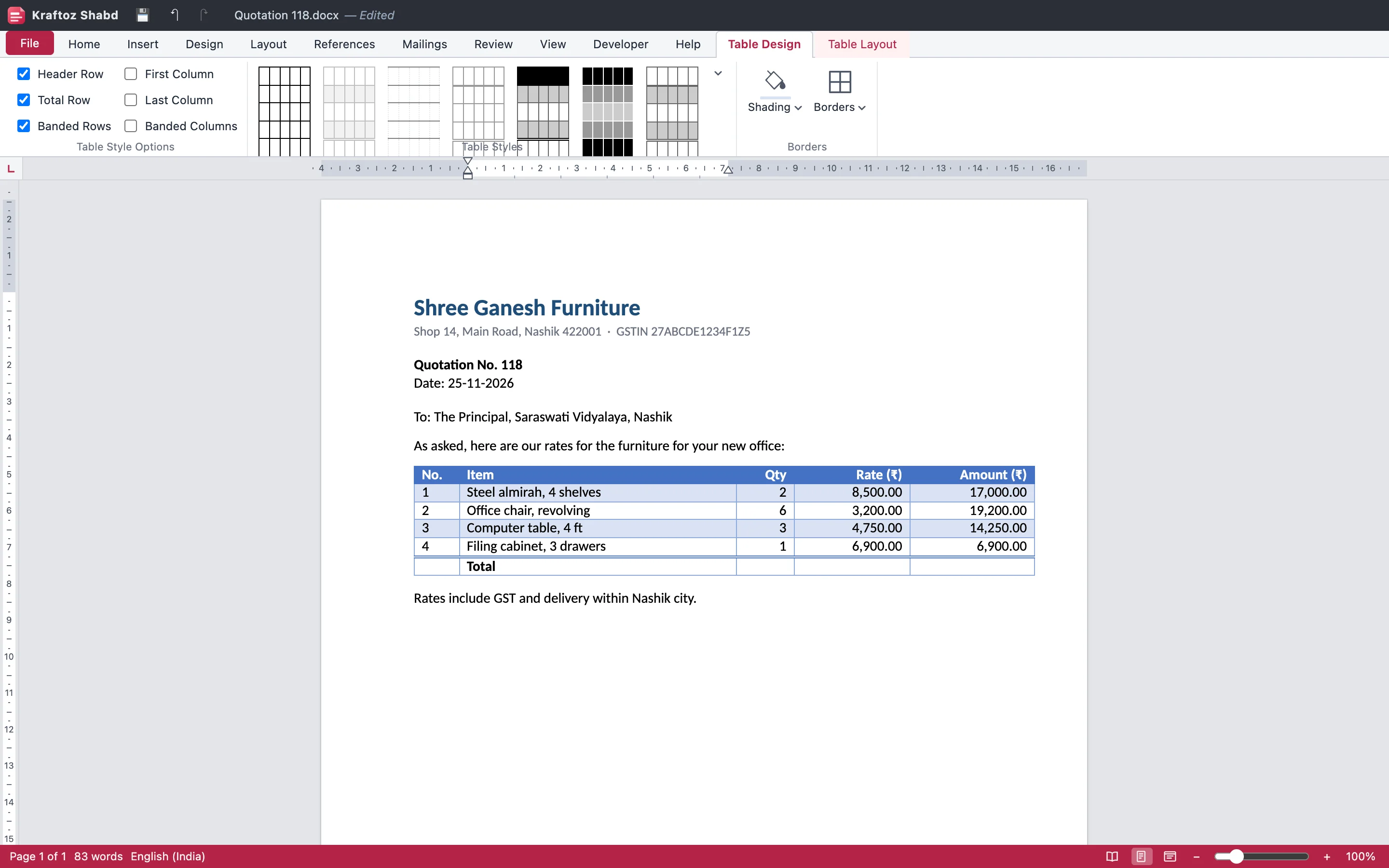
When the cursor is in a table, two more tabs appear on the ribbon: Table Design, for the table's look, and Table Layout, for its rows, columns and cells.
Inserting a table
Click where the table should go, then use one of the ways below. A new table has thin lines round every cell, fills the width between the margins, and has columns of equal width.
Choosing the size from the grid
- Go to Insert ▸ Tables ▸ Table.
- Move the pointer over the grid. The label under it shows the size, for example 4×3 Table (4 columns, 3 rows).
- Click to insert the table.
The grid goes up to 10 columns and 8 rows.
The Insert Table dialog
For a bigger table, go to Insert ▸ Tables ▸ Table ▸ Insert Table….
| Field | What it sets | Default | Limit |
|---|---|---|---|
| Number of columns | Columns across | 5 | 1 to 63 |
| Number of rows | Rows down | 2 | 1 to 500 |
Click OK. You don't need all the rows now: pressing Tab in the last cell adds a row.
Drawing a table
- Go to Insert ▸ Tables ▸ Table ▸ Draw Table. The pointer becomes a pen.
- Drag a rectangle on the page where there is no table. Shabd makes a table of one cell, as wide and as tall as the rectangle.
- Drag lines inside it to divide it (see Draw Table and Eraser).
- Press Esc, or click Draw Table again, to put the pen down.
Converting text to a table
If you have typed a list with tabs or commas between the values, Shabd can turn it into a table. For example, a list of students typed as Roll No., Name, Marks on each line.
- Select the paragraphs.
- Go to Insert ▸ Tables ▸ Table ▸ Convert Text to Table….
-
Under Separate text at, choose what is between the values:
Choice Each paragraph becomes Paragraphs One cell. The cells fill each row in turn, as many to a row as Number of columns. Tabs One row, with a new cell at each tab Commas One row, with a new cell at each comma Other: One row, with a new cell at the character you type in the box (a hyphen at first) -
Shabd fills in Number of columns from the longest line, and shows Number of rows. Change the number of columns if you need to.
- Click OK.
Shabd guesses the separator: tabs if the text has tabs, commas if every line has a comma.
Note
Convert Text to Table works on paragraphs in the body of the document. It doesn't convert text that is already in a table cell.
Typing and moving in a table
- Click in a cell and type. A cell grows taller to fit its text.
- Press Tab to go to the next cell, and Shift+Tab to go back. Tab in the last cell adds a new row at the end.
- To change a column's width, point at the line between two columns until the pointer changes, then drag. The column beside it gets narrower or wider to match.
Selecting cells, rows and columns
Drag across cells to select them. Shabd selects the cells as a rectangle, from the cell where you start to the cell where you stop.
Table Layout ▸ Table ▸ Select selects part of the table round the cursor:
- Select Cell
- Select Column
- Select Row
- Select Table
Table Design: styles, borders and shading
Table styles
A table style sets the colours, lines and bold text of the whole table at once.
- Click in the table.
- On Table Design, click a style in the Table Styles gallery.
- For more styles, click the arrow beside the gallery. The list shows every style, including the plain grid, Plain Table, Grid Table and List Table styles, with colour versions of each.
- To take the style off, click the arrow and choose Clear.
Styles from a .docx file you opened are in the list too.
Table Style Options
The tick boxes in Table Design ▸ Table Style Options say which parts of the table the style picks out:
| Option | What it does |
|---|---|
| Header Row | The first row looks different, for column headings |
| Total Row | The last row looks different, for totals |
| Banded Rows | Rows are shaded in turn, to make long tables easy to follow |
| First Column | The first column looks different |
| Last Column | The last column looks different |
| Banded Columns | Columns are shaded in turn |
A new table has Header Row, First Column and Banded Rows ticked. What each option changes depends on the style: some styles have no special last row, for example.
Shading cells
- Select the cells.
- Go to Table Design ▸ Borders ▸ Shading, click the arrow and choose a colour from Theme Colours.
- To remove the colour, choose No Colour.
Clicking the Shading button itself uses the last colour you chose.
Borders
- Select the cells.
- Go to Table Design ▸ Borders ▸ Borders and click the arrow.
- Choose where the lines go:
| Choice | Lines on |
|---|---|
| Bottom Border, Top Border, Left Border, Right Border | That edge of the selection |
| No Border | None of the selected cells' edges |
| All Borders | Every edge of every selected cell |
| Outside Borders | The outer edge of the selection |
| Inside Borders | Only the lines between the selected cells |
Clicking the Borders button itself gives All Borders.
Note
Borders are thin single lines. Shabd has no choice of line style, colour or thickness for table borders, and no border painter. Lines of other kinds in a .docx file you open are kept.
Rows and columns
The Rows & Columns group of Table Layout adds and removes rows and columns.
Adding rows and columns
Click in a cell, then:
| Button | Adds |
|---|---|
| Insert Above | A row above the cursor's row |
| Insert Below | A row below it |
| Insert Left | A column to the left |
| Insert Right | A column to the right |
If you select cells in 3 rows and click Insert Below, Shabd adds 3 rows. Columns work the same way. New cells take the shading and borders of the cells next to them.
When you add columns, Shabd narrows the columns if the table would be wider than the space between the margins.
Deleting rows, columns or the table
- Click in the row or column, or select several.
- Go to Table Layout ▸ Rows & Columns ▸ Delete and choose Delete Columns, Delete Rows or Delete Table.
Deleting every row or every column deletes the whole table.
Merging and splitting cells
Merging cells
Merge cells to make one cell across several columns, for example a heading over the "Marks" columns of a mark sheet.
- Select the cells. They must make a rectangle.
- Go to Table Layout ▸ Merge ▸ Merge Cells.
The text of all the cells goes into the one cell, one after another.
If the selection cuts through a cell that is already merged, Shabd says Select cells that make a rectangle to merge them.
Splitting a cell
- Click in the cell.
- Go to Table Layout ▸ Merge ▸ Split Cells.
- Type the Number of columns (up to 63) and Number of rows (up to 100).
- Click OK.
The cell's text stays in the first of the new cells.
Note
Shabd has no Split Table command.
Draw Table and Eraser
On Table Layout ▸ Draw:
- Draw Table: drag a line across a cell to split it into two rows, or down a cell to split it into two columns where you draw. Outside a table, drag a rectangle to make a new table.
- Eraser: click the line between two cells to merge them. The two cells must line up, so that together they make a rectangle.
Press Esc or click the button again to stop.
Note
You can't draw or erase on part of a table that runs on to the next page. Draw on the part that is on one page.
Cell size
On Table Layout ▸ Cell Size:
- AutoFit Window makes the table fill the width between the margins. Each column keeps its share of the width.
- Distribute Columns makes the selected columns the same width. With the cursor in one cell, it makes all the columns the same width.
To set an exact width or height, use Table Properties.
Alignment in cells
Table Layout ▸ Alignment has nine buttons, one for each place in the cell: top, centre or bottom, and left, centre or right. Hover over a button to see its name.
- Select the cells, for example the Amount column of a bill.
- Click a button. Align Top Right is the usual choice for numbers.
The button sets both the paragraph's alignment across the cell and where the text sits from top to bottom.
Table Properties
Click in the table and go to Table Layout ▸ Table ▸ Properties. The Table Properties dialog has four tabs. What you set on the Row, Column and Cell tabs applies to the selected rows, columns or cells, or the ones with the cursor.
| Tab | Field | What it does |
|---|---|---|
| Table | Alignment | Left, Centre or Right: where a table narrower than the page sits between the margins |
| Row | Specify height (at least) | Tick it and type a height in cm. The row is at least this tall, and grows if the text needs more. |
| Row | Repeat as header row at the top of each page | The row shows again at the top of the table on each page |
| Column | Preferred width (cm) | The column's width |
| Cell | Vertical alignment | Top, Centre or Bottom |
Data: sorting, header rows and formulas
Sorting a table
You can sort a table's rows, for example a class list by name, or a sales list by amount.
- Click in the table. To sort only some rows, select them.
- Go to Table Layout ▸ Data ▸ Sort. (Home ▸ Paragraph ▸ Sort opens the same dialog.)
- Under My list has, choose Header row if the first row has the headings and should stay at the top, or No header row. With a header row, the column lists show the headings; without one, they show Column 1, Column 2 and so on.
- In Sort by, choose the column, then the kind of values: Text, Number or Date. Choose Ascending or Descending.
- Add up to two more columns in Then by, for rows that have the same value in the first.
- Click OK.
Shabd guesses the kind from the column's values when you choose it:
- Number reads the number in the cell, with ₹ and commas, so 1,25,000 sorts after 95,000.
- Date reads dates day first, as they are written in India: 05-11-2026, 5/11/2026, 2026-11-05, 5 Nov 2026 and Nov 5, 2026 all work.
- Cells with no number or date go last.
Note
A table with cells merged down several rows can't be sorted. Shabd says Cannot sort a table with vertically merged cells. Split those cells first.
Repeating the header row on every page
For a long table that runs over several pages, such as a stock list, show the headings at the top of each page:
- Click in the first row, or select the first rows if the headings take more than one.
- Go to Table Layout ▸ Data ▸ Repeat Header Rows.
Click it again to turn it off. You can also tick Repeat as header row at the top of each page in Table Properties.
Formulas: totals in a table
A formula works out a value from the numbers in the table, for example the total of a bill or quotation.
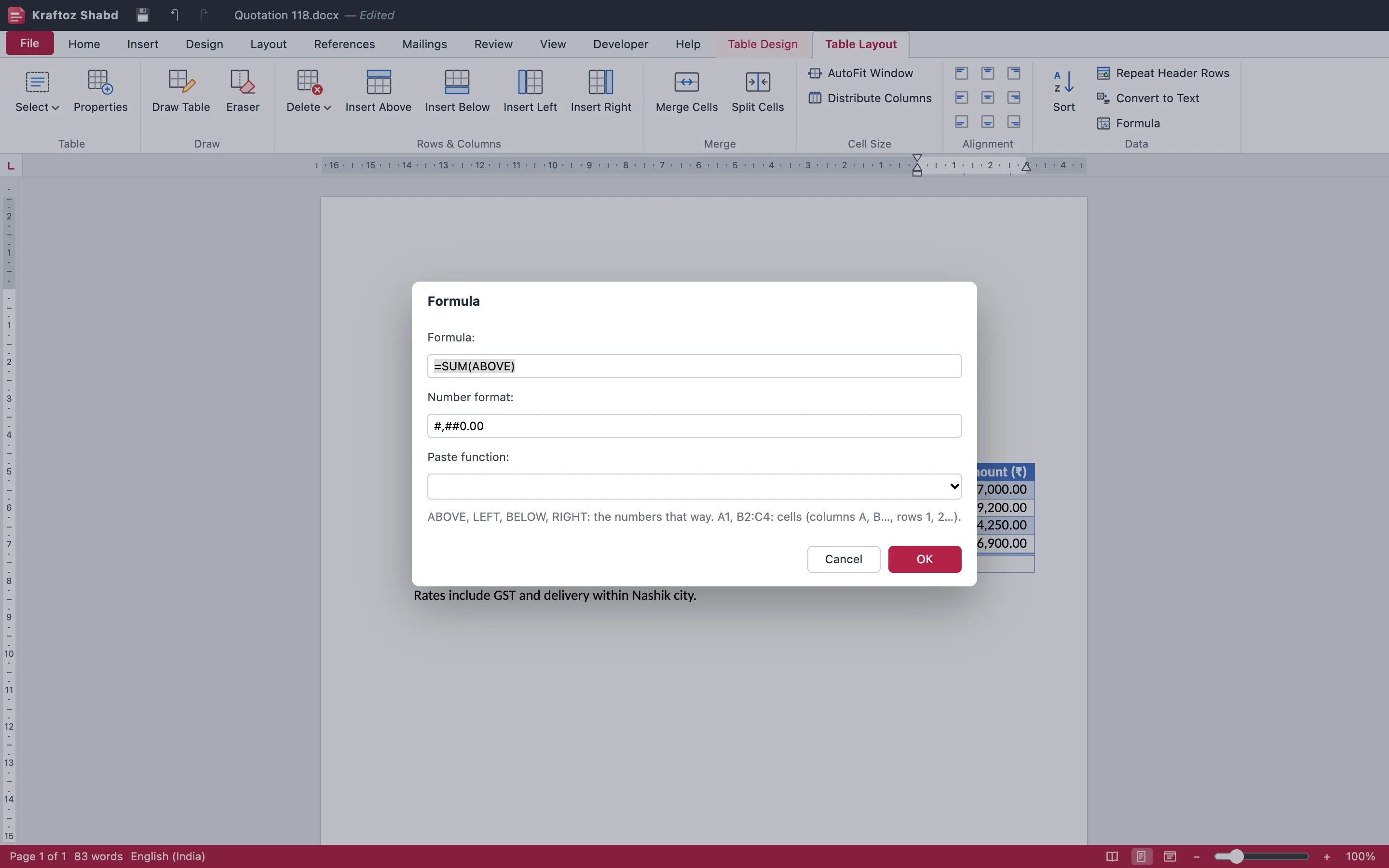
- Click in the cell for the result, for example the Total row under the Amount column.
- Go to Table Layout ▸ Data ▸ Formula.
- Shabd suggests =SUM(ABOVE), or =SUM(LEFT) when there are numbers to the left and none above. Change it if you need to.
- In Number format, choose or type how the result looks (see the table below), or leave it empty.
- Click OK.
In the quotation above, =SUM(ABOVE) with #,##0.00 puts 57,350.00 in the Total cell. If you change a number above it, the total changes too.
To change a formula, click in its cell and open Formula again.
What a formula can use
| You type | It means |
|---|---|
ABOVE, BELOW, LEFT, RIGHT |
The numbers in that direction, up to the first cell with text and no number |
A1, B3 |
One cell. Columns are A, B, C… from the left; rows are 1, 2, 3… from the top |
B2:D4 |
All the cells in that block |
+ - * / ^ % |
Add, subtract, multiply, divide, power, per cent |
= < > <= >= <> |
Comparisons, which give 1 (true) or 0 (false) |
For a row's amount, use a formula like =C2*D2 (quantity × rate).
Functions (in Paste function): SUM, AVERAGE, COUNT, MAX, MIN, PRODUCT, ABS, INT, MOD, ROUND, SIGN, AND, OR, NOT, IF, TRUE, FALSE. For example, =ROUND(E6*18%, 2) works out 18% GST on the amount in cell E6, to two decimals.
A cell's number is the first number in its text. ₹ and commas are allowed, and a number in brackets, like (500), counts as −500.
Number formats
| Format | 125000.5 shows as |
|---|---|
| (empty) | 125000.5 |
#,##0 |
1,25,001 |
#,##0.00 |
1,25,000.50 |
₹#,##0.00;(₹#,##0.00) |
₹1,25,000.50, and negative amounts in brackets |
0 |
125001 |
0.00 |
125000.50 |
0%, 0.00% |
The number with a % sign |
Numbers are grouped the Indian way: 1,25,000 and 12,50,000.
If a formula can't be worked out, the cell shows !Syntax Error. Dividing by zero shows !Zero Divide.
Converting a table to text
- Click in the table.
- Go to Table Layout ▸ Data ▸ Convert to Text.
- In Separate text with, choose Paragraph marks, Tabs, Commas or Other: (type the character).
- Click OK.
With Tabs, Commas or Other, each row becomes one paragraph. With Paragraph marks, each cell becomes its own paragraph.
Tables in Hindi and Marathi
Tables work the same way with Hindi and Marathi text. With the menus in Hindi, the tabs are टेबल डिज़ाइन and टेबल लेआउट, and Insert ▸ Table is सम्मिलित करें ▸ टेबल. See Getting started to change the menu language.
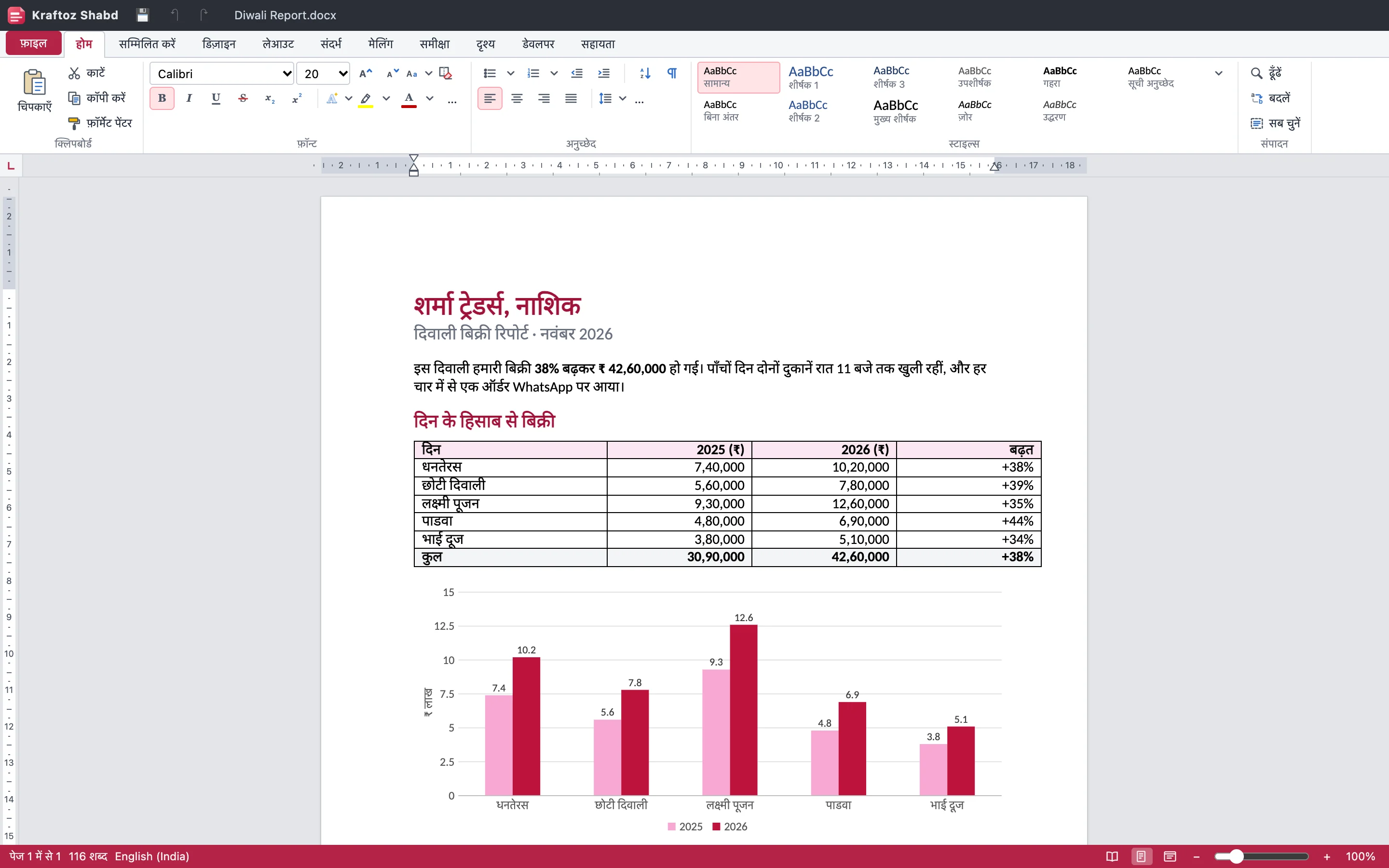
- Sort puts Hindi and Marathi words in the order of the alphabet: अ, आ, ओ, क, क्ष, ज्ञ…
- Formula and Sort as Number read numbers written with the digits 0 to 9, as in the report above.
Note
Numbers written in Devanagari digits (१२३) are not read as numbers. A formula skips those cells, and Sort as Number puts them last. Use 0 to 9 for numbers you want to add up or sort.
Tables in other file formats
Tables, merged cells, styles, shading, borders, header rows and formulas are saved in .docx files and open in other word processors. To add a caption such as "Table 1: Fees for 2026–27", see Captions.
Review ▸ Check Accessibility reports a table with more than one row and no header row, and can set the first row as the header for you. See Review.