Mail merge, envelopes and labels
Mail merge makes one letter, envelope or address label for each person on a list, and fills in that person's name and address. Use it for a shop's Diwali offer to its customers, a society's notice to every member, or address labels for a school's parents. All the commands are on the Mailings tab.
A merge has two parts:
- The document, with fields where each person's details go. A field shows as the column's name between « », such as «Name».
- The recipient list: one row for each person, from a .xlsx workbook, a CSV file, or a list you type in Shabd.
For one envelope or one sheet of labels without a list, see Envelopes and Address labels.
Preparing the list
Put one person on each row, and the names of the columns in the first row: Name, Address, City, State, PIN Code and so on.
| Name | Address | Area | City | State | PIN Code |
|---|---|---|---|---|---|
| Meera Joshi | Flat 12, Shanti Apartments | Karve Road, Kothrud | Pune | Maharashtra | 411038 |
| Anil Deshpande | 7, Gangapur Road | Near Jehan Circle | Nashik | Maharashtra | 422013 |
Shabd reads:
- A workbook saved as .xlsx, for example one made in Kraftoz Ganit. Dates come in as day-month-year (25-10-2026), and whole numbers such as PIN codes and mobile numbers without decimals.
- A CSV or text file (.csv, .txt or .tsv), with commas, semicolons or tabs between the values. Shabd uses whichever the first row has most of. Values in double quotes may contain commas and line breaks. Save the file as UTF-8 so Hindi and Marathi names come through.
Good to know:
- Empty rows are left out. A column without a name in the first row is called Column 1, Column 2 and so on. If two columns have the same name, the second gets a number (Name 2).
- An old .xls workbook can't be used directly. Open it in Kraftoz Ganit, save it as .xlsx, and pick that file.
Making letters
- Open the letter you want to send, or start a new one.
- Click Mailings ▸ Start Mail Merge ▸ Letters.
- Click Mailings ▸ Select Recipients ▸ Use an Existing List… and pick your file. If the workbook has more than one sheet, Shabd asks Which sheet has the recipients? and shows each sheet with its number of rows.
- The list opens in Mail Merge Recipients. Untick anyone who shouldn't get a letter, and click OK.
- Click in the letter where the address should go and click Address Block. Click where the greeting goes and click Greeting Line. For any other column, click Mailings ▸ Insert Merge Field and pick the column.
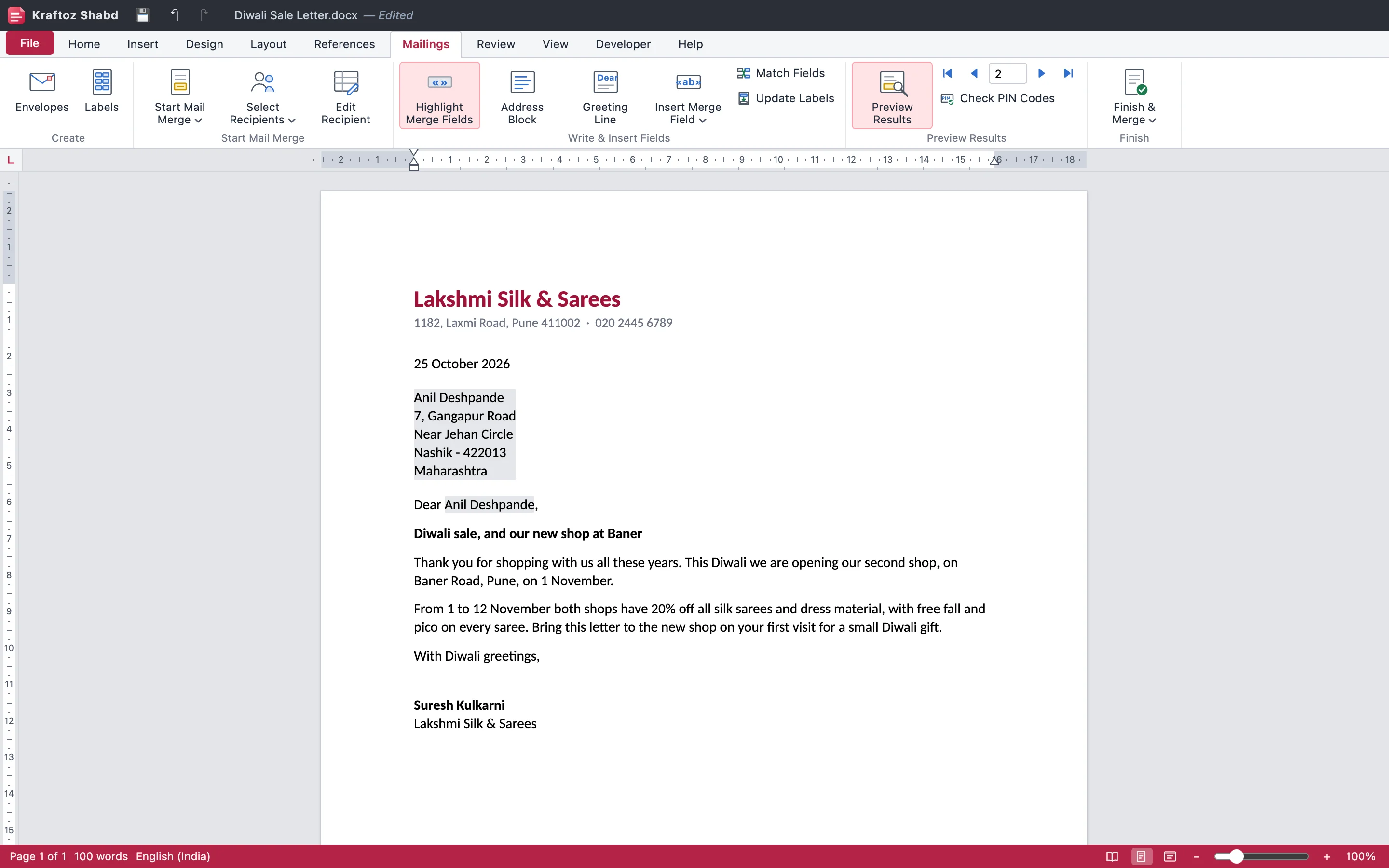
- Click Preview Results to see the letter with the first person's details.
- Click Mailings ▸ Finish & Merge ▸ Edit Individual Documents…, choose which records, and click OK.
The letters open as a new document, one letter on each page.
Typing the list in Shabd
To type the names in instead of using a file, click Select Recipients ▸ Type a New List…. Mail Merge Recipients opens with one empty row, and these columns:
Title, First Name, Last Name, Company Name, Address Line 1, Address Line 2, City, State, PIN Code, Country, Mobile, E-mail Address.
Type in the boxes, and click New Entry for each next person. Click OK when you're done. Rows left empty are dropped.
Editing the recipient list
Mailings ▸ Edit Recipient List opens Mail Merge Recipients again. The list shows as a table, with a tick box in front of each row.
| To | Do this |
|---|---|
| Leave someone out | Untick their row. The box in the header ticks or unticks everyone. |
| Find a row | Type in Filter. Only rows with that text in any column stay in view. |
| Sort | Click ↕ next to a column's name. Click again to sort the other way. Numbers sort as numbers. |
| Change a value | Click it and type. |
| Rename a column | Click the column's name and type. |
| Add a person | Click New Entry. A new row opens at the bottom. |
| Remove a person | Click in their row, then click Delete Entry. |
| Add a column | Click Add Column. |
Under the table, Shabd shows how many recipients are ticked and the file the list came from, for example "10 of 12 recipients ticked · Diwali customers.csv". Click OK to keep your changes, or Cancel to drop them.
Changes made here stay in Shabd. Your .xlsx or CSV file isn't changed.
Putting fields in the document
Address Block
Address Block puts in the whole name and address in one field, set out the way Indian post writes it: the city and PIN code on one line, and the state under it.
Anil Deshpande
7, Gangapur Road
Near Jehan Circle
Nashik - 422013
Maharashtra
In the Insert Address Block dialog:
| Setting | Choices |
|---|---|
| Insert recipient's name in this format | Mr. Asha Patil, Asha Patil, Patil, Asha, or Asha |
| Insert company name | Ticked to begin with. Adds the company under the name. |
| Country | Only if different from India (the country is left out for addresses in India), Always, or Never |
The Preview shows the address for a person on the list. Use ◀ and ▶ under it to step through the list, and check that long addresses come out right. A part that's empty for a person, such as a second address line, is left out without a blank line.
Greeting Line
Greeting Line writes the greeting, such as "Dear Mr. Patil," or "Respected Asha Patil,". In the Insert Greeting Line dialog:
- Greeting line format: choose Dear, To or Respected; how the name is written (Mr. Patil, Asha, Asha Patil or Mr. Asha Patil); and a comma, a colon or nothing after it.
- Greeting line for invalid recipient names: what to write for a row without a name: Dear Sir or Madam,, Respected Sir/Madam,, To Whom It May Concern: or Dear Customer,.
The Preview shows the greeting for the current person.
Other fields
Mailings ▸ Insert Merge Field lists the columns in your list. Click one to put it where the cursor is. In the document it shows as the column's name between « », with spaces written as underscores: the column First Name shows as «First_Name».
Use fields anywhere in the text, in tables and in text boxes: «Mobile» in a line at the bottom, or «Class» and «Roll No.» in a school letter.
Highlight Merge Fields
Highlight Merge Fields shades the fields so you can see them. It's on to begin with. Click it to hide the shading, and again to show it.
Match Fields
Address Block and Greeting Line find the right columns by their names. They know common names for each part, in any mix of capital and small letters, with or without spaces:
| Part | Column names Shabd recognises |
|---|---|
| Courtesy Title | Title, Courtesy Title, Salutation, Prefix |
| First Name | First Name, First, Given Name, FName, Name, Full Name |
| Middle Name | Middle Name, Middle, Father's Name |
| Last Name | Last Name, Surname, Family Name, LName |
| Company | Company, Company Name, Organisation, Organization, Firm, Business |
| Address 1 | Address Line 1, Address 1, Address, Street, Street Address, House No., Flat |
| Address 2 | Address Line 2, Address 2, Area, Locality, Landmark |
| City | City, Town, Village, Taluka |
| State | State, Province, Region |
| PIN Code | PIN Code, PIN, Postal Code, Postcode, Zip Code, Zip |
| Country | Country, Country or Region, Nation |
If your columns have other names, or are in Hindi or Marathi, tell Shabd which is which:
- Click Mailings ▸ Match Fields (or Match Fields… in the Insert Address Block dialog).
- For each part, choose the column that holds it, or (not matched) for a part your list doesn't have.
- Click OK. The Address Block and Greeting Line in the document use the new choices.
Checking PIN codes
Mailings ▸ Check PIN Codes goes through the ticked rows and lists the ones with a problem, with the person's name, the PIN code and what's wrong.
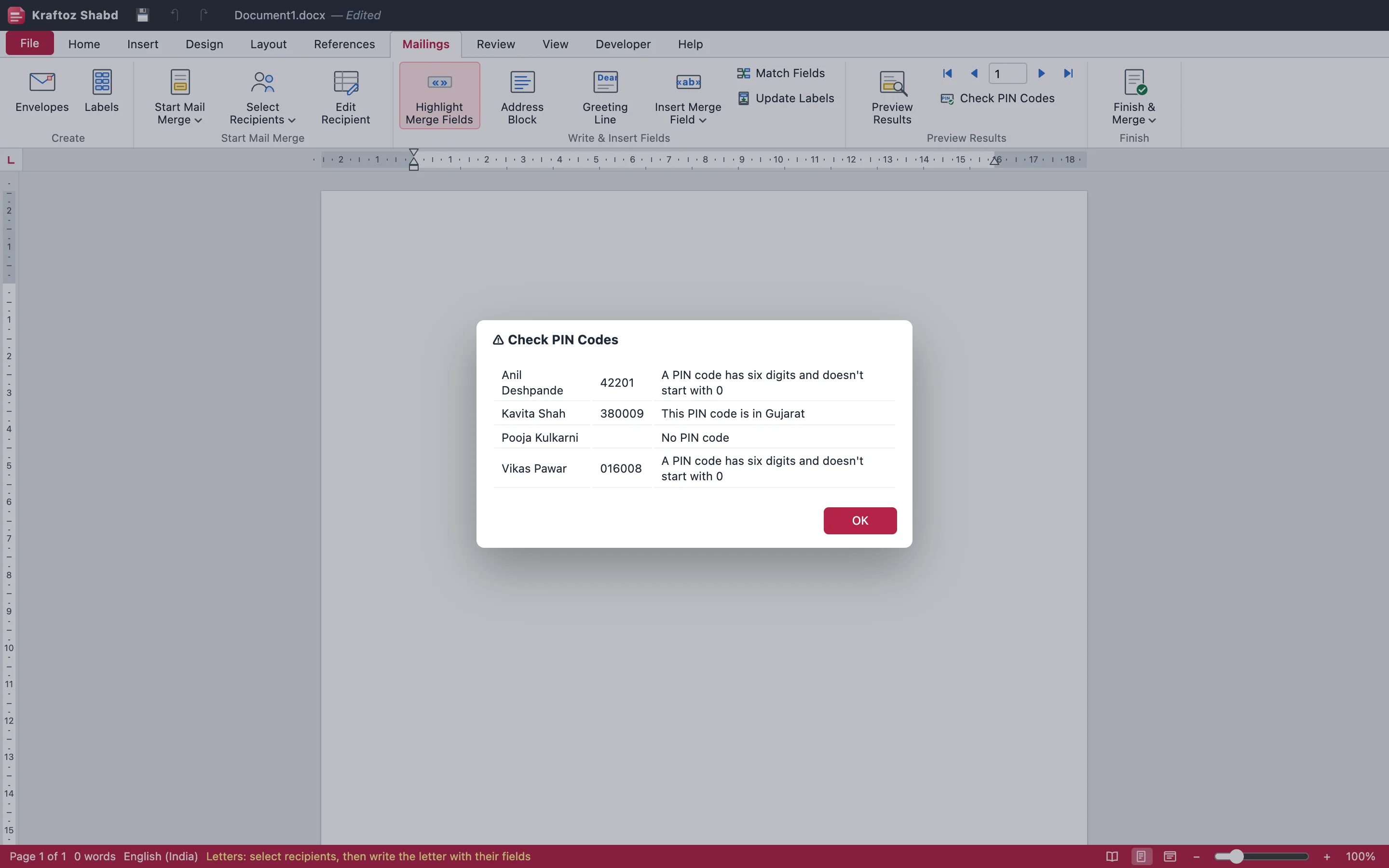
| Message | What it means |
|---|---|
| No PIN code | The PIN code cell is empty. |
| A PIN code has six digits and doesn't start with 0 | The PIN code is too short, too long, has letters in it, or starts with 0. Spaces in it are fine. |
| No post office region starts with these digits | No state has PIN codes starting with these two digits. |
| This PIN code is in … | The first two digits belong to another state than the one in the State column, for example "This PIN code is in Gujarat". |
When all is well, Shabd says: "All the PIN codes look right: six digits, in the state the address says."
Good to know:
- Rows with a country other than India (or Bharat) are not checked.
- PIN codes starting with 90 to 99 (Army Post Office) are accepted without a state check.
- The state is compared by its English name, such as Maharashtra or Tamil Nadu. A state written as MH, or in Hindi or Marathi, is reported as being in the wrong state.
- If Shabd says there's no PIN code column, use Match Fields to tell it which column holds the PIN codes.
In Mail Merge Recipients, PIN codes with a problem are marked in red. Point at one to see what's wrong. The mark updates when you correct the PIN code.
Previewing the results
Click Preview Results to see the document with a person's details in place of the fields. Click it again to see the field names.
Next to it:
| Button | What it does |
|---|---|
| First Record, Last Record | Go to the first or last person |
| Previous Record, Next Record | Step through the list |
| The box between them | Type a number and press Enter to jump to that record |
Only the ticked rows are counted. Clicking an arrow also turns Preview Results on.
Finishing the merge
Save your document before you finish. The merged result opens in its place, and Shabd warns you if there are changes you haven't saved.
- Click Mailings ▸ Finish & Merge, and choose:
- Edit Individual Documents… to open the result as a new document you can check, change and save.
- Print Documents… to make the result and go straight to the Print page. The Print page also has Save as PDF.
- Choose which records: All, Current record (the one in Preview Results), or From and To record numbers.
- Click OK.
The result is named after the kind of merge: Letters1.docx, Envelopes1.docx, Labels1.docx or Directory1.docx. The status bar says how many recipients were merged. Each letter or envelope starts on a new page; with labels, each full sheet is a page.
Note
One merge makes up to 5,000 copies. For a longer list, merge it in parts with From and To.
Shabd doesn't send merged letters by e-mail. Print them, or save them as a PDF and send that. Shabd also has no rules for leaving records out by a condition: untick those rows in Mail Merge Recipients instead.
Directories: a list on the same pages
Start Mail Merge ▸ Directory repeats the document for each person one after another, without a new page each time. Use it for a phone list, a members' register or a class list.
- Start a new document and click Mailings ▸ Start Mail Merge ▸ Directory.
- Select the recipients.
- Write one entry: the fields for one person, for example «Name», a tab, «Flat_No», a tab, «Mobile», and press Enter at the end so each person gets a line.
- Preview Results, then Finish & Merge ▸ Edit Individual Documents….
The result, Directory1.docx, has every ticked person's entry one under the other. Add a heading at the top of the result after merging.
Envelopes
One envelope
- If the letter has the address, select it first.
- Click Mailings ▸ Create ▸ Envelopes.
- In Delivery address, type the address (the selected address is already there).
- In Return address, type yours. Shabd remembers it in this browser for next time. Tick Omit to leave it off this envelope.
- Choose the Envelope size.
- Click Add to Document to put the envelope before the letter as its first page, or New Document to open it on its own.
| Envelope size | Size |
|---|---|
| DL | 110 × 220 mm |
| C5 | 162 × 229 mm |
| C4 | 229 × 324 mm |
| C6 | 114 × 162 mm |
| Size 10 | 4⅛ × 9½ in |
| Size 9 | 3⅞ × 8⅞ in |
The return address goes at the top left in small letters, and the delivery address from the middle of the envelope.
An envelope for everyone on a list
- Start from a new document. What's in the document is replaced by the envelope.
- Click Mailings ▸ Start Mail Merge ▸ Envelopes…. In Envelope Options, set the return address and the envelope size, and click OK. Click OK again when Shabd asks whether to go on.
- The envelope already has «AddressBlock» where the address goes.
- Select the recipients, preview, and Finish & Merge as for letters. Each envelope comes out on its own page.
Address labels
Shabd knows these A4 sheets of labels, with the size of each label:
| Label sheet | Across × down |
|---|---|
| A4, 8 labels (99.1 × 67.7 mm) | 2 × 4 |
| A4, 10 labels (99.1 × 57 mm) | 2 × 5 |
| A4, 12 labels (63.5 × 72 mm) | 3 × 4 |
| A4, 14 labels (99.1 × 38.1 mm) | 2 × 7 |
| A4, 16 labels (99.1 × 33.9 mm) | 2 × 8 |
| A4, 21 labels (63.5 × 38.1 mm) | 3 × 7 |
| A4, 24 labels (63.5 × 33.9 mm) | 3 × 8 |
| A4, 40 labels (52.5 × 29.7 mm) | 4 × 10 |
| A4, 65 labels (38.1 × 21.2 mm) | 5 × 13 |
Match the label size to the packet of labels you bought. A4, 21 labels is chosen to begin with.
A sheet of the same label
- Click Mailings ▸ Create ▸ Labels.
- Type the Address. If you selected text first, it's already there; otherwise Shabd fills in your return address.
- Choose Full page of the same label, or Single label with its Row and Column to print on one label of a part-used sheet.
- Choose the Label sheet and click New Document.
A label for each person on a list
- Start from a new document. Click Mailings ▸ Start Mail Merge ▸ Labels…, choose the label sheet in Label Options, and click OK. Click OK again when Shabd asks whether to go on. The page becomes a sheet of empty labels.
- Select the recipients as for letters.
- Click in the first label and put in an Address Block, or the fields you want.
- Click Update Labels. Every other label gets the same fields, each starting with «Next Record» so it takes the next person on the list.
- Preview Results, then Finish & Merge. Each full sheet of labels comes out on a page of its own.
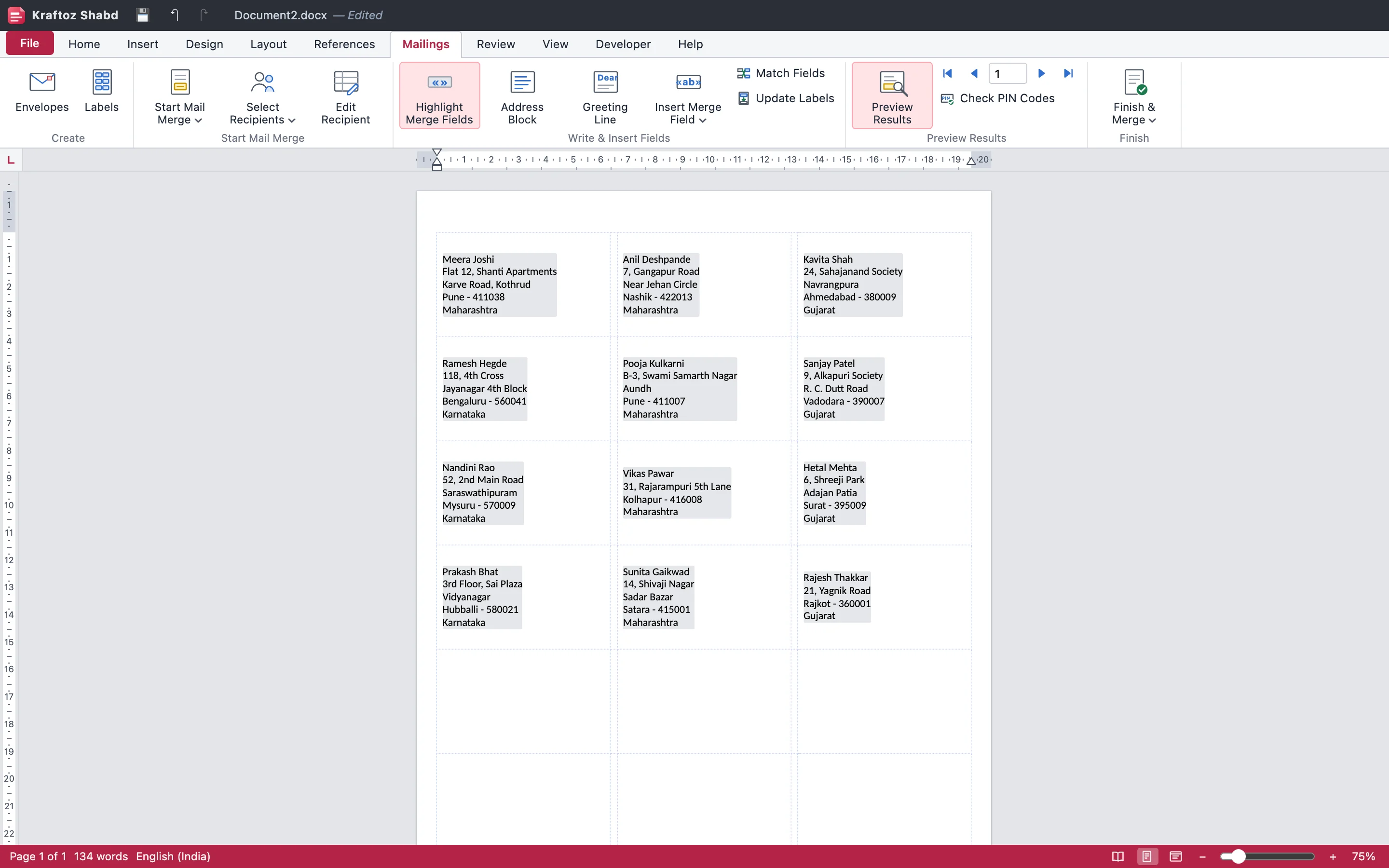
If you change the first label later, click Update Labels again.
Saving and reusing a merge
- Shabd keeps the list with the document when you save it as .docx. Next time you open it, the list is still there, with the rows you unticked.
- To use the document with a new list, choose Select Recipients again.
- To make it an ordinary document again, choose Start Mail Merge ▸ Normal Document. The fields stay in the text.