Printing and PDF
Phalak prints a presentation one slide to a page, or as notes pages with each slide and its speaker notes. It also saves the slides as a PDF to send on WhatsApp or by email, or to take to a print shop.
Printing is in File ▸ Print… (Ctrl+P). Saving a PDF is in File ▸ Save as PDF…, and on the Print screen.
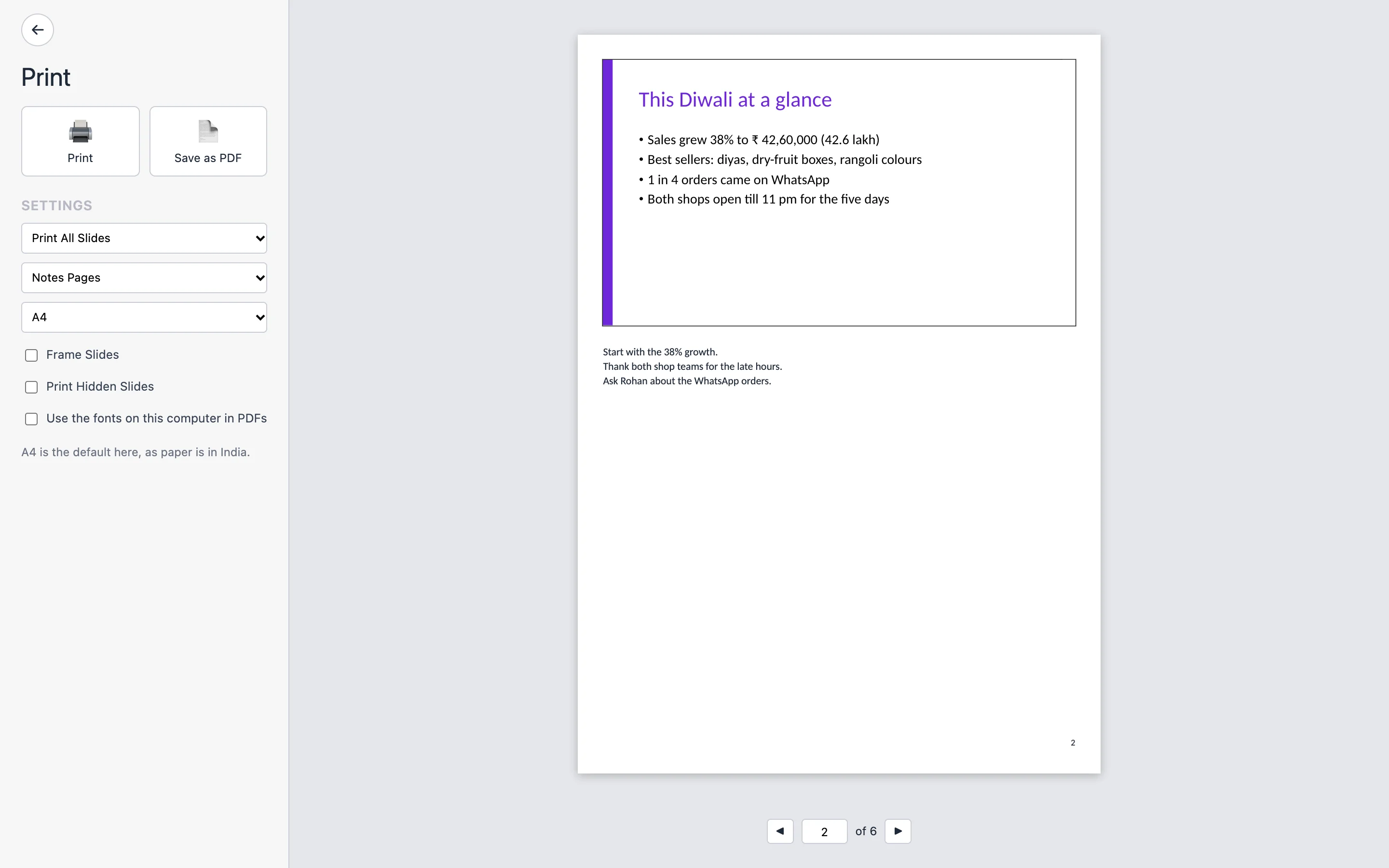
The Print screen
File ▸ Print… (Ctrl+P) opens the Print screen in place of the slides. The settings are on the left, and a preview of the pages fills the rest.
- The preview opens at the slide you were on.
- Use ◀ and ▶ under the preview, or Page Up and Page Down, to go through the pages. You can also type a page number in the box.
- Click ← at the top left, or press Esc, to go back to your slides.
The settings
| Setting | Choices | What it does |
|---|---|---|
| Which slides | Print All Slides, Print Current Slide | All the slides, or only the one you were on |
| What prints | Full Page Slides, Notes Pages | One slide to a page, or each slide with its notes (see below) |
| Paper | A4, Letter, Slide size | The page size. A4 is the default. |
| Frame Slides | ticked or not | A thin line round each slide |
| Print Hidden Slides | ticked or not | Also prints the slides hidden from the slide show |
| Use the fonts on this computer in PDFs | ticked or not | For PDFs only: see Fonts in PDFs |
The preview changes as you change a setting. Phalak keeps your settings until you close it.
On A4 and Letter paper, full page slides print across the page (landscape), with a margin of about 1 cm, and each slide is made as large as fits. Slide size prints each slide on a page of its own size, with no margin.
Notes pages
With Notes Pages, each slide prints at the top of an upright (portrait) page, framed, with its speaker notes under it and the slide number at the bottom right. Use them to present from paper, or to give a speaker their script. Type the notes in the notes pane under each slide: see Presenting a slide show.
To see the notes pages before you print, use View ▸ Notes Page.
Printing
- Choose the settings.
- Click Print, or press Ctrl+P on the Print screen.
- The print dialog of your browser or computer opens. Choose the printer, the number of copies, and any other printer settings there, and print.
With Print All Slides, hidden slides are left out unless Print Hidden Slides is ticked. Print Current Slide prints the slide you were on even if it is hidden.
Saving as a PDF
From the File menu
File ▸ Save as PDF… saves all the slides, one to a page, with each page the size of the slide. Hidden slides are left out.
- Go to File ▸ Save as PDF…. Phalak shows Making the PDF… while it works.
- Choose where to save the file. Its name is the presentation's name with .pdf, for example Diwali Review 2026.pdf. In browsers that can't ask, the PDF goes to your downloads folder.
The text in the PDF is real text, so it can be searched and copied, and lines and shapes stay sharp at any zoom. Pictures come out with their cropping and colour changes, as on the slide. The PDF's title is the presentation's title from File ▸ Properties…, or its file name when there is no title.
From the Print screen
Save as PDF on the Print screen saves a PDF with the Print screen's choice of slides: Print All Slides or Print Current Slide, with or without the hidden slides.
Note
The PDF is always one slide to a page at slide size. Save as PDF doesn't follow Notes Pages, the paper size or Frame Slides. To make a PDF of notes pages or A4 pages, click Print, and in the print dialog choose to save as PDF, if your computer offers it.
Fonts in PDFs
Phalak puts the fonts the PDF needs into the file, so it looks the same on any computer or phone.
- Hindi and Marathi text uses Noto Sans Devanagari, which comes with Phalak. Devanagari text in the PDF reads correctly on any computer, without Hindi fonts installed.
- Calibri, the font of the Plain theme, uses Carlito. Carlito has the same letter widths as Calibri, so lines break in the same places.
- Arial, Times New Roman and Courier New use the PDF's standard fonts.
To put the actual fonts installed on your computer into the PDF, such as Calibri itself, Georgia in the Lotus theme or Cambria in the Marigold theme, tick Use the fonts on this computer in PDFs on the Print screen. The browser asks for permission to read the computer's fonts: allow it. Phalak remembers the setting.
Note
Use the fonts on this computer in PDFs shows only in browsers that can share the computer's fonts with a web page. If the browser doesn't share them, Phalak says so, and the PDF keeps using Carlito.
Printing for a meeting
For a society AGM or a sales review, people often want a copy of the slides to write on.
- For each person in the meeting: choose Full Page Slides and A4, and tick Frame Slides so that slides with a white background have an edge. Set the number of copies in the print dialog.
- For yourself: print Notes Pages, so you have each slide with what you mean to say.
- To send before the meeting: use File ▸ Save as PDF… and send the PDF on WhatsApp or by email.
Note
Phalak has no handouts layout with several slides on a page. Each slide prints on a page of its own.