Transitions and animations
A transition is how a slide comes on screen in the slide show. An animation moves one object on a slide: a title fades in, bullet points fly in one at a time, a chart wipes in on a click.
Transitions are on the Transitions tab. Animations are on the Animations tab, with the Animation Pane for the order and timing of everything on a slide. In the slide pane, a slide with a transition or animations has a small ★ under its number.
Transitions
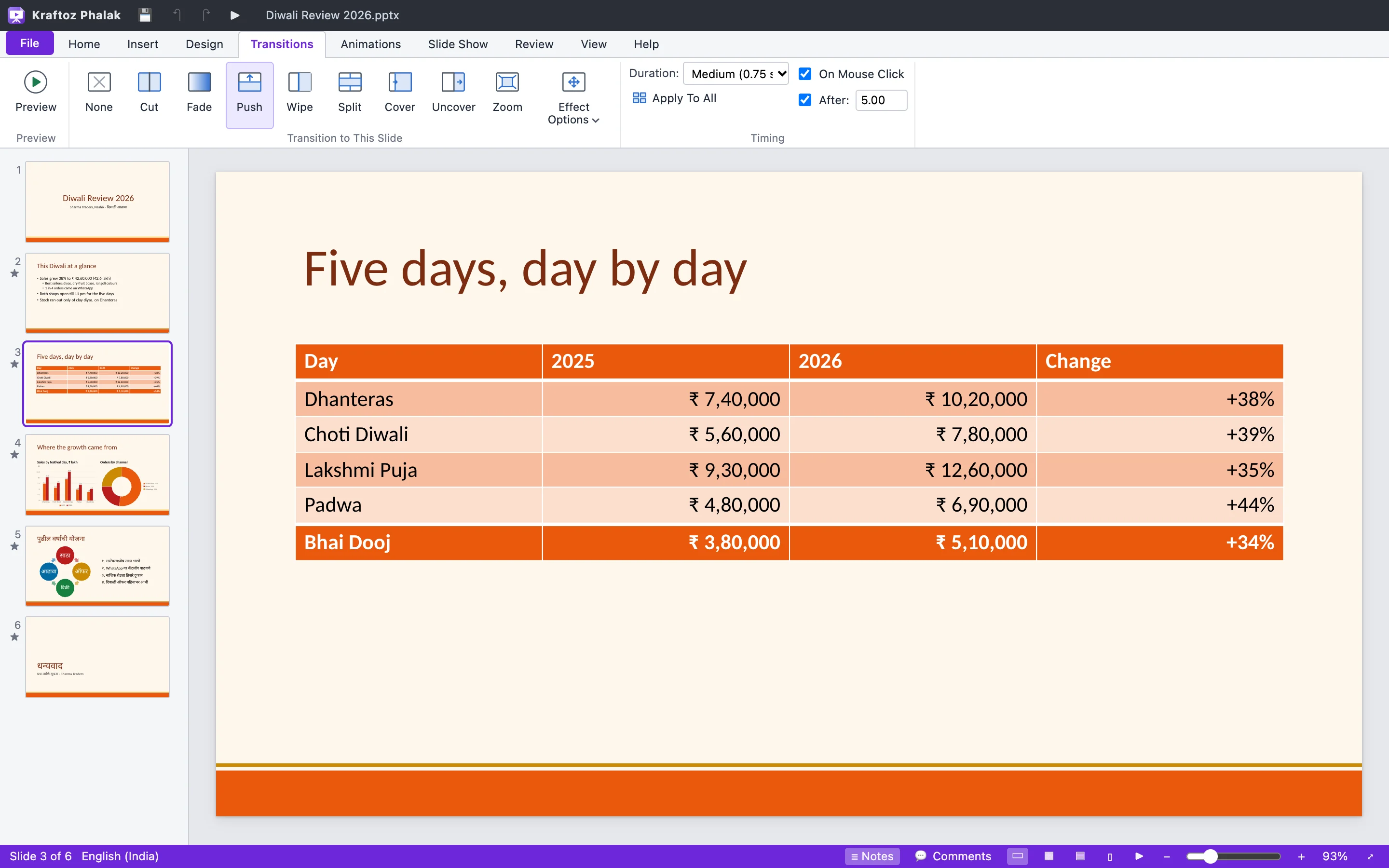
Adding a transition to a slide
- Click the slide in the slide pane.
- On the Transitions tab, in Transition to This Slide, click a transition. Phalak plays it once on the slide so you can see it.
- To see it again, click Transitions ▸ Preview. The preview starts from the slide before (or from black for the first slide).
The transition plays when the slide comes on screen, so put it on the slide that arrives, not the one that leaves.
To give several slides the same transition, select them first in the Slide Sorter (View ▸ Slide Sorter), or in the slide pane with Ctrl or Shift, then click the transition.
| Transition | What it does |
|---|---|
| None | No transition. The slide just appears. |
| Cut | The slide replaces the one before at once. |
| Fade | The slide fades in over the one before. |
| Push | The slide pushes the one before off the screen. |
| Wipe | The slide is uncovered from one edge, as if wiped across. |
| Split | The slide opens out from the middle. |
| Cover | The slide slides in on top of the one before. |
| Uncover | The slide before slides away and uncovers the new one. |
| Zoom | The slide grows from the middle as it fades in. |
To take a transition off, choose None.
Effect Options
Transitions ▸ Effect Options sets the direction. The first direction in the list is the one a new transition gets.
| Transition | Effect Options |
|---|---|
| Push, Wipe, Cover | From Bottom, From Left, From Right, From Top |
| Uncover | To Top, To Right, To Left, To Bottom |
| Split | Horizontal Out, Vertical Out |
| Fade, Cut, Zoom | None. Phalak says the transition has no effect options. |
Timing
The Timing group on the Transitions tab has these settings:
| Setting | What it does |
|---|---|
| Duration | How long the transition takes: Fast (0.5 s), Medium (0.75 s) or Slow (1 s). Medium is the default. |
| Apply To All | Copies this slide's transition, with its duration and timings, to every slide in the presentation. |
| On Mouse Click | The slide moves on when you click. |
| After | Tick it to move on by itself after the number of seconds in the box. Ticking it sets 5 seconds; type another number to change it. |
After is how you make a show that runs by itself, for example a festival offer on a TV at the shop counter:
- Select all the slides and tick After. Type the seconds each slide stays, such as 8.
- Go to Slide Show ▸ Set Up Slide Show and tick Loop continuously until 'Esc'. See Presenting a slide show.
A slide with animations waits until its last animation has played before its After time starts. Animations set to On Click still wait for a click.
Timings are used only while Use Timings is ticked on the Slide Show tab.
Note
Clearing On Mouse Click doesn't yet stop a click from moving to the next slide in Phalak's slide show. The setting is saved in the .pptx file.
Animations
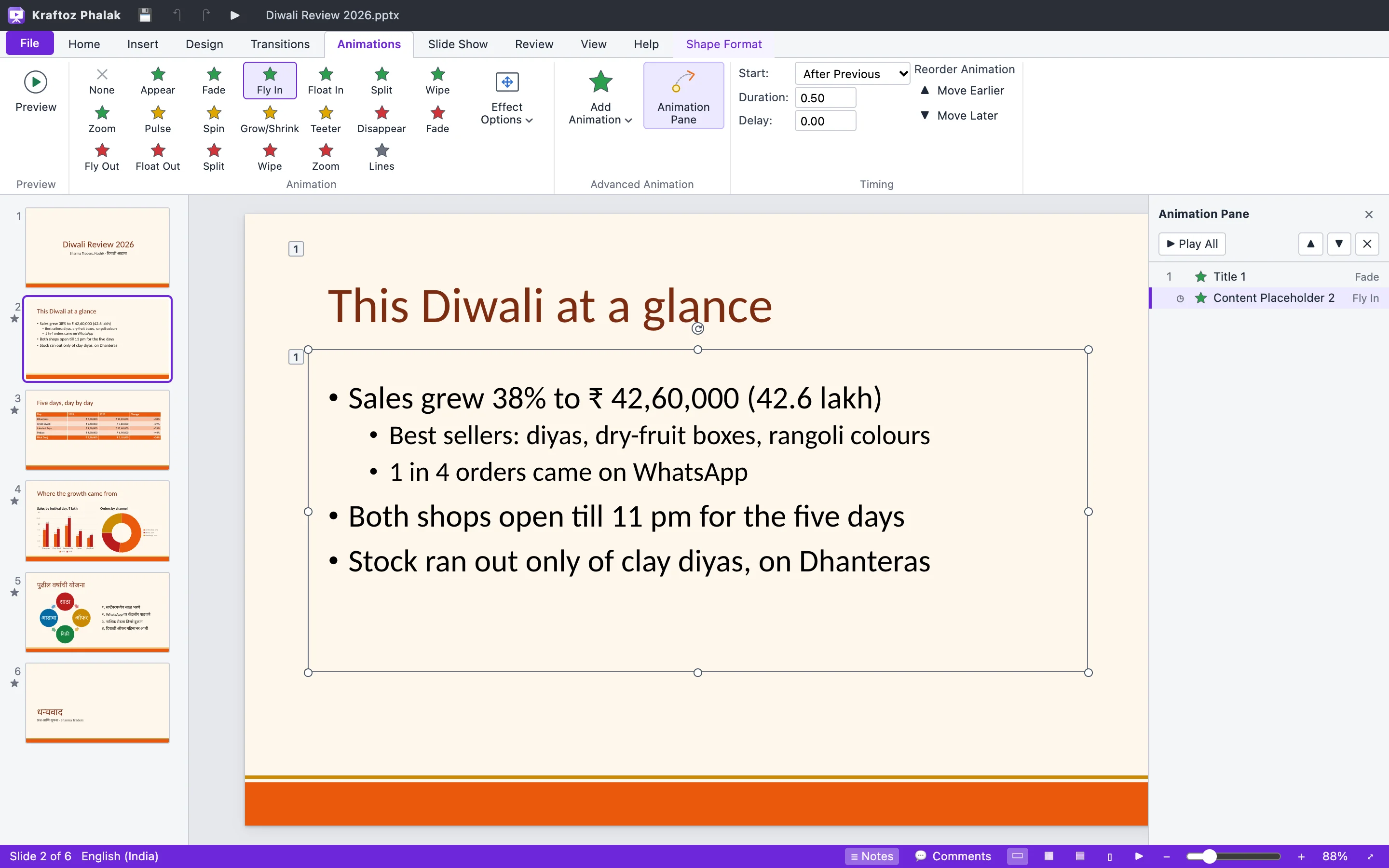
Adding an animation
- Select an object on the slide: a text box, a placeholder, a picture, a shape, a chart, a table or a diagram. You can select several.
- On the Animations tab, in the Animation gallery, click an effect. Phalak plays it once on the slide.
Clicking an effect in the gallery replaces the effect the object already has. To give an object a second effect, for example Fly In and then Pulse, use Add Animation (see below). To take all of an object's effects off, select it and click None.
The effects come in four kinds, each with a coloured star: green for entrance, yellow for emphasis, red for exit and grey for motion paths.
Entrance effects
Entrance effects bring an object onto the slide. Until its turn, the object is hidden.
| Effect | What it does | Usual duration |
|---|---|---|
| Appear | The object appears at once. | |
| Fade | Fades in. | 0.5 s |
| Fly In | Flies in from outside the slide. Has directions. | 0.5 s |
| Float In | Rises a little as it fades in. | 1 s |
| Split | Opens out from the middle. | 0.5 s |
| Wipe | Is uncovered from one edge. Has directions. | 0.5 s |
| Zoom | Grows from nothing as it fades in. | 0.5 s |
Emphasis effects
Emphasis effects draw attention to an object that is already on the slide.
| Effect | What it does | Usual duration |
|---|---|---|
| Pulse | Swells a little and goes back. | 0.5 s |
| Spin | Turns a full circle. | 2 s |
| Grow/Shrink | Grows to one and a half times its size and back. | 2 s |
| Teeter | Rocks from side to side. | 1 s |
Exit effects
Exit effects take an object off the slide. After the effect, the object stays hidden.
| Effect | What it does | Usual duration |
|---|---|---|
| Disappear | The object goes at once. | |
| Fade | Fades out. | 0.5 s |
| Fly Out | Flies off the slide. Has directions. | 0.5 s |
| Float Out | Rises a little as it fades out. | 1 s |
| Split | Closes in to the middle. | 0.5 s |
| Wipe | Is wiped away towards one edge. Has directions. | 0.5 s |
| Zoom | Shrinks to nothing as it fades out. | 0.5 s |
Motion paths
| Effect | What it does | Usual duration |
|---|---|---|
| Lines | Moves the object in a straight line, a quarter of the slide's width or height. It stays where it ends. Has directions. | 2 s |
Effect Options
Select the animated object, then click Animations ▸ Effect Options. What the menu shows depends on the effect and the object.
| Part of the menu | Choices | Shown for |
|---|---|---|
| Direction | From Bottom, From Left, From Right, From Top (Fly In, Wipe); To Bottom, To Left, To Right, To Top (Fly Out, and Wipe as an exit effect); Down, Left, Right, Up (Lines) | Effects with directions. A new effect starts From Bottom (or To Bottom, or Down). |
| Sequence | As One Object, By Paragraph | Entrance and exit effects on an object with text (not a table). |
| Animate Text | All at Once, By Word, By Letter | Entrance, exit and emphasis effects on an object with text, except Appear and Disappear. |
By Paragraph brings in a bullet list one point at a time. Phalak sets it for you when you animate a content placeholder that has more than one paragraph. How the points come depends on Start:
- With On Click, each point needs its own click. Use this for a class lesson, where you talk through one point before showing the next.
- With With Previous or After Previous, the first point starts as set, and each following point comes in after the one before, with no click.
By Word and By Letter bring the text in one word or one letter at a time. Each word or letter starts a tenth of the duration after the one before, so the whole effect takes a little longer.
Previewing animations
- Animations ▸ Preview plays every animation on the slide, one click group after another, on the slide you are editing.
- Play All in the Animation Pane does the same.
The preview doesn't wait for clicks. To see the animations as the audience will, start the slide show from the current slide with Shift+F5.
Timing
Select the animated object (or its row in the Animation Pane) and set its timing in the Timing group on the Animations tab.
| Setting | What it does |
|---|---|
| Start: On Click | The effect starts when you click. This is the default for a new effect. |
| Start: With Previous | The effect starts at the same time as the effect before it. |
| Start: After Previous | The effect starts when the effect before it ends. |
| Duration | How long the effect takes, in seconds, for example 0.50. |
| Delay | How long to wait, in seconds, after the effect would start. |
| Reorder Animation: Move Earlier, Move Later | Moves the effect up or down in the slide's list. |
If the first animation on a slide is With Previous or After Previous, it plays by itself as soon as the slide comes on screen.
Example for a Diwali sales slide: the title on On Click with Fade, the column chart After Previous with Wipe From Left, and the doughnut chart With Previous with Zoom. One click brings the title in, then both charts together.
Adding a second effect to an object
- Select the object.
- Click Animations ▸ Add Animation. The menu shows every effect under Entrance, Emphasis, Exit and Motion Paths.
- Click an effect. It goes at the end of the slide's list.
For example, a product photo can Zoom in on one click and Pulse on the next, when you announce the price of ₹ 1,499.
The Animation Pane
Click Animations ▸ Animation Pane to show or hide it. It lists the slide's animations in the order they play.
Each row shows:
- the click number, on rows that start with a click;
- a clock ◷ for an effect that starts After Previous;
- the effect's star;
- the object's name, such as Title 1 or Chart 3;
- the effect's name.
| To do this | Do this |
|---|---|
| Select an animation | Click its row. The object is selected on the slide too, and the Timing group shows its settings. |
| Play all the slide's animations | Click ▶ Play All. |
| Change the order | Click ▲ (Move Earlier) or ▼ (Move Later), or press Alt+↑ or Alt+↓. |
| Remove an animation | Click ✕, or press Delete. |
| Close the pane | Click ×, or click Animation Pane on the ribbon again. |
While the Animations tab or the Animation Pane is open, small numbers beside the animated objects on the slide show which click plays each one. 0 means the effect plays by itself when the slide comes on screen.
When you delete an object, its animations go with it.
Note
Phalak doesn't have an Animation Painter or triggers. To give another object the same effect, select it and pick the effect from the gallery, then set the same timing.
How animations play in the slide show
- Each click (or →, Space or Enter) plays the next click group: an On Click effect and the With Previous and After Previous effects that follow it.
- A click while effects are still playing finishes them at once.
- When the slide's animations have all played, the next click goes to the next slide.
- ← or Backspace goes back one click group. On a slide with nothing left to undo, it goes to the slide before, shown complete.
- Objects with an entrance effect stay hidden until their turn. Objects that have left with an exit effect stay hidden.
Transitions and animations are saved in .pptx files and come back when you open them. See Presenting a slide show for all the keys.