Getting started
Kraftoz Shabd is a word processor that runs in your browser, or as an installed app on your computer. This chapter shows the parts of the window, how to start a document, how to change the menu language, and how Shabd keeps your work and keeps working without internet.
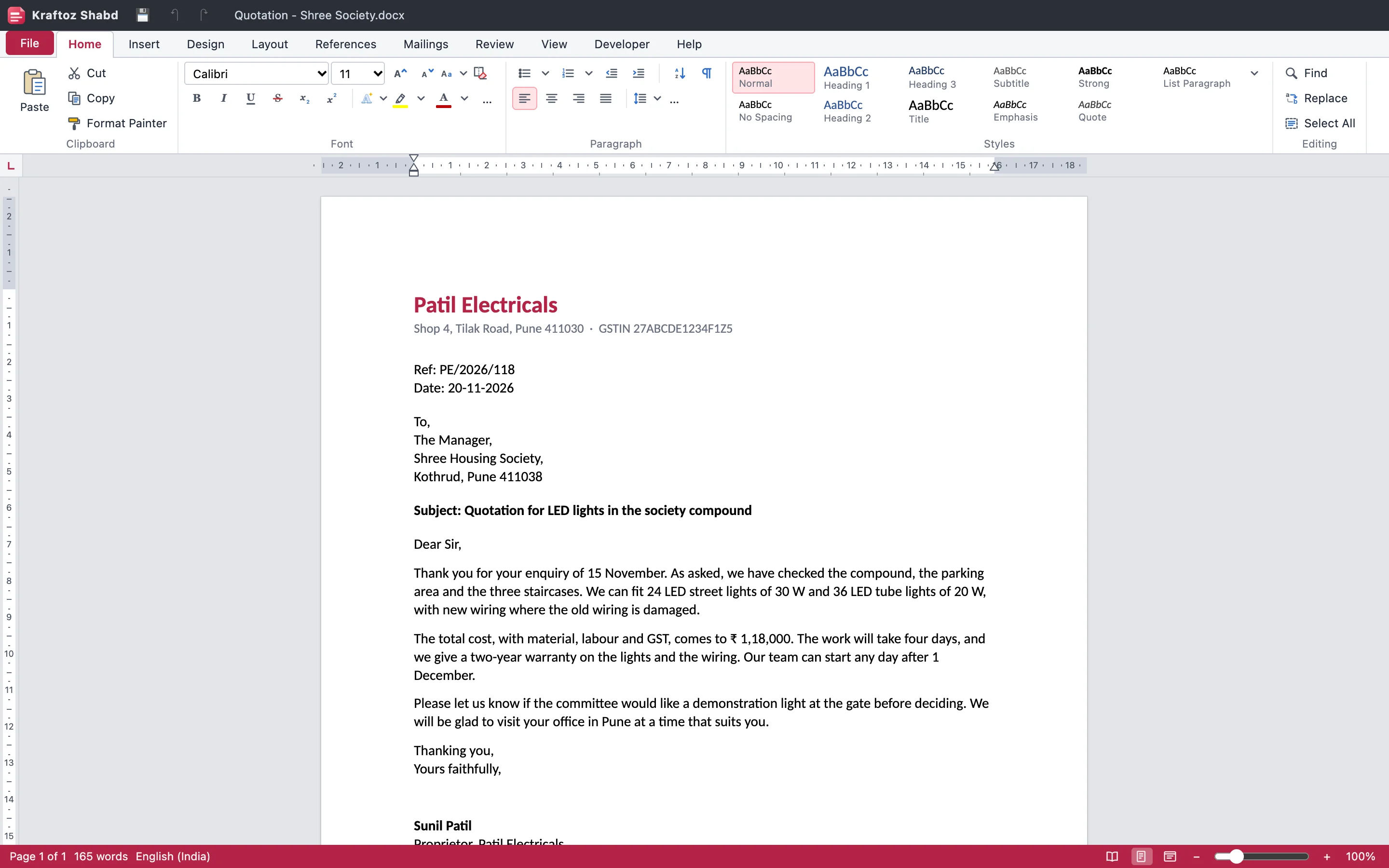
When Shabd opens
The first time you open Shabd, a welcome card asks you to agree to the Kraftoz Terms of Use and Privacy Policy. The links on the card open each page. Click Agree and continue. The card does not come back unless the terms change.
Each time Shabd starts, it shows a start-up screen while the document engine loads. When it says "Ready", click anywhere or press any key to go straight in. Otherwise it closes by itself after a few seconds.
Shabd then opens the document you were working on last time, as you left it. If there was none, it opens an empty document called Document1.docx: an A4 page with 2.54 cm margins, in Calibri 11 pt. There is no separate start screen: use the File menu to start a new document or open one.
The parts of the window
The title bar
The top bar shows the Shabd logo, three buttons and the document's name:
| Button | What it does |
|---|---|
| Save (the disk) | Save (Ctrl+S) |
| Undo (↶) | Undo (Ctrl+Z) |
| Redo (↷) | Redo (Ctrl+Y) |
After the name, — Edited means the document has changes you haven't saved to a file.
The ribbon
The ribbon holds the commands, in tabs. Each tab is divided into groups, with the group's name under it. In this manual a command is written as tab ▸ group ▸ button, for example Insert ▸ Text ▸ Date & Time.
| Tab | Groups |
|---|---|
| Home | Clipboard, Font, Paragraph, Styles, Editing |
| Insert | Pages, Tables, Illustrations, Links, Header & Footer, Text, Text Boxes, Symbols |
| Design | Document Formatting, Page Background |
| Layout | Page Setup, Paragraph |
| References | Table of Contents, Footnotes, Citations & Bibliography, Captions, Index |
| Mailings | Create, Start Mail Merge, Write & Insert Fields, Preview Results, Finish |
| Review | Proofing, Accessibility, Language, Comments, Tracking, Changes, Compare, Protect, Indian Languages |
| View | Views, Show, Zoom |
| Developer | Controls, Protect |
| Help | Help |
Some tabs appear only while you work on a certain thing. Most are shown in a different colour:
| Tab | Shows when |
|---|---|
| Table Design, Table Layout | the caret is in a table |
| Picture Format | a picture is selected |
| Shape Format | a shape or text box is selected |
| Chart Design | a chart is selected |
| Diagram Design | a diagram is selected |
| Header & Footer | you are editing a header or footer |
| Outlining | the document is in Outline view (this tab comes before Home) |
Point at a button to see what it does and its shortcut key. A button with ▾ opens a menu. Some buttons have two parts: click the picture to run the command, or the part with ▾ for its other choices. For example, Home ▸ Paragraph ▸ Bullets adds bullets, and its ▾ opens the Bullet Library.
The File menu
Click File, at the left end of the tabs, for the commands that work on the whole document.
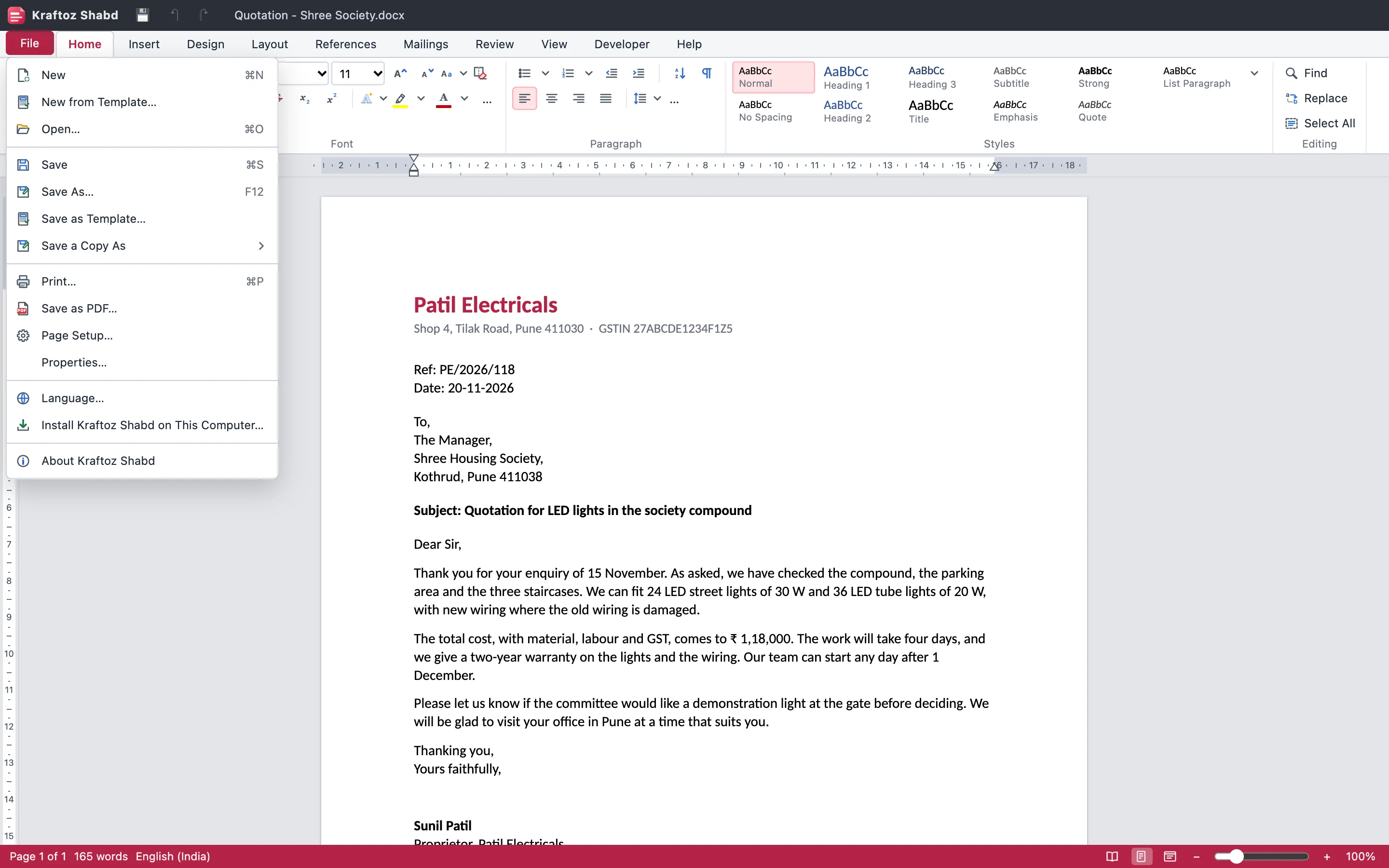
| Command | Shortcut | Where it's explained |
|---|---|---|
| New | Ctrl+N | Starting a new document |
| New from Template… | Templates | |
| Open… | Ctrl+O | Opening, saving and file types |
| Save | Ctrl+S | Opening, saving and file types |
| Save As… | F12 | Opening, saving and file types |
| Save as Template… | Opening, saving and file types | |
| Save a Copy As ▸ | Opening, saving and file types | |
| Print… | Ctrl+P | Printing and PDF |
| Save as PDF… | Printing and PDF | |
| Page Setup… | Page layout, headers and footers | |
| Properties… | Opening, saving and file types | |
| Language… | The menu language | |
| Install Kraftoz Shabd on This Computer… | Installing Shabd | |
| About Kraftoz Shabd | Help |
In the desktop app, Check for Updates… takes the place of the Install command.
The message bar
Sometimes a yellow bar appears under the ribbon with a message about the document, and a button to act on it. For example, when a document has text in Kruti Dev, the bar offers Convert to Unicode. Click × at its right end to close the bar.
The rulers
The ruler across the top shows the width of the page in centimetres, the margins in grey, and the indents and tab stops of the paragraph the caret is in. You can drag the indent markers and the margins on it, and click it to set a tab stop. The box at its left end chooses the kind of tab stop: click it to go through Left, Centre, Right, Decimal and Bar. See Formatting text and paragraphs.
The ruler down the left side shows the page's height and its top and bottom margins.
To hide or show the rulers, use View ▸ Show ▸ Ruler. Shabd remembers this in the browser.
The page
The page shows the document as it will print, one sheet after another, with gaps between the pages. Click in the text to put the caret there and type. See Typing and editing.
You can drop files on the page from your computer: a document (.docx, .doc, .odt or .rtf) opens, and a picture goes in where you drop it.
The status bar
The bar at the bottom of the window shows, from left to right:
- Page 1 of 3: the page the caret is on, and how many pages there are.
- The word count of the document. For more counts, see Counting words.
- The proofing language, such as English (India). You change it with Review ▸ Language ▸ Language. See Shortcuts and settings.
- Short messages, such as "Saved".
- A अ badge when phonetic typing is on, with the script's name. Click it to turn phonetic typing off. See Hindi, Marathi and amounts in words.
- The view buttons: Read Mode, Print Layout and Web Layout. See Views.
- The zoom controls.
Zoom
Zoom changes how large the page looks on screen. It does not change the printout.
- Click − or + in the status bar to zoom out or in by 10%, or drag the slider.
- Click the percentage, such as 100%, to open the Zoom dialog. Choose 200%, 100%, 75%, Page width, Text width or Whole page, or type a value in Percent.
- Hold Ctrl and turn the mouse wheel.
- View ▸ Zoom has Zoom (the same dialog), 100%, One Page (the whole page in the window) and Page Width (the page as wide as the window).
Zoom goes from 10% to 500%.
Views
The view buttons are in View ▸ Views, and three of them are also in the status bar. Shabd saves the view with the document, so a document saved in Web Layout opens in Web Layout.
| View | What it shows |
|---|---|
| Read Mode | The pages side by side, to read without editing |
| Print Layout | The pages as they print. This is the usual view. |
| Web Layout | The text as wide as the window, without pages |
| Outline | The headings by level, to see and reorder the document's structure |
| Draft | Just the text, without pages, headers and footers |
Read Mode
Read Mode fills the window with the pages, one or two at a time depending on the window's shape.
- Turn pages with ‹ and ›, the arrow keys, Page Up and Page Down, the space bar or the mouse wheel. Home and End go to the first and last page.
- Page Colour shows the pages in None (white), Sepia or Inverse (light text on dark).
- Edit Document goes back to Print Layout. × or Esc closes Read Mode and goes back to the view you were in.
Outline view
Outline view shows each paragraph with its level: Level 1 to 9 for headings, and Body Text for the rest. It brings the Outlining tab:
| Button | What it does |
|---|---|
| Promote to Heading 1 | Makes the paragraph a Level 1 heading |
| Promote / Demote | One level up or down (Alt+Shift+← / Alt+Shift+→) |
| The level box | Sets the level: Level 1 to Level 9, or Body Text |
| Demote to Body Text | Makes the paragraph ordinary text |
| Move Up / Move Down | Moves the selected paragraphs up or down past the next paragraph shown (Alt+Shift+↑ / Alt+Shift+↓). A collapsed heading moves with everything under it. |
| Expand / Collapse | Shows or hides what is under a heading (Alt+Shift++ / Alt+Shift+-) |
| Show Level | Shows the headings down to that level only, or All Levels |
| Show Text Formatting | Shows the text in its fonts, or plain |
| Show First Line Only | Shows only the first line of each paragraph |
| Close Outline View | Goes back to Print Layout |
You can also click the ⊕ mark at the left of a heading to collapse or expand it.
Starting a new document
Go to File ▸ New (Ctrl+N). Shabd opens an empty document named Document2.docx, Document3.docx and so on.
If the document on screen has changes you haven't saved, Shabd asks first. Click New to go ahead and lose those changes, or Cancel to go back and save them.
A Shabd window shows one document at a time.
New documents start with the look set by Design ▸ Document Formatting ▸ Set as Default, if you have used it. The author's name in the document's properties is the name you gave under Review ▸ Tracking ▸ User Name or File ▸ Properties….
New from a template
File ▸ New from Template… opens a gallery of ready documents:
| Template | What it has |
|---|---|
| Blank document | An empty document. |
| Business Letter | A letterhead with your firm's name, address and GSTIN, then reference, date, address, subject and the letter. |
| Leave Application | To the principal or manager: the days, the reason, and who'll do your work while you're away. |
| Leave Application (Hindi) | The same application in Hindi. |
| Notice | A notice for a society, school or office: what, when and where, signed by the secretary. |
| Biodata | Personal details, education, work, family and contact, in a table, with room for a photo. |
| Resume | Career objective, education, experience, skills, languages and the declaration. |
| GST Tax Invoice | Seller and buyer with GSTINs, HSN codes, CGST and SGST, the total in words and bank details. |
Click a template to open it as a new document. Click any text in [square brackets] and type to put in your own. Templates you saved yourself are listed under My Templates. See Templates.
The menu language
Shabd's menus, ribbon and dialogs can be in English, Hindi or Marathi.
- Go to File ▸ Language….
- Choose English, हिंदी or मराठी.
- Click OK.
Shabd opens again in that language, with your document as it was. Nothing in the document changes: your text stays as you typed it.
The language is remembered in this browser. In Hindi, File ▸ Language… is फ़ाइल ▸ भाषा…; in Marathi, फाईल ▸ भाषा….
To type Hindi or Marathi in the document, see Hindi, Marathi and amounts in words.
Your work is kept as you go
Shabd keeps a copy of the open document in the browser, a moment after each change. If you close the tab, the browser closes or the computer restarts, Shabd opens the document again the next time, with its name and its — Edited mark.
This copy stays in this browser on this computer only. It is not a saved file: to keep the document, to send it to someone or to open it on another computer, save it with File ▸ Save (see Opening, saving and file types). Only the last document is kept this way, so save a document before you start or open another one.
Shabd does not ask before you close the tab. The copy it keeps is what brings your work back.
Note
In a private or incognito window, the browser may not let Shabd keep this copy. Save your work to a file before you close the window.
Installing Shabd on your computer
You can install Shabd from the browser so that it opens from its own icon, in its own window, like other apps on your computer.
- Go to File ▸ Install Kraftoz Shabd on This Computer…, or Help ▸ Help ▸ Install.
- In Chrome or Edge, the browser asks whether to install. Click Install.
If the browser doesn't offer it, Shabd tells you how to install from the browser itself:
- Chrome or Edge: click the install icon at the right end of the address bar, or the browser's ⋮ menu ▸ Cast, save and share ▸ Install page as app.
- Safari on a Mac: File ▸ Add to Dock.
- Safari on an iPhone or iPad: the Share button ▸ Add to Home Screen.
If Shabd is already installed and you are using it, it says so.
Once installed, you can open .docx, .doc, .odt, .rtf and .txt files from your computer with Shabd (Open With ▸ Kraftoz Shabd).
The desktop app
If you use the Kraftoz Shabd desktop app, it checks for a newer version a few seconds after it starts. When there is one, a dialog shows the new version number:
- Update Now downloads and installs it, then restarts Shabd. Your document comes back as it was.
- Later skips that version until the next time you start Shabd.
To check yourself, go to File ▸ Check for Updates… or Help ▸ Help ▸ Check for Updates.
In the desktop app, Open and Save use your computer's own Open and Save dialogs. Double-clicking a .docx, .doc, .odt or .rtf file on your computer opens it in Shabd. If the Shabd window already has work in it, the document opens in a new window.
Note
In the desktop app, only the first window's document is kept for next time. Save documents you open in other windows before you close them.
Working offline
The first time you open Shabd in a browser, it saves a copy of its own files in the browser. A message in the status bar says when it is ready: "Kraftoz Shabd now works without internet."
After that, Shabd opens and works without internet, in the browser or as an installed app. If the connection drops while you work, the status bar says "You're offline." Your document, saving, printing and PDF all keep working.
These need internet:
- Downloading a free font that a document uses and your computer doesn't have. Shabd asks before it downloads. See Fonts the computer doesn't have.
- Opening a web link in a document.
- Reading the Terms of Use and Privacy Policy pages.
When you are online, Shabd loads its newest version each time it opens.
Help
The Help tab has:
| Button | What it does |
|---|---|
| Keyboard Shortcuts | The list of keys, with a search box (F1). See Shortcuts and settings. |
| Install | Install Shabd on this computer (in the browser). In the desktop app this is Check for Updates. |
| About | The version number, what Shabd does, how it treats your work, and the Licences and Privacy and Keyboard Shortcuts buttons. |
Shabd works on your own computer. Documents and settings stay in the browser or the installed app and are not uploaded.