Importing and the catalog
Before you can work on a shoot, you import it. Chhaya copies each photo into its catalog, in the browser's storage on your computer, and makes a thumbnail. This chapter covers importing, the formats Chhaya reads, removing photos, and backing up the catalog.
Importing photos
There are three ways to import:
- Import… in the top bar (Ctrl+Shift+I) opens your computer's file picker. Choose one or more photos.
- Import Folder… in the top bar picks a whole folder, with the folders inside it.
- Drag photos, or a folder, from your computer onto the Chhaya window.
Each way opens the Import dialog. It says how many photos will be copied into the catalog.
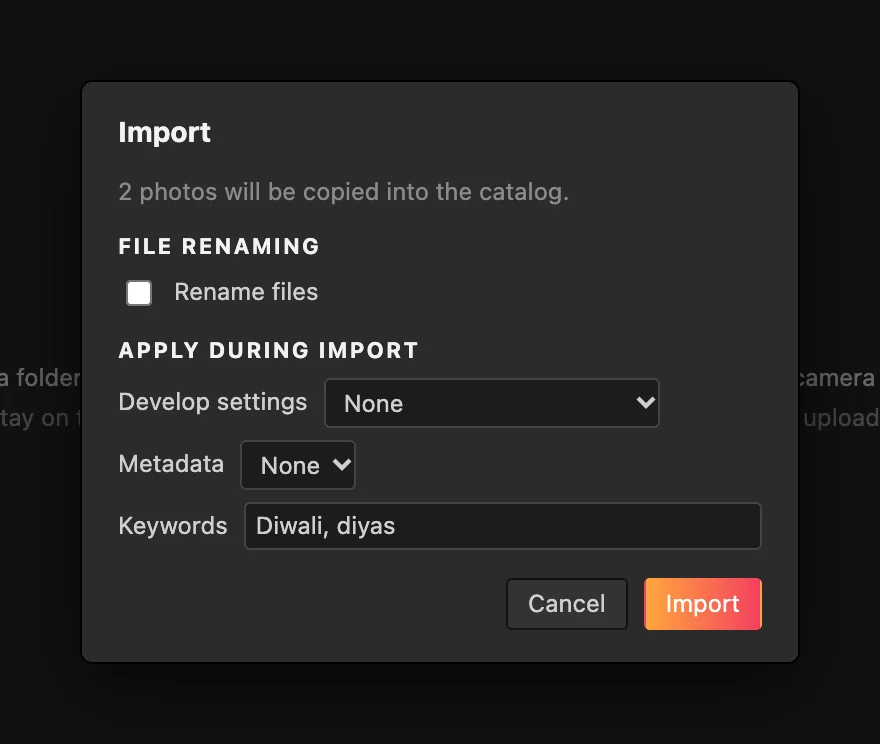
- Choose the options (see the table below).
- Click Import.
Chhaya shows "Importing 3 of 120…" at the bottom while it works, then how many photos it imported. Each photo appears in the grid as soon as it's in. If some files can't be opened, Chhaya says how many.
| Option | What it does |
|---|---|
| Rename files | Gives the photos new names as they come in. Choose a Template, the Custom text and the Start number. See Renaming photos for the templates. |
| Develop settings | Applies a preset to every photo, such as your own studio look. None leaves the photos as shot. |
| Metadata | Fills in a metadata preset, such as your name and copyright. See Metadata. |
| Keywords | Adds keywords to every photo. Separate them with commas, for example Sharma wedding, haldi, Pune. |
Chhaya remembers the renaming, develop settings and metadata choices for your next import. The keywords start empty each time.
Note
The count in the dialog includes every file you picked or dropped, even ones that aren't photos (such as a .txt file in the folder). Chhaya skips those when it imports, so the final count can be smaller.
Importing a folder
Import Folder… is the best way to bring in a whole shoot, because Chhaya remembers which folder each photo came from.
- Click Import Folder….
- Pick the folder, for example the card's folder or
Sharma wedding. Your browser may ask you to confirm; the files are only copied into Chhaya's storage on this computer. - Choose the options in the Import dialog and click Import.
Photos in folders inside the one you picked are imported too. Files that aren't photos are skipped.
Dragging photos onto the window
Drag photos from your computer anywhere onto the Chhaya window and let go. The Import dialog opens.
Some other files can be dropped too:
- .xmp files are imported as Develop presets, not as photos. See Presets, sync and history.
- A .zip catalog backup is restored. See Restoring a backup.
Note
A dropped folder may not import its photos. To import a folder, use Import Folder….
Supported formats
| Format | Notes |
|---|---|
| JPEG (.jpg, .jpeg) | |
| PNG | |
| WebP | |
| AVIF | |
| TIFF (.tif, .tiff) | |
| PSD | Chhaya imports the flattened picture. To work with a PSD's layers, open it in Edit. |
| HEIC, HEIF | Only in browsers that can show HEIC pictures themselves. |
| GIF, BMP | With Import Folder… or by dragging. The Import… file picker doesn't offer them. |
| Camera RAW | See the list below. |
Chhaya reads each photo's camera details (EXIF) as it imports: camera, lens, date taken, exposure, focal length and ISO. They appear in the Metadata panel.
Camera RAW files
| Camera maker | File types |
|---|---|
| Canon | .cr2, .cr3, .crw |
| Nikon | .nef, .nrw |
| Sony | .arw, .srf, .sr2 |
| Fujifilm | .raf |
| Olympus and OM System | .orf |
| Panasonic | .rw2 |
| Pentax | .pef |
| Samsung | .srw |
| Sigma | .x3f |
| Leica | .rwl |
| Hasselblad | .3fr |
| Phase One | .iiq |
| Leaf | .mos |
| Mamiya | .mef |
| Epson | .erf |
| Kodak | .kdc, .dcr |
| Minolta | .mrw |
| Any maker | .dng |
Notes on RAW files:
- The RAW decoder is a separate part of Chhaya. It downloads from Chhaya's site the first time you import a RAW file, so that photographers who shoot only JPEG never need it.
- Chhaya develops a RAW file with the camera's white balance, as a starting point. Change it in Develop.
- The file type alone doesn't guarantee a file opens: the decoder must know the camera model. A file it can't read is counted in the "couldn't be opened" message, and the rest of the import carries on.
- If this copy of Chhaya has no RAW decoder, RAW files can't be opened and Chhaya says so.
How the catalog keeps your photos
When you import, Chhaya copies each original into the catalog. After that it doesn't need the file on your computer, card or drive. You can take the card out, and the photos are still in Chhaya.
Your edits are stored as settings next to the copy. The original copy itself is never changed. Export makes new files with the edits applied. See Exporting.
A very large photo is worked on at the biggest size your computer's graphics chip can handle. Chhaya tells you the size it's using when that happens.
The same photo twice
Chhaya doesn't check for photos you've already imported. If you import the same card twice, every photo appears twice. To find doubles, sort the grid by File name (see Sorting) and remove the extra copies.
The Folders panel
The Folders panel on the left of the Library lists each folder you imported with Import Folder…, with the number of photos from it. A folder inside another shows its full path, such as Sharma wedding/Haldi.
Click a folder to show only its photos. Click All Photographs under Catalog to see everything again.
Photos imported with Import… or by dragging files belong to no folder. They appear under All Photographs and in your collections, but not under Folders.
The Folders panel shows where the photos came from. Moving or renaming folders on your computer doesn't change it, and it can't move photos between folders.
Removing photos from the catalog
- In the Library, select the photos. See Selecting several photos.
- Press Delete or Backspace.
- Chhaya asks Remove from Catalog. Click Remove.
The photos, their edits and their history are removed from Chhaya, along with Chhaya's copy of the original. The original files on your computer aren't touched. Removing a photo can't be undone in Chhaya: import it again if you need it back.
A virtual copy shares its original with the photo it was made from. The original is removed only with the last photo that uses it.
How much the catalog can hold
The catalog uses the browser's storage on this computer. How much it can hold depends on the browser and on the free space on your disk. Chhaya doesn't set a limit of its own, and it doesn't show how much space the catalog uses.
Each photo takes about the size of its original file, plus a small thumbnail. A wedding of 2,000 RAW files at 25 MB each needs about 50 GB of free disk space.
When the disk is nearly full, the browser may refuse to store more. New photos then fail to import and are counted as files that couldn't be opened, and changes may show "Couldn't save to the catalog". Back up, remove photos you've delivered, and free some disk space.
Backing up the catalog
A backup puts your whole catalog in one .zip file that you can keep on another drive.
- In the Library, click Back Up next to Catalog on the left.
- The Back Up Catalog dialog says how many photos, collections and presets it will save, with all edits and History.
- Keep Include the original photos ticked for a full backup. Without it the file is much smaller, but it holds only the settings, not the photos.
- Click Back Up.
Chhaya saves Kraftoz Chhaya catalog with the date, for example Kraftoz Chhaya catalog 2026-11-25.zip, where your browser saves downloads.
The backup holds the photos, their ratings, flags, labels, keywords, metadata and collections, the Develop edits and their History, snapshots, AI masks, and your own Develop presets.
Note
These are not in the backup: metadata presets, export presets, and your import, slideshow and web gallery settings. They are kept in the browser separately. The layers of an Edit document are not in the backup either; its saved, flattened picture is.
Restoring a backup
- In the Library, click Restore next to Catalog and choose the backup's .zip file, or
- drag the .zip file onto the Chhaya window.
Chhaya adds the backup's photos, collections and presets to the catalog you have open. Nothing already in the catalog is replaced, so restoring the same backup twice gives two of everything.
Note
A backup made without the original photos can't bring photos back. Chhaya restores its collections and presets, and tells you how many photos it skipped because their original file wasn't included.
To move your catalog to another computer or browser, back up with the originals, then restore the file there.