Book, slideshow and web gallery
Three modules turn a set of photos into something to deliver: Book makes an album as a PDF, Slideshow plays the photos full screen or saves them as a video, and Web makes a gallery website you can upload. They are at the top right of the window, next to Print.
All three work on the photos in the filmstrip at the bottom of the window, in filmstrip order, with their Develop settings. Each module has a Use setting:
| Use | Book | Slideshow and Web |
|---|---|---|
| Selected photos | The selected photos. If none are selected, all the filmstrip photos. | The selected photos, when two or more are selected. With one or none selected, all the filmstrip photos. |
| All filmstrip photos | Every photo the filmstrip shows | Every photo the filmstrip shows |
To work on one function's photos, open its collection in the Library first, for example Sangeet. To change the order, change Sort in the Library. See Organising in the Library.
Chhaya remembers each module's settings for next time.
Book
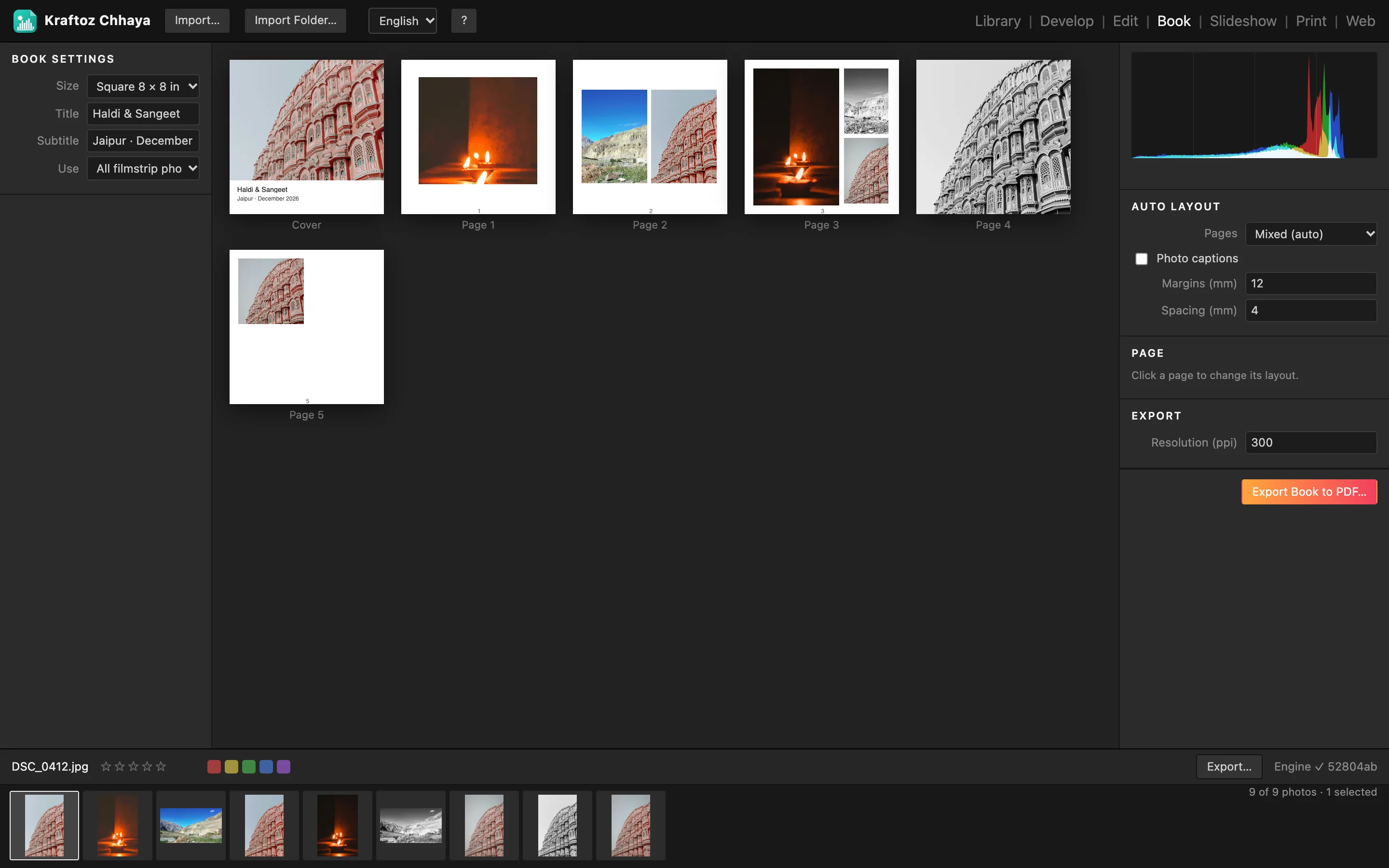
The Book module lays out an album: a cover, then pages with one to four photos each. It saves the album as a PDF.
Click Book, or press Ctrl+Alt+4 (⌘+Option+4 on a Mac). The middle shows every page small, the cover first.
Book settings
On the left, under Book Settings:
| Setting | What it does |
|---|---|
| Size | The page size (see below) |
| Title | The title on the cover, for example Haldi & Sangeet |
| Subtitle | A smaller line under the title, for example Jaipur · December 2026 |
| Use | Selected photos or All filmstrip photos |
| Size | mm |
|---|---|
| Square 8 × 8 in | 203.2 × 203.2 |
| Landscape 10 × 8 in | 254 × 203.2 |
| Portrait 8 × 10 in | 203.2 × 254 |
| A4 Portrait | 210 × 297 |
| A4 Landscape | 297 × 210 |
| Square 12 × 12 in | 304.8 × 304.8 |
The cover
The first photo is the cover. It fills the top part of the cover, with the title and subtitle below it. To choose the cover photo, put it first in the filmstrip.
Page layouts
Under Auto Layout on the right, Pages sets the layout of the pages:
| Layout | What it gives |
|---|---|
| Mixed (auto) | The layouts below in turn: 1 photo with border, 2 side by side, 1 large + 2, 1 photo full bleed, 2 × 2, 2 stacked, then again |
| 1 photo, full bleed | One photo to the paper's edges |
| 1 photo with border | One photo with white around it and space for a caption |
| 2 side by side | Two photos next to each other |
| 2 stacked | Two photos, one above the other |
| 1 large + 2 | One large photo on the left and two small ones on the right |
| 2 × 2 | Four photos |
Each photo is cropped from its centre to fill its box.
The other settings under Auto Layout:
| Setting | What it does |
|---|---|
| Photo captions | Puts the photo's caption (or its title, if it has no caption) under the photo, on "1 photo with border" pages only |
| Margins (mm) | The space around the photos, 0 to 40 mm. Full-bleed pages have none. |
| Spacing (mm) | The gap between photos, 0 to 20 mm |
Every page after the cover has its page number at the bottom centre. You can't turn it off.
Changing one page's layout
- Click the page in the middle.
- Under Page on the right, choose a layout in Page 1 layout (the number is the page you clicked).
The photos on the pages after it move to fill the new layout. If the last page has more boxes than photos left, the extra boxes stay empty.
Note
Layouts you choose for single pages are lost when you change Pages, and when you reload Chhaya. Set them just before you export.
Adding and removing photos
There's no dragging photos onto pages. The book uses the photos in the filmstrip, in order. To add, remove or reorder photos, change the selection, the collection or the sort order, and the pages are laid out again.
Exporting the book
- Under Export, set Resolution (ppi), 150 to 600. 300 is the default.
- Click Export Book to PDF….
Chhaya saves a PDF named after the title, for example Haldi & Sangeet.pdf, where your browser saves downloads. It has one page per book page, the cover first, at the book's size. The photos get output sharpening for glossy paper.
The Book module saves PDF only. There are no spreads, back cover or text-only pages.
Note
The cover title, subtitle and captions work only in English letters in the PDF. Hindi or Marathi text prints as ?, although the pages on screen show it correctly.
Slideshow
The Slideshow module plays the photos one after another, fading from each to the next, with an opening title, an ending, captions, a watermark and music. Play it full screen, or save it as a video to send to the family.
Click Slideshow, or press Ctrl+Alt+5 (⌘+Option+5 on a Mac). The middle shows one slide at a time at 16:9. Use ◀ and ▶ to look through the slides. On the left, Chhaya shows the number of slides and the length of the show, for example 24 slides · 96 s.
Options
| Setting | What it does |
|---|---|
| Slide length (s) | How long each slide shows, 1 to 30 seconds. 4 at first. |
| Fade (s) | How long the fade into the next slide takes, 0 to 5 seconds. 0 cuts straight to the next slide. It is never more than half the slide length. |
| Fit | Whole photo shows all of each photo, with the background colour around it. Zoom to fill fills the screen and cuts off the edges. |
| Background | The colour around the photos and behind the titles. Black at first. |
| Caption | Text at the bottom of each photo: None, Title, Caption or Filename |
The fade is the only change between slides. There are no other transitions or slideshow templates.
Titles
- Intro: text on a slide of its own before the photos, for example the couple's names on one line and the date on the next.
- Ending: text on a slide after the photos, for example Thank you.
Leave a box empty for no title slide. Title slides use the background colour, with dark or light text to suit it. Hindi and Marathi work here.
Watermark
Under Watermark, tick Add a watermark, then set:
| Setting | What it does |
|---|---|
| Text | The watermark text, for example © Studio Prakash |
| Size | The text height as a percentage of the photo's shorter side, 1 to 30 |
| Opacity | 5 to 100% |
| Position | One of nine places: top left, top, top right, left, center, right, bottom left, bottom, bottom right |
| Color | The text colour. White at first. |
Click Apply to see the change on the slide. The watermark goes on the photos, not on the title slides.
Music
- Under Music, click Choose music… and pick a song file.
- The file name shows above the button. No music means none is chosen.
The music starts with the first slide and stops when the show ends. It plays once and isn't faded: if the song is shorter than the show, the rest is silent. To fit them, set Slide length (s) so the show is about as long as the song.
Note
Chhaya doesn't keep the music. After you reload Chhaya, choose it again.
Playing the slideshow
Click ▶ Play. The show fills the screen with the music. Press Esc or click to stop it. It closes by itself after the last slide.
Exporting a video
- Click Export Video….
- Keep the Chhaya window in front while it records. The show records in real time, so a 2-minute show takes 2 minutes.
Chhaya saves Kraftoz Chhaya slideshow.mp4 where your browser saves downloads, at 1920 × 1080 and 30 frames a second, with the music. If the browser can't record MP4, the video is a WebM file instead (Kraftoz Chhaya slideshow.webm).
There is no PDF export of a slideshow.
Web gallery
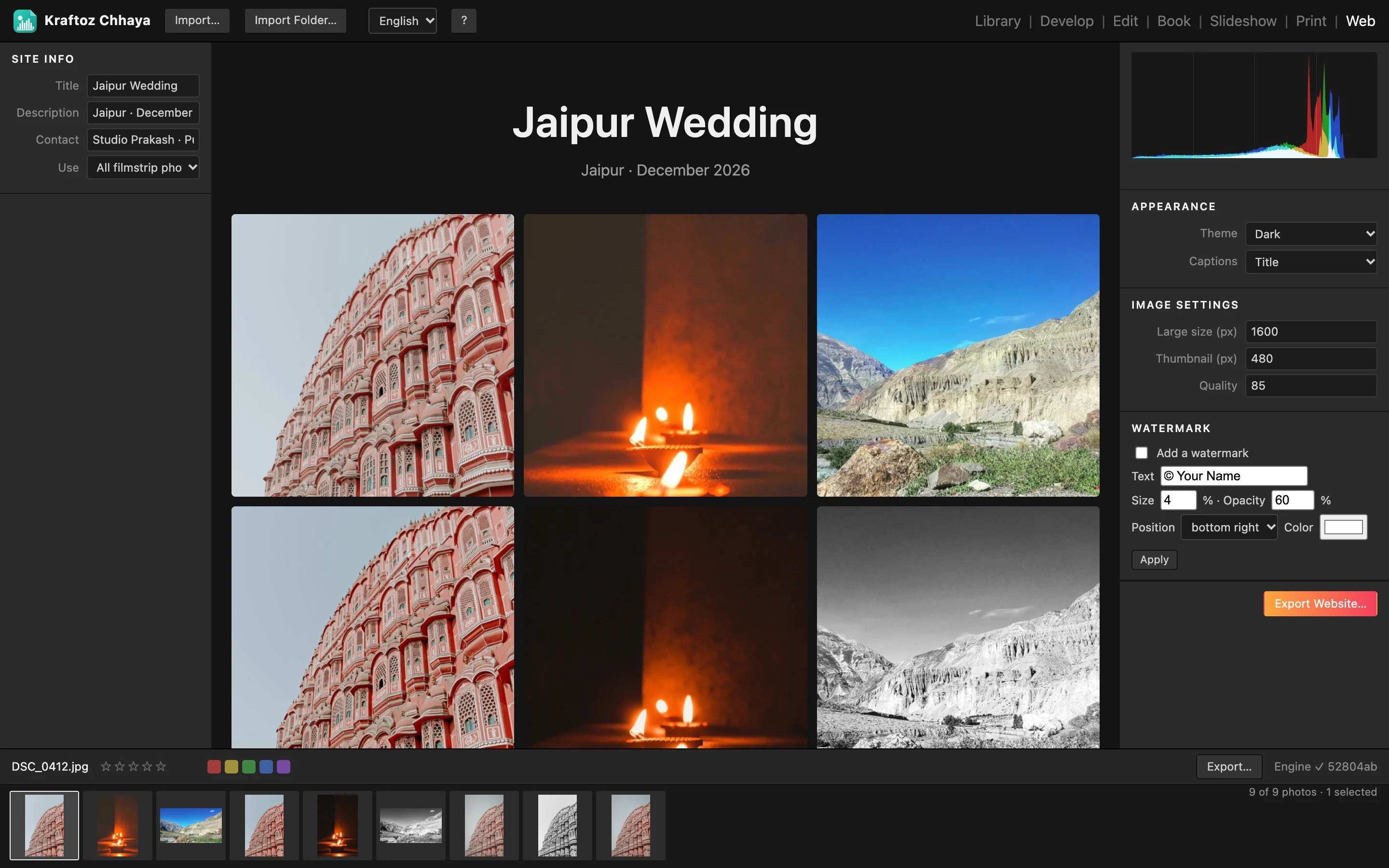
The Web module makes a one-page photo gallery website: your title at the top, a grid of photos, and a full-screen viewer when someone clicks a photo. It saves the site as a zip file to upload to your web host.
Click Web, or press Ctrl+Alt+7 (⌘+Option+7 on a Mac). The middle shows the gallery as visitors will see it, and you can click the photos to try the viewer.
Site info
On the left, under Site Info:
| Setting | What it does |
|---|---|
| Title | The heading of the page, and the name of the zip file |
| Description | A line under the title, for example Pune · December 2026 |
| Contact | Your studio and phone number, shown at the foot of the page |
| Use | Selected photos or All filmstrip photos |
The foot of the page also says Made with Kraftoz Chhaya.
Appearance
| Setting | What it does |
|---|---|
| Theme | Dark or Light background |
| Captions | None, Title, Caption or Filename. The caption shows under the photo in the viewer, and when the mouse rests on a photo in the grid. Title at first. |
The grid shows each photo as a square. The viewer shows the whole photo. In the viewer, visitors move with the arrow buttons, the arrow keys or a swipe on a phone, and close it with × or Esc.
Image settings
| Setting | What it does |
|---|---|
| Large size (px) | The long side of the photos in the viewer, 640 to 4096. 1600 at first. |
| Thumbnail (px) | The long side of the grid photos, 160 to 1024. 480 at first. |
| Quality | JPEG quality of the large photos, 40 to 100. 85 at first. |
The photos get output sharpening for screens. The large photos carry your copyright from the photo's metadata, and no camera details.
Watermark
The Watermark settings are the same as the slideshow's (see Watermark). The watermark goes on the large photos only, not the grid. The preview doesn't show it.
Exporting the website
- Click Export Website…. Chhaya shows Preparing 1 of 40… as it makes each photo.
- Chhaya saves a zip file named after the title, for example Jaipur Wedding.zip, where your browser saves downloads.
The zip holds:
| File or folder | What it is |
|---|---|
| index.html | The gallery page |
| images/ | The large photos, 001.jpg, 002.jpg and so on |
| thumbs/ | The grid photos, with the same names |
Putting the gallery online
Unzip the file, and upload the contents of the folder (index.html with the images and thumbs folders) to any web host, in the folder where the gallery should appear. Then send the client the link.
To check the gallery first, unzip it and open index.html in a browser.
The gallery has no password, comments or downloads of its own. Anyone with the link can see it.